
Otomasyonlar
Çağrılarınızın etrafındaki rutin işleri kendiliğinden hallettirin — kaçan bir arayanı geri arayacak şekilde mesaj atmak ya da yeni bir randevuyu takvime eklemek gibi. "Bu olunca şunu yap" şeklinde basit bir kuralı bir kez kurarsınız, gerisini Calleague halleder.
Bir çağrıdan sonra aynı küçük işler tekrar tekrar karşınıza çıkar. Biri arar ama kimse açamaz; ona geri dönmek için mesaj atmak istersiniz. Asistan bir randevu oluşturur; bunu takvime eklemek istersiniz. Otomasyonlar bu küçük, tekrar eden işleri sizin yerinize yapar — sessizce, arka planda, her seferinde. Kuralı bir kez kurarsınız, gerisi kendiliğinden halledilir.
Fikir çok basit: "bu olunca şunu yap." Hiçbir teknik bilgi gerekmez — mesaj atabiliyorsanız, bir otomasyon kurabilirsiniz.
Ne yapacaksınız
Uygulamadaki Otomasyon alanını bulacak, tepki verebileceğiniz gerçek çağrı anlarını öğrenecek ve ilk kuralınızı kuracaksınız — örneğin, bir çağrı kaçırıldığında arayana sıcak bir mesaj gönder.
Bir bakışta
| Nedir | Basit bir kural: "bu olunca şunu yap" |
|---|---|
| Kimin için | Herkes — teknik bilgi gerekmez |
| Nereden kurulur | Soldaki menüdeki Otomasyon alanı |
| Ne zaman çalışır | Otomatik olarak, seçtiğiniz olay gerçekleştiği anda |
| Neler yapabilir | Mesaj gönderir, çağrı kaydeder, ekibi bilgilendirir, randevu ekler |
| Kontrol kimde | Sizde — siz açana kadar hiçbir şey çalışmaz, istediğiniz an durdurabilirsiniz |
| Sonuçları nerede görürsünüz | Çalışan her şeyin ve başarılı olup olmadığının net bir kaydı |
Basit fikir: "bu olunca şunu yap"
Bir otomasyon, sade kelimelerle yazdığınız bir kuraldır. İki parçası vardır:
- Bu olunca — örneğin, bir çağrı kaçırıldığında.
- Şunu yap — örneğin, arayana bir mesaj gönder.
Tüm fikir bundan ibaret. Anı siz seçersiniz, sonra ne olması gerektiğini siz seçersiniz. Calleague bunu sizin yerinize yapar, her seferinde aynı şekilde — böylece hatırlamak zorunda kalmazsınız.
Bir otomasyonu, asla kaybolmayan bir not kâğıdı gibi düşünün: "Biri randevu için aradığında ona onay mesajı gönder." Tek farkı, bunu sizin yapmanıza gerek yok — kendiliğinden olur.
Tepki verebileceğiniz gerçek anlar
Bir otomasyonun "bu olunca" kısmı neredeyse her zaman bir çağrıda gerçekleşen bir şeydir — ve bu anları zaten uygulamanızda görebilirsiniz. İşte en yaygın iki tanesi.
Kaçan bir çağrı
Menüden Aramalar alanını açın; her çağrıyı bir Durum ile birlikte görürsünüz. Kaçırıldı olarak işaretlenmiş bir çağrı, tepki verebileceğiniz bir andır — örneğin arayana geri mesaj atarak.
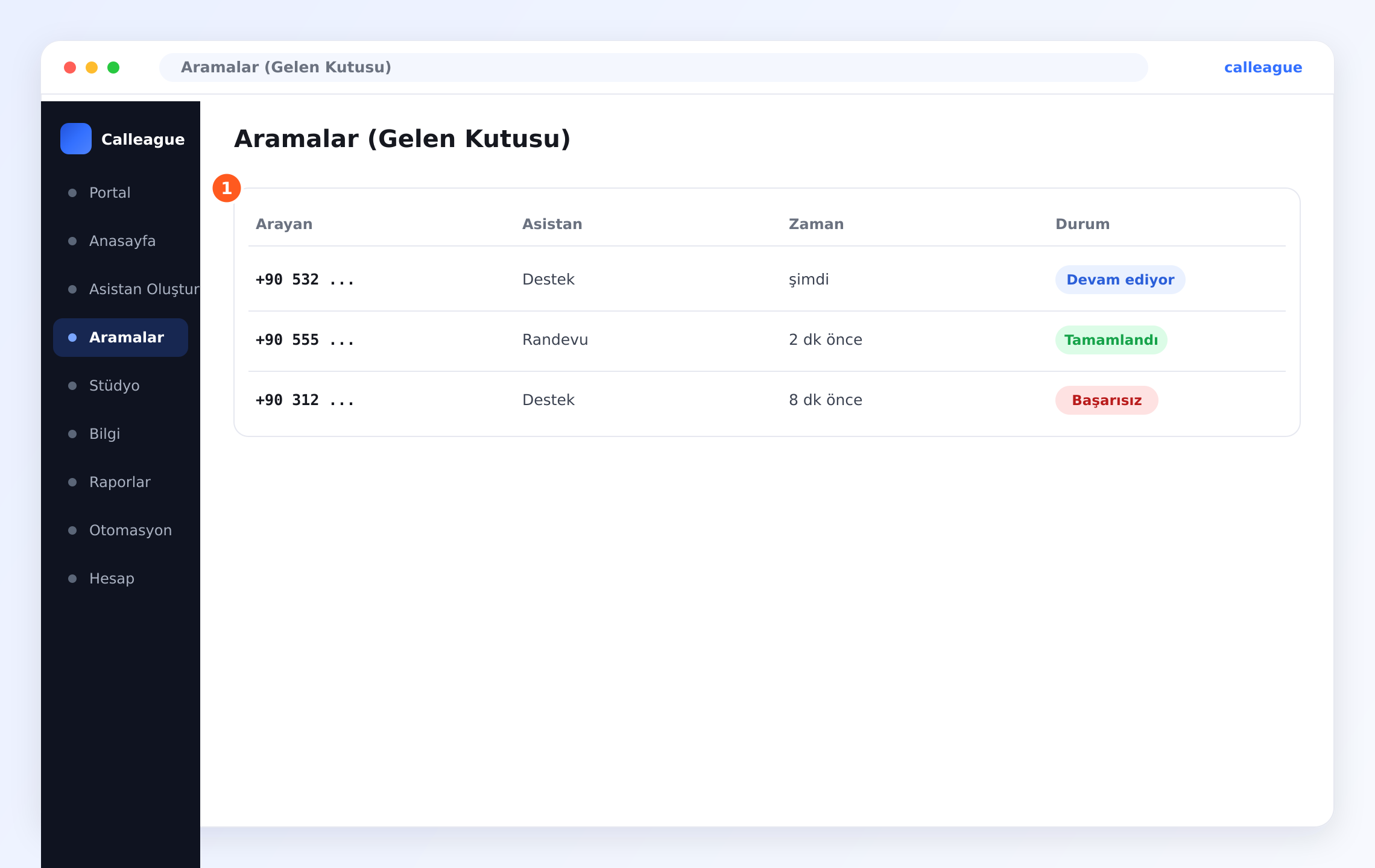
Her arayanı, çağrıyı hangi asistanın yanıtladığını, saati ve renkli bir durumu içeren ① çağrı listesini görürsünüz: Canlı (şu anda gerçekleşiyor), Bitti (tamamlandı) veya Kaçırıldı (kimseye ulaşılamadı). Kırmızı Kaçırıldı etiketi, bir "kaçan çağrı" otomasyonunun beklediği andır.
Bir randevu oluşturuldu
Bir çağrı bittiğinde Calleague ne olduğunu okur ve Sonuç olarak kaydeder. Detayını açmak için herhangi bir çağrıya tıklayın.
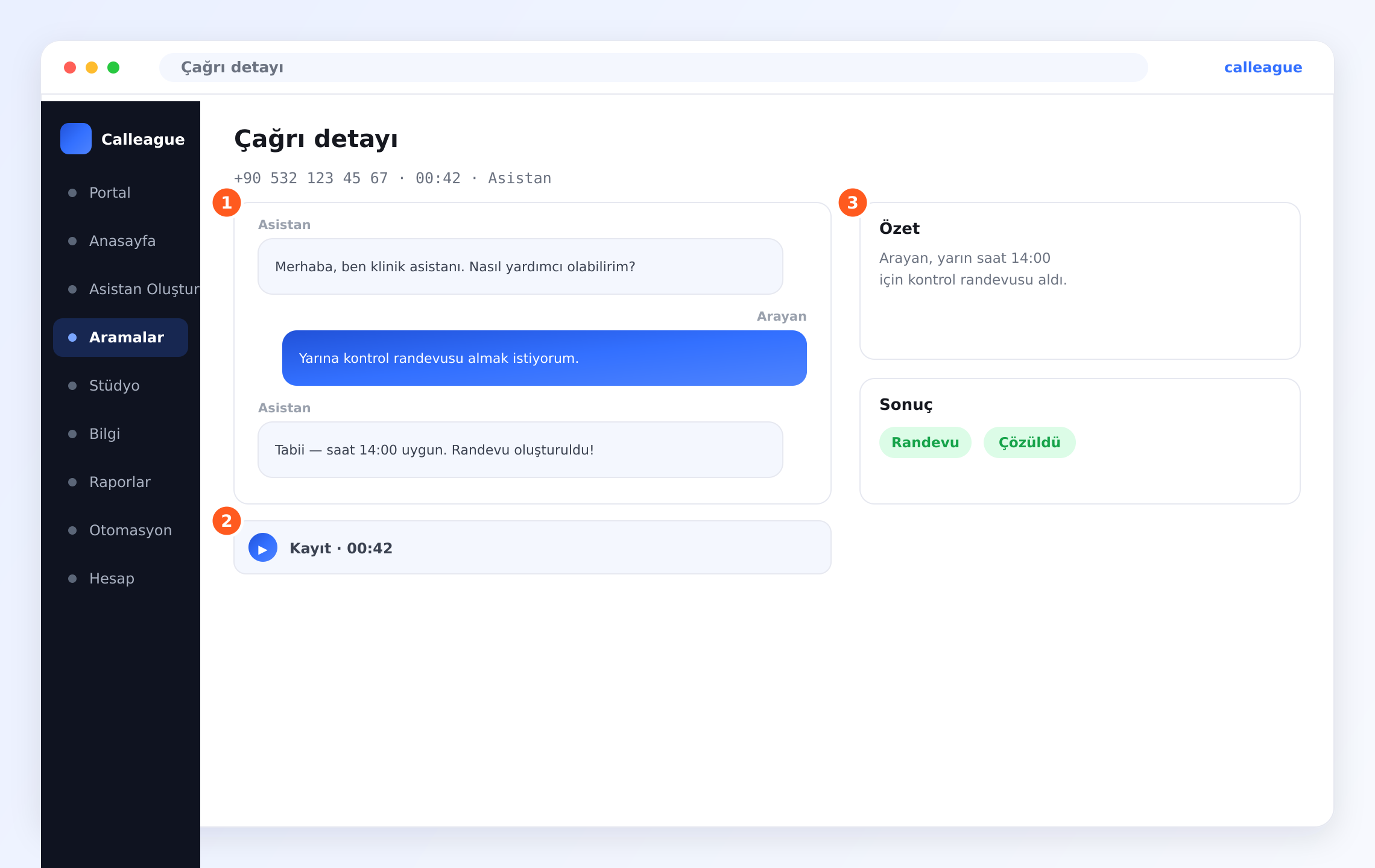
① dökümünü (kimin ne dediğini, Arayan ve Asistan), oynatabileceğiniz ② kaydı ve sağda ③ Özet ile birlikte Randevu veya Çözüldü gibi etiketleri içeren Sonuç kısmını görürsünüz. Yeşil Randevu etiketi, bir "yeni randevu" otomasyonunun beklediği andır — böylece o randevuyu takviminize ekleyebilir.
Tetikleyiciler: "bu olunca"
Tetikleyici, otomasyonunuzu başlatan andır. Yalnızca istediğinize uyan durumu seçin.
| Tetikleyici (yani "bu olunca") | Sade ifadeyle |
|---|---|
| Bir çağrı biter | Görüşme bitti ve hat kapandı |
| Kaçan bir çağrı | Kimse açmadı ya da arayan yardım almadan kapattı |
| Bir randevu oluşturulur | Asistan çağrı sırasında bir saat ayırttı (Sonuç: Randevu) |
| Geri arama istenir | Arayan, daha sonra aranmayı istedi |
| Mesai dışı bir çağrı gelir | Biri çalışma saatlerinizin dışında aradı |
| Belirli bir zamanda | Seçtiğiniz bir saatte — her sabah, her pazartesi gibi |
| Elle | İstediğinizde kendiniz bir düğmeye basarsınız |
Eylemler: "şunu yap"
Eylem, tetikleyici devreye girdikten sonra ne olacağıdır. Bir tane seçebilir ya da birkaçını arka arkaya dizebilirsiniz.
| Eylem (yani "şunu yap") | Sade ifadeyle |
|---|---|
| Mesaj gönder | Arayana ya da ekibinize bir kısa mesaj, e-posta veya uygulama içi not |
| Detayları kaydet | Çağrıyı ve özetini müşteri kayıtlarınızda tutar |
| Ekip arkadaşını bilgilendir | İlgilenilmesi gereken bir şey için doğru kişiyi haberdar eder |
| Takvime ekle | Bir randevuyu ya da hatırlatıcıyı takviminize bırakır |
| Başka bir aracı güncelle | Bilgiyi, zaten kullandığınız bir araca (müşteri listeniz gibi) iletir |
| Bekle, sonra devam et | Sonraki adım çalışmadan önce bir süre (örneğin bir saat) duraklar |
Kontrol sizde. Otomasyonu açmadığınız sürece hiçbir şey gerçekleşmez. İstediğiniz an herhangi birini kapatabilirsiniz ve birini değiştirmek diğerlerini hiç etkilemez.
Sık kullanılan tarifler
İşte insanların en sık kurduğu kurallar. Olduğu gibi kullanın ya da işinize uyacak şekilde sözcükleri değiştirin.
Kaçan bir çağrıdan sonra mesaj gönder
Kimse kaçan bir çağrının havada kalmasını istemez. Bir çağrı Kaçırıldı olarak işaretlendiği anda arayana sıcak bir mesaj gider: "Sizi kaçırdığımız için üzgünüz! Buradan yanıtlayın ya da istediğiniz zaman tekrar arayın, memnuniyetle yardımcı oluruz." Müşteriyi kaybetmek yerine kapıyı açık tutar.
Bir randevudan sonra takvime ekle
Bir çağrı Randevu sonucuyla bittiğinde, bu kural randevuyu müşterinin adı ve saatiyle doğrudan takviminize ekler — kimsenin elle yazmasına gerek kalmadan gününüz düzenli kalır.
Bir çağrıdan sonra kaydet ve ekibe haber ver
Bir çağrı bittiğinde, bu kural görüşmeyi ve özetini müşteri kayıtlarınıza kaydeder, sonra doğru kişiye bir bildirim gönderir: "Ayşe'den teslimatla ilgili yeni bir çağrı geldi — fırsat bulunca bir bakar mısın?" Hiçbir şey unutulmaz ve doğru kişi her zaman haberdar olur.
Mesai dışında nazikçe yanıtla ve kaydet
Biri kapalıyken aradığında, bu kural sıcak bir not gönderir — "Aradığınız için teşekkürler! Şu an kapalıyız ama ilk iş yarın size döneceğiz." — ve çağrıyı kaydeder, böylece sabah sizi bekler olur.
Nazik bir sabah özeti
Belirli bir zamanda, her sabah kendinize ya da ekibinize dünkü çağrıların kısa bir özetini gönderin, böylece herkes güne ne geldiğini bilerek başlasın.
İlk otomasyonunuzu kurun
Otomasyonları doğrudan uygulamada kurarsınız — özel bir beceri gerekmez. En popüler olanı, "bir çağrı kaçırıldığında mesaj gönder" kuralını birlikte kuralım.
Otomasyon alanını açın
app.calleague.ai adresinden giriş yapın. Solda inen koyu menüde Otomasyon'a tıklayın.
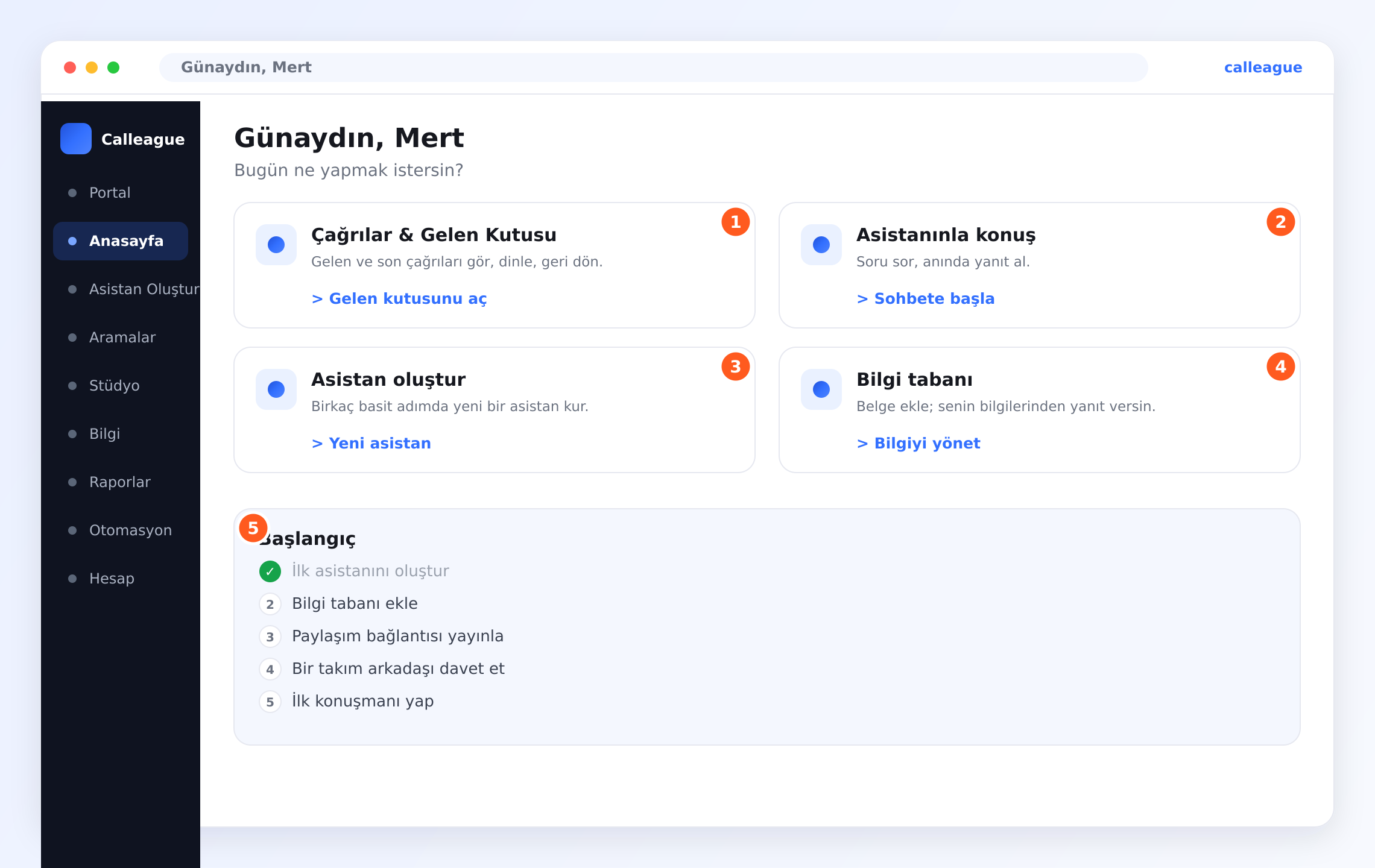
Karşılama mesajı ve dört büyük kartla birlikte ana ekranınızı görürsünüz. Soldaki menüde Anasayfa, Asistan Oluştur, Aramalar, Bilgi, Raporlar, Otomasyon ve Hesap yer alır. Tüm kurallarınızın (açık ya da duraklatılmış) yaşadığı alana gitmek için Otomasyon'a tıklayın.
Yeni bir otomasyon başlatın
Yeni bir otomasyon ekleyin ve sonradan tanıyabilmeniz için ona "Kaçan çağrı mesajı" gibi kısa, anlaşılır bir ad verin.
Doldurulmayı bekleyen iki basit parça görürsünüz: bir Bu olunca (an) ve bir Şunu yap (eylem).
Anı seçin — "bu olunca"
Listeden tetikleyicinizi seçin — bu tarif için kaçan bir çağrı'yı seçin. Bu, az önce Aramalar listenizde Kaçırıldı olarak işaretli gördüğünüz anın aynısıdır.
Anın, kuralın tetikleyicisi olarak ayarlandığını görürsünüz — altındaki her şey, o an yüzünden gerçekleşecek olandır.
Ne olacağını seçin — "şunu yap"
Eyleminizi seçin. Bu tarif için, arayanın bir mesaj alması adına Mesaj gönder'i seçin. İsterseniz birden fazla eylem ekleyebilirsiniz — örneğin ayrıca Ekip arkadaşını bilgilendir.
Eylemin eklendiğini ve detayları doldurmak için bir alan açıldığını görürsünüz.
Detayları doldurun
Mesajınızı sade ve sıcak sözcüklerle, tıpkı bir müşteriye konuşur gibi yazın — örneğin, "Sizi kaçırdığımız için üzgünüz! İstediğiniz zaman buradan yanıtlayın, memnuniyetle yardımcı oluruz." Kimin alacağını seçin (burada, arayan).
Mesajınızın ve alıcının kuralın bir parçası olarak kaydedildiğini görürsünüz.
Kaydedin ve açın
Kuralı kaydedin, sonra anahtarını açık konuma getirin. Bundan sonra her kaçan çağrı o sıcak mesajı alır — otomatik olarak, her seferinde.
Kuralın listede, anahtarı açık görünecek şekilde, hazır ve çalışır durumda yer aldığını görürsünüz.
Nereden başlayacağınızdan emin değil misiniz? Calleague en yaygın işler için hazır başlangıç noktaları sunar. Birini seçin, sözcükleri size benzeyecek şekilde değiştirin ve kaydedin. İnce ayarı her zaman sonra yapabilirsiniz.
Ayarlayabileceğiniz seçenekler
Bir kural kurarken birkaç dostane seçenek, davranışını tam olarak nasıl istiyorsanız öyle şekillendirmenizi sağlar.
| Seçenek | Ne işe yarar | Notlar |
|---|---|---|
| Açık / kapalı anahtarı | Kuralın tamamını açar ya da duraklatır | Duraklatmak ayarlarınızı korur; hiçbir şey kaybolmaz |
| Tetikleyici | Kuralı başlatan anı seçer | Hedefinize uyan durumu seçin |
| Koşullar | Yalnızca bir şey doğruysa çalışır (örn. yalnızca 2 dakikadan uzun çağrılarda) | İsteğe bağlı — boş bırakırsanız her seferinde çalışır |
| Eylemler | Sırayla ne olacağı | Bir ya da birkaç tane ekleyin |
| Alıcılar | Bir mesaj ya da uyarının kime gideceği | Arayan, bir ekip arkadaşı ya da tüm bir grup |
| Sessiz saatler | Mesajları uygun bir zamana kadar bekletir | Müşterilere gece yarısı mesaj gitmemesi için kullanışlı |
| Bekleme adımı | Sonraki eylemden önce duraklar | "Bir saat bekle, sonra geri dön" için kullanışlı |
Otomasyonlarınızı izlemek
Bir otomasyonun yaptığı her şey sizin için kaydedilir, böylece asla karanlıkta kalmazsınız.
- Çalışan her şeyin bir listesini ve tam olarak ne zaman çalıştığını görün.
- Her birinin başarıyla tamamlandığını kontrol edin.
- Herhangi bir çalıştırmayı açarak detayları görün — onu neyin tetiklediğini ve ne yaptığını.
- Planlandığı gibi gitmeyen bir şeyi fark edin ve kuralı birkaç tıklamayla düzeltin.
Otomatik olarak mesaj gönderirken, insanların sizden haber almaktan memnun olduğundan emin olun. Arayanlara bir geri dönüş alabileceklerini bildirmek ve istemeyen herkese saygı göstermek hem naziktir hem de doğru olandır.
Gerçek hayattan senaryolar
Bir diş kliniği
Klinik iki kural kurar. Birincisi, bir randevu oluşturulduğunda (Randevu), takvime ekle ve hastaya tarih ve saatle birlikte bir onay mesajı gönder. İkincisi, bir çağrı kaçırıldığında (Kaçırıldı), hastayı tekrar aramaya davet eden nazik bir mesaj gönder. Resepsiyon artık randevuları elle kopyalamaz ve hastalar nadiren gözden kaçar.
Küçük bir dükkân
Dükkân sahibi, fazladan iş yapmadan müşterilere yakın kalmak ister. Bir kural kurar: bir çağrı bittiğinde, çağrı ve kısa bir özet müşteri listesine kaydedilir ve arayan bir siparişten söz ettiyse telefonuna bir not düşer. Her akşam, belirli bir zamanda çalışan bir kural ona günün çağrılarının tek satırlık bir özetini gönderir.
Yoğun bir hizmet işletmesi
Bir tesisat firması şu kuralı kurar: bir geri arama istendiğinde, birinin hızlıca geri dönebilmesi için nöbetçi ekibe hemen haber ver. İkinci bir eylem eklerler: isteği arayanın numarasıyla kaydet, böylece herkesin eli dolu olsa bile hiçbir şey kaybolmaz.
Birkaç dostane ipucu
- Küçük başlayın. Önce tek bir basit kural kurun, bir gün çalışmasını izleyin, sonra daha fazlasını ekleyin.
- Mesajları sıcak tutun. Geri dönüşleri tıpkı bir müşteriye konuşur gibi yazın.
- Düzeni korumak için koşulları kullanın. Yalnızca kaçan çağrılarda ya da yalnızca mesai dışında çalışan bir kural, işleri konuyla ilgili tutar.
- Ara sıra gözden geçirin. İşiniz değiştikçe otomasyonlarınız da onunla birlikte değişebilir.
Bir şey farklı görünüyorsa
| Gördüğünüz | Neden olur | Ne yapmalı |
|---|---|---|
| Otomasyon'u bulamıyorum | Küçük ekranda menü daralmış olabilir | Pencereyi genişletin ya da menüyü açın, sol tarafa bakın |
| Otomasyonum çalışmadı | Kapalı olabilir ya da koşulları sağlanmamış olabilir | Kuralı açın, açık anahtarını ve koşulları kontrol edin |
| Mesaj yanlış kişiye gitti | Alıcı, arayan yerine bir ekip arkadaşı seçilmiş olabilir (ya da tersi) | Kuralı düzenleyin ve doğru alıcıyı seçin |
| Müşteriye kötü bir zamanda mesaj gitti | Sessiz saatler ayarlanmamış | Sessiz saatler'i açın, böylece mesajlar uygun bir zamanı bekler |
| İki kez çalıştı | İki benzer kural çakışıyor olabilir | Listenizi gözden geçirin, yinelenenleri kaldırın ya da birleştirin |
| Müşteri listeme hiçbir şey kaydedilmedi | Diğer araç henüz bağlı olmayabilir | Bağlı araçlarınızı kontrol edin, sonra tekrar deneyin |
| Bir çalıştırma "tamamlanmadı" görünüyor | Dayandığı bir şey o an erişilebilir değildi | Detaylar için çalıştırmayı açın, nedenini giderin; bir dahaki sefere çalışacaktır |
Sık sorulan sorular
Sonraki adımlar
Çağrılar ve gelen kutusu
Gelen ve son çağrıları görün — otomasyonlarınızın tepki verdiği anlar.
Araçlarınızı bağlayın
Otomasyonlar takviminizi ve müşteri listenizi güncelleyebilsin diye.
Verileriniz ve gizliliğiniz
Çağrılarınızın ve bilgilerinizin nasıl güvende tutulduğu.
Sık sorulan sorular
İnsanların en çok sorduğu şeylere hızlı yanıtlar.
Yardıma mı ihtiyacınız var? İstediğiniz zaman info@arpanet.com.tr adresine yazın — yardımcı olmaktan mutluluk duyarız.
Son güncelleme