
Araçlarını bağla
Asistanına kendi bilgilerini ver — ve kullandığın günlük uygulamaları bağla — ki arama sırasında bilgi arayıp gerçek işler yapabilsin.
Asistanın insanlarla konuşmakta zaten çok iyi. Asıl faydalı hale geldiği an, telefondayken bilgi arayabildiği ve işleri halledebildiği andır — bir fiyatı bulmak, kendi bilgilerinden bir soruyu yanıtlamak ya da randevu vermek gibi. Bunu, ona kendi bilgilerini vererek ve hâlihazırda kullandığın günlük uygulamaları bağlayarak sağlarsın. Hiçbir teknik bilgi gerekmez.
Bunu, ilk gününde işe başlayan yeni bir yardımcı gibi düşün. Eline fiyat listeni ve randevu defterini ver; o an "not bırakayım" demeyi bırakıp "buldum — sizi perşembe saat 14:00'e yazdım" demeye başlar.
Başlamak için en basit ve en güçlü yer Bilgi tabanın — yani kendi bilgilerin. Bunu birkaç dakikada kendin yapabilirsin ve diğer her şeyin üzerine kurulduğu temeldir. Bu sayfa, gerçek ekran görüntüleriyle adım adım gösterir; ardından seni takvim ve müşteri listesi örneğine yönlendirir.
Ne yapacaksın
Asistanına kendi bilgilerini (web siteleri ve belgeler) ver ki senin gibi yanıt versin, sonra da bunu gerçek bir aramada çalışırken gör. Yol boyunca, takvim veya müşteri listesi gibi başka araçların asistanına neler yaptırdığını da öğreneceksin.
Bir bakışta
İşte farklı türde araçların aramada asistanına neler yaptırdığı.
| Bağladığın araç | Asistanın bununla neler yapabilir | Günlük örnek |
|---|---|---|
| Kendi bilgilerin (web siteleri, belgeler) | Kendi fiyat, saat ve politikalarından soruları yanıtlar | "Standart temizlik 800 TL, ve 18:00'a kadar açığız." |
| Müşteri listesi (CRM) | Arayanı tanır ve adıyla selamlar, not kaydeder | "Merhaba Ayşe, sizi tekrar duymak güzel." |
| Takvim / randevu | Boş saatleri kontrol eder, seçenek sunar, randevu verir | "Perşembe 10'u ya da cuma 14'ü önerebilirim." |
| Mesajlaşma (SMS / e-posta) | Aramadan sonra onay veya hatırlatma gönderir | "Adresi size az önce mesaj attım." |
| Tablolar / basit listeler | Bir fiyat veya stok bilgisini okur, bir şeyi arar | "Evet, stokta var — 12 adet kaldı." |
Her bağlantıyı bir kez kurarsın. Sonrasında asistanın bunu her aramada kullanabilir, sen değiştirmeye karar verene kadar. Her aracın ne yapabileceği konusunda kontrol her zaman sende.
"Bağlamak" gerçekte ne demek
Neredeyse her şey üç basit fikre dayanır:
- Bir şeyi aramak — asistan arayan için bir yanıt bulur (bir fiyat, açılış saatlerin, bir randevu).
- Bir şeyi kaydetmek — asistan senin için bir şey not eder (bir not, bir takip hatırlatması).
- Bir şeyi yapmak — asistan senin adına bir işlem yapar (randevu verir, mesaj gönderir).
Her bağlantının bunlardan hangilerini yapabileceğine sen karar verirsin ve istediğin zaman fikrini değiştirebilirsin.
Bilgilerini bağla — adım adım
Bunu hemen şimdi, tek başına yapabilirsin. Bilgi tabanına bir web sitesi ve bir belge ekleyecek, sonra asistanının bunları gerçek bir aramada kullanışını izleyeceksin.
Anasayfa panosundan başla
app.calleague.ai adresinden giriş yap. Anasayfa panosuna düşersin.
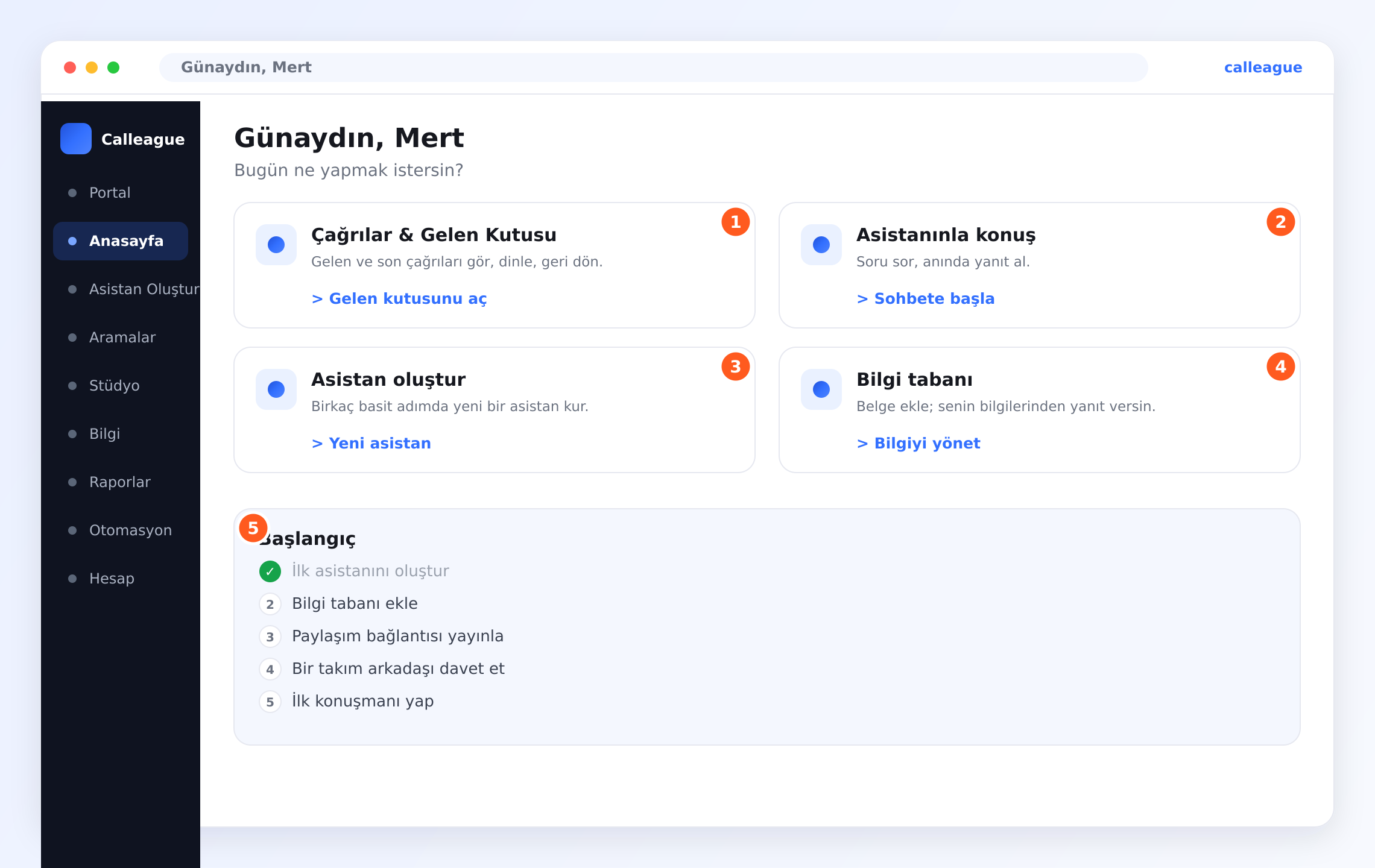
Dört büyük kart ve solda menünü görürsün: Anasayfa, Asistan Oluştur, Aramalar, Bilgi, Raporlar, Otomasyon ve Hesap. Sağdaki Bilgi tabanı kartında bir Bilgiyi yönet düğmesi var — gideceğimiz yer orası.
Bilgi tabanını aç
Sol menüden Bilgi'ye tıkla (ya da Anasayfa kartındaki Bilgiyi yönet düğmesine).
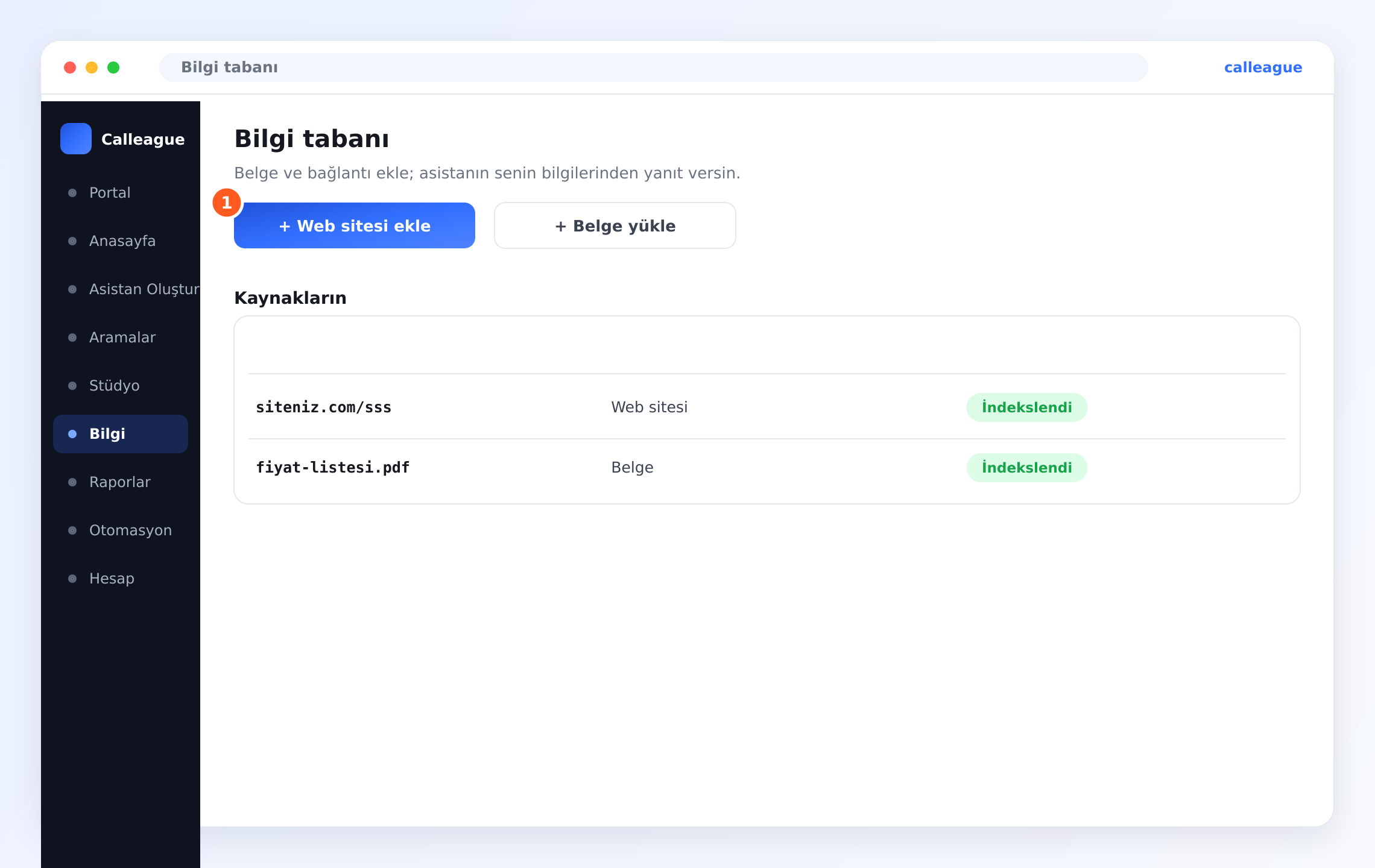
Bilgi tabanı sayfasını görürsün. Üstte iki düğme var — ① Web sitesi ekle düğmesi ve Belge yükle — altlarında ise daha önce eklediğin her şeyin yer aldığı Kaynaklarınız listesi.
Bir web sitesi veya belge ekle
Web sitesi ekle'ye tıklayıp bir bağlantı yapıştır (örneğin fiyat ya da SSS sayfan), veya PDF, DOCX, TXT ya da MD dosyası eklemek için Belge yükle'ye tıkla.
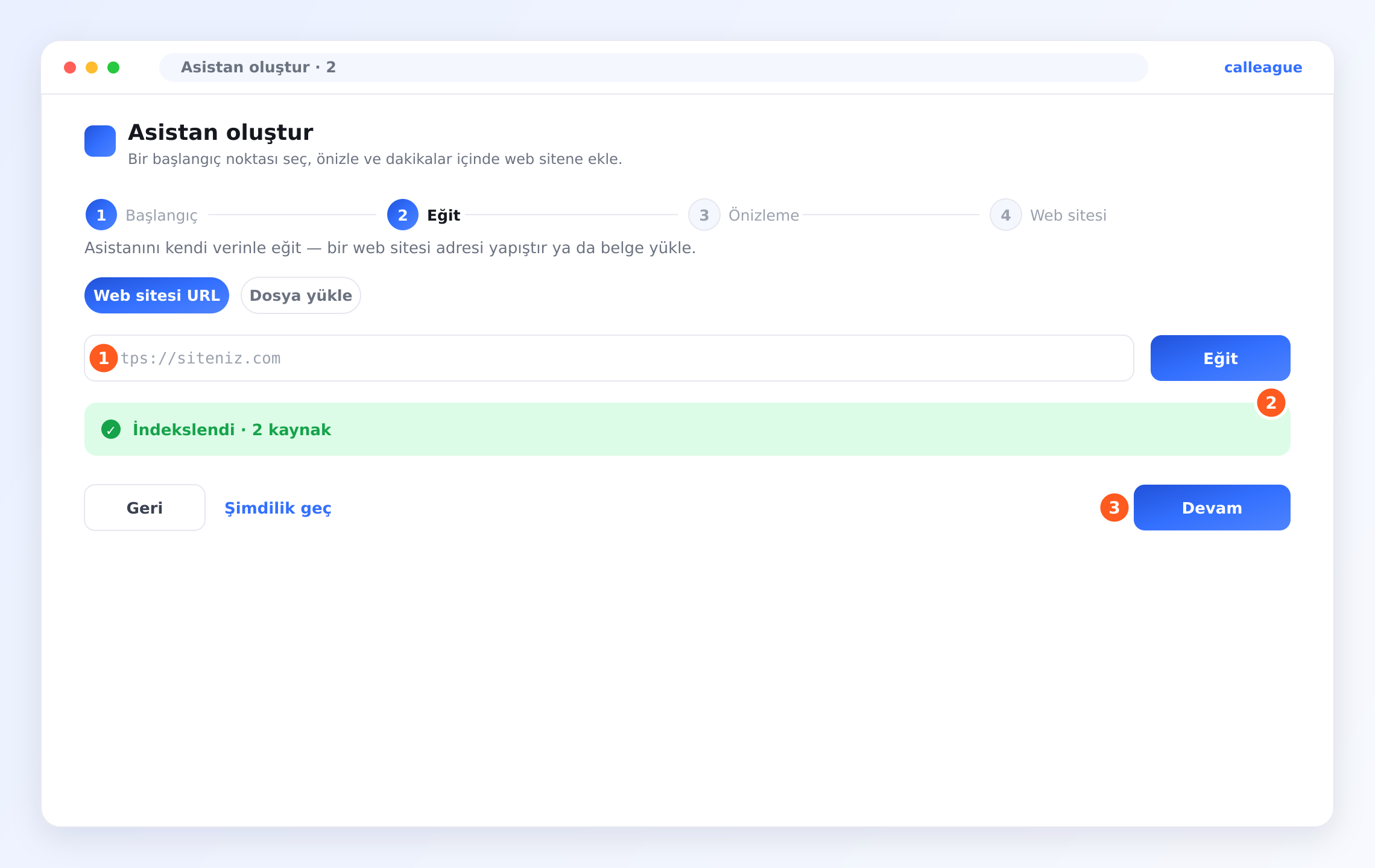
Asistanın kaynağı okuduktan sonra yeşil bir ② İndekslendi onayı görürsün — örneğin "İndekslendi · 2 kaynak". Bu, o bilgiden yanıt vermeye hazır olduğu anlamına gelir.
Gerçek bir aramada dene
Sol menüden Aramalar'ı aç ve herhangi bir aramaya tıklayarak ayrıntısını gör.
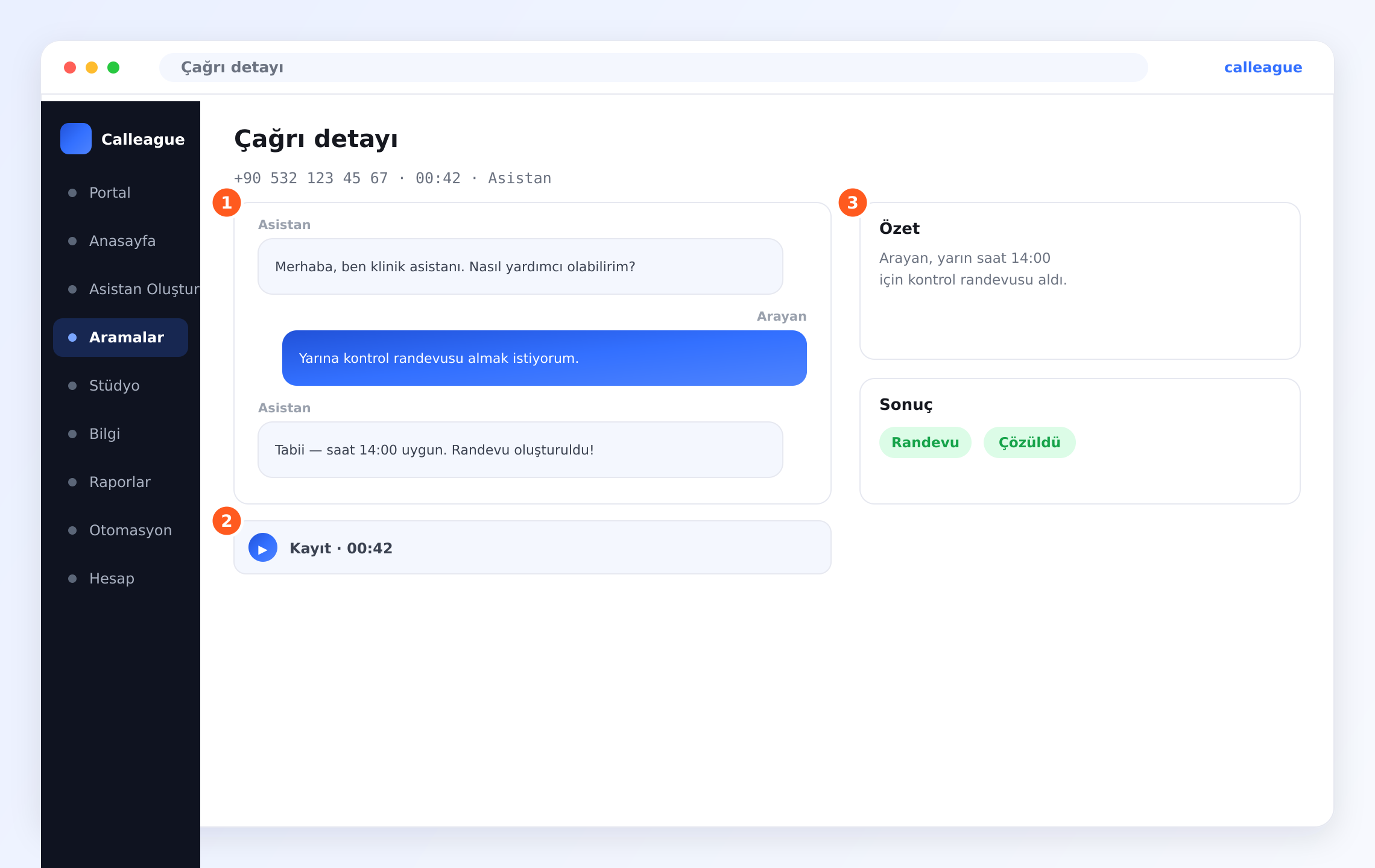
Tam ① dökümü (Asistan ve Arayan), oynatabileceğin bir ② Kayıt ve sağda bir ③ Özet ile Randevu veya Çözüldü gibi bir Sonuç görürsün — asistanının bilgi arayıp işi hallettiğinin kanıtı.
Temel artık hazır. Asistanın artık her aramada kendi bilgilerinden yanıt verebilir — üstelik tek bir teknik satır bile yazmadın.
Takvim veya müşteri listesi bağlama
Yukarıdaki örnek, asistanına soruları yanıtlaması için bilgilerini verir. Ona ayrıca diğer uygulamalarında işler yaptırmak için — müşteri listenden bir arayanı tanımak ya da takvimine bir randevu yazmak gibi — bu bağlantıları seninle birlikte kurarız; böylece hesapların güvende ve doğru biçimde ayarlanmış olur.
Bunun sıcak ve eksiksiz bir anlatımı için işlenmiş örneğe göz at:
Takvim veya müşteri listesi bağlamak mı istiyorsun? info@arpanet.com.tr adresine yaz, seninle birlikte kuralım. Genellikle kısa bir görüşme yeter.
Neye izin verirsin
Her bağlantı için ne kadar şey yapabileceğine sen karar verirsin. Yalnızca asistanının gerçekten ihtiyaç duyduğunu aç.
| İzin | Ne yapar | Notlar |
|---|---|---|
| Arama / görme | Asistanın bilgi okumasını sağlar (bir fiyat, boş saatler, bir kayıt) | Güvenli başlangıç — okur, değiştirmez |
| Kaydetme / ekleme | Bir şey oluşturmasını sağlar (bir not, bir kişi, bir randevu) | Randevu almasını istediğinde aç |
| Gönderme | Aramadan sonra mesaj göndermesini sağlar (SMS veya e-posta) | Onaylar ve takipler için harika |
| Silme | Bir şeyi silmesini sağlar | Genelde kapalı bırakmak en iyisi — çoğu işletmenin buna hiç ihtiyacı olmaz |
Asistanın yalnızca senin açtığın şeyleri yapabilir. Eğer istediğinden fazlasını yaparsa, o izni kapatman yeter — hemen durur.
Her şeyi güvende tutmak
Birkaç nazik alışkanlık her şeyi düzenli ve gizli tutar:
- En az gerekeni ver. Asistanın yalnızca takvimini okuyacaksa, ona etkinlik silme iznini de verme.
- Tek bir şeyle başla. Önce bilgilerini ekle, dene, rahat ettikçe başka şeyler ekle.
- Ara sıra gözden geçir. Neler olduğunu kontrol etmek ve güncelliğini yitirenleri temizlemek için Bilgi tabanına uğra.
Sorun giderme
| Gördüğün şey | Nedeni | Ne yapmalısın |
|---|---|---|
| Kaynağın henüz İndekslendi olarak işaretlenmedi | Büyük bir sayfa veya belgenin okunması biraz zaman alır | Bir an bekleyip yenile; hazır olduğunda yeşile döner |
| Asistan bir bilgiyi bilmiyor | O bilgi Bilgi tabanında değil | İçinde geçtiği web sitesini veya belgeyi ekle, sonra tekrar dene |
| Bir web sitesi bağlantısı eklenmiyor | Sayfa giriş istiyor ya da bağlantıda yazım hatası var | Herkese açık bir sayfa kullan ve bağlantının https:// ile başladığını kontrol et |
| Arayan adıyla tanınmadı | Henüz bir müşteri listesi bağlı değil | CRM ve takvim örneğine bak ya da kurmamız için bize yaz |
| Hâlâ takıldın | Kuruluma özgü bir durum | info@arpanet.com.tr adresine yaz, seninle birlikte bakalım |
Sıkça sorulan sorular
Sonraki adımlar
Örnek: CRM ve takvim
Müşteri listeni ve takvimini bağlamanın eksiksiz anlatımı.
Bilgi tabanını oluştur
Asistanına kendi bilgilerini vermenin daha fazla yolu.
Otomasyonları kur
Her aramanın çevresinde bir şeyi otomatik yap.
Verileriniz güvende
Bilgilerinin nasıl şifreli ve gizli kaldığını gör.
Nereden başlayacağından emin değil misin? Yardıma hazırız — info@arpanet.com.tr adresine yaz, seninle birlikte bakalım.
Son güncelleme