
Bilgi tabanı
Asistanınıza işletmenizi öğretin — bir web sitesi bağlayın ya da bir belge veya menü fotoğrafı yükleyin; asistanınız sizin bilgilerinizden, sizin sözlerinizle yanıt versin. Web siteniz olmasa da olur.
Yapay zekâ (AI) asistanınız ancak bildiği kadar yardımcı olabilir. Bilgi tabanı — yani asistanınızın not defteri — ona kendi gerçek bilgilerinizi verdiğiniz yerdir: fiyatlarınız, çalışma saatleriniz, hizmetleriniz, en çok sorulan sorular. Bir şey eklediğiniz anda asistanınız her telefon çağrısında ve her sohbette bu bilgiden, doğru biçimde ve sizin sözlerinizle yanıt verir.
En güzel yanı: hiçbir şeyi elle yazmazsınız. Calleague'a ya bir web sayfasının adresini verirsiniz ya da bir belge veya fotoğraf yüklersiniz; gerisini o okur. Bir klinik fiyat listesini ve ziyaret saatlerini ekler; bir lokanta menüsünü ekler; bir mağaza iade kurallarını ve teslimat bölgelerini ekler. Müşterileriniz ne soruyorsa, onu buraya koyun.
Önce şunu yapmış olun: Bu sayfadaki adımlar için tek gereken, hesabınızla giriş yapmış olmanız. Henüz giriş yapmadıysanız Başlangıç sayfasındaki "Giriş yapın" bölümünü izleyin — e-postanızla nasıl giriş yapacağınız orada tek tek anlatılıyor. (Calleague'de "kayıt ol" düğmesi yoktur; hesabınızı biz veririz. Hesabınız yoksa info@arpanet.com.tr adresine yazın ya da calleague.ai üzerinden bize ulaşın.)
Bu ekranı nasıl açarım? Telefonunuzda veya bilgisayarınızda bir internet tarayıcısı açın (Chrome, Safari gibi). En üstteki adres çubuğuna app.calleague.ai yazın ve klavyede Git / Ara (bilgisayarda Enter) tuşuna basın; sonra hesabınızla giriş yapın. (calleague.ai bizim tanıtım sitemizdir; app.calleague.ai ise uygulamanın kendisidir — işinizi burada yaparsınız.) Açılınca sol menüden Bilgi'ye dokunun (açılan sayfanın başlığı Bilgi tabanı'dır). Telefonda sol menüyü göremiyorsanız, sol üstteki ☰ (üç yatay çizgi = menü) düğmesine dokunun — menü açılır, oradan Bilgi'yi seçin.
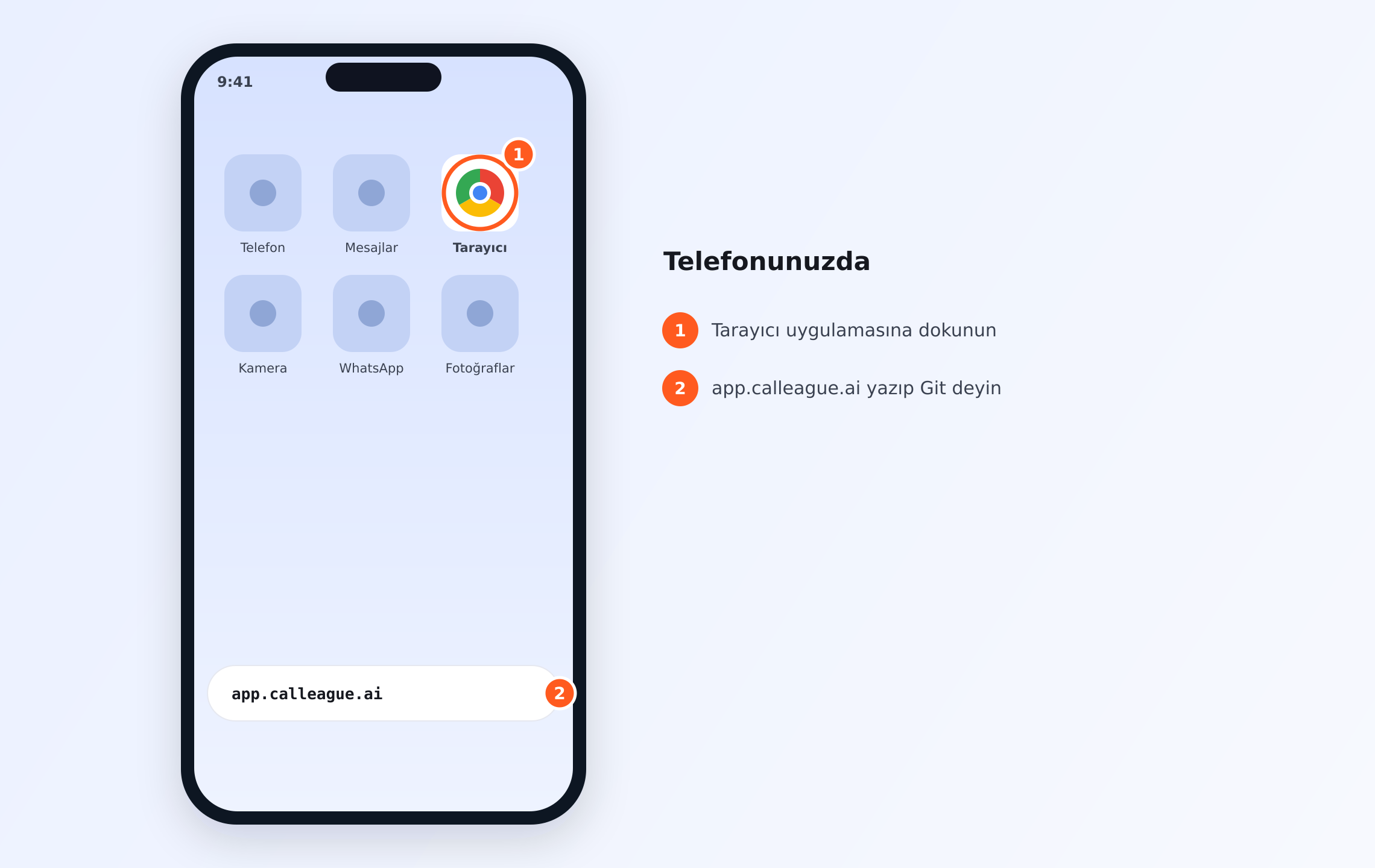
Telefonda ilk adım şudur: ① ana ekranınızdaki Tarayıcı simgesine dokunun, ② açılan adres çubuğuna app.calleague.ai yazıp Git deyin. Ardından giriş ekranı açılır.
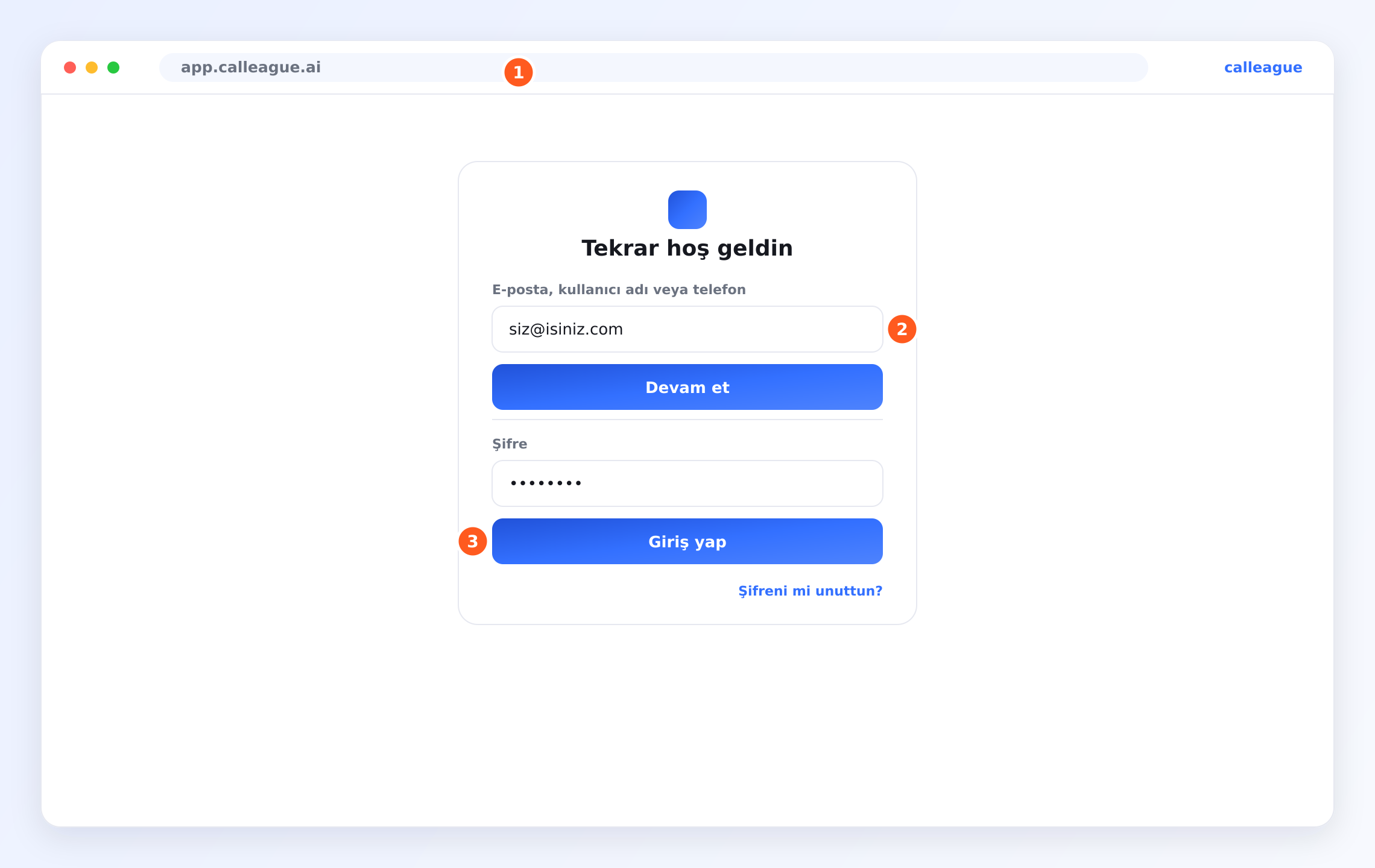
Giriş ekranı bu görseldeki gibidir: ① en üstteki adres çubuğunda app.calleague.ai yazar; ② E-posta, kullanıcı adı veya telefon alanına e-postanızı yazıp Devam et'e dokunursunuz; ③ sonra Şifre alanına şifrenizi yazıp Giriş yap'a dokunursunuz. Şifrenizi unuttuysanız en altta Şifreni mi unuttun? bağlantısı bulunur.
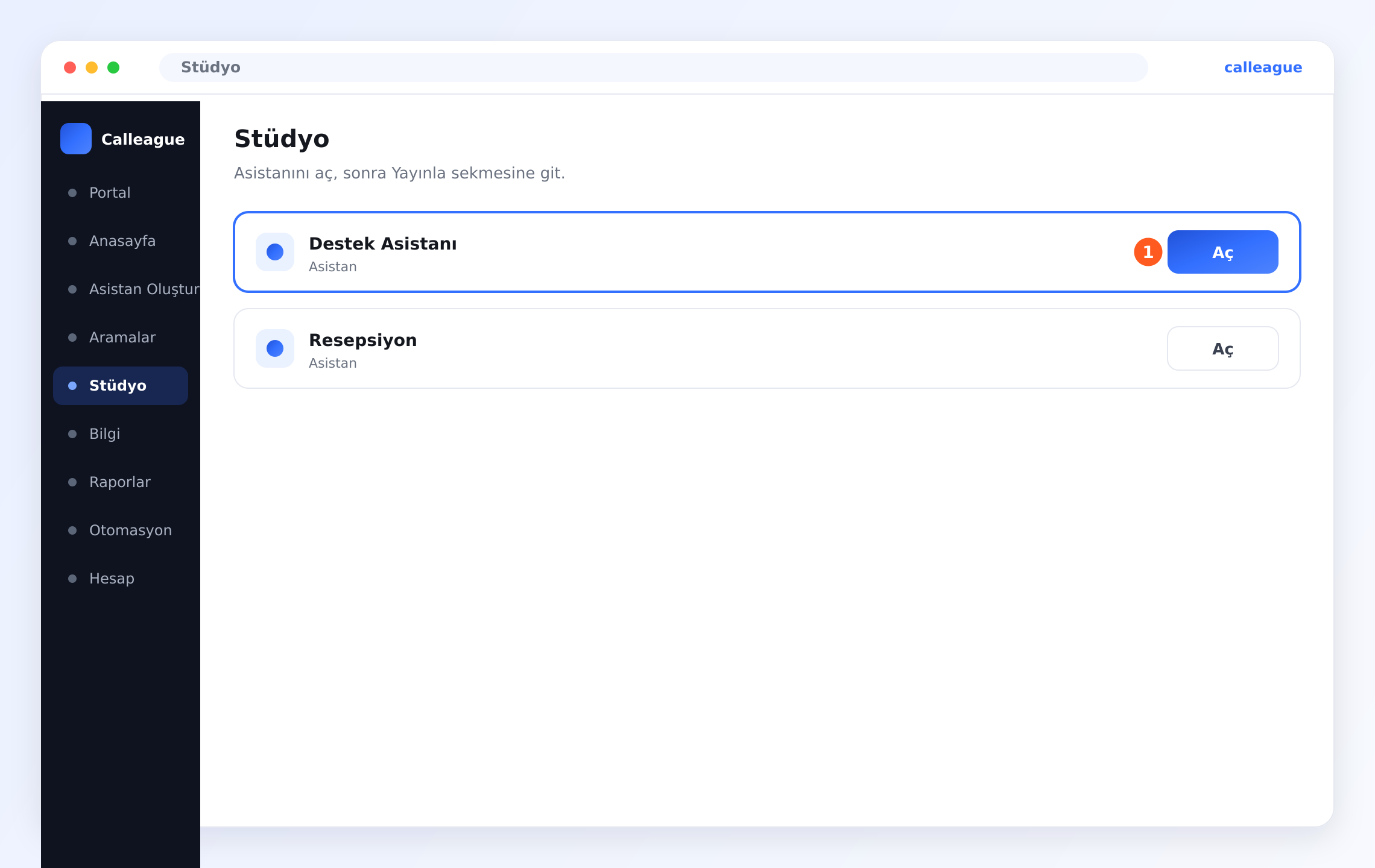
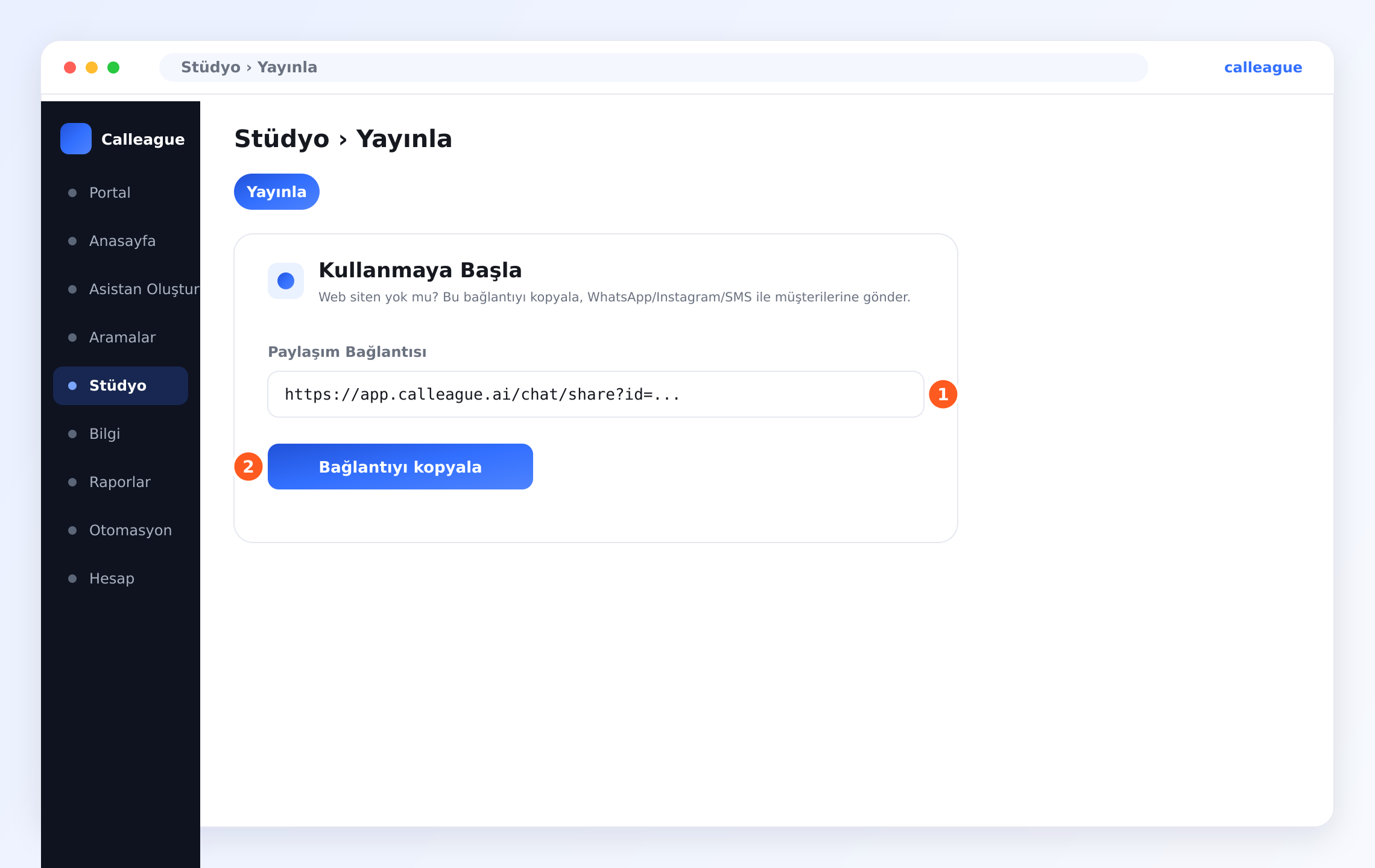
Web siteniz yok mu? Sorun değil. Web sitesi hiç gerekmez. İki kolay yolunuz var: (1) Bir belge ya da fotoğraf yükleyin — menünüzün, fiyat listenizin ya da broşürünüzün PDF'ini veya fotoğrafını eklemeniz yeter. (2) Müşterilere ulaşmak için asistanınızın Paylaşım Bağlantısı'nı kullanın: asistanınızı oluşturduğunuzda otomatik olarak hazır bir sohbet linki üretilir. Onu bulmak için sol menüden (telefonda sol üstte üç yatay çizgi ☰ menüsüne dokunun) Stüdyo'ya gidin, listede asistanınızın satırındaki Aç'a dokunun, açılınca Yayınla sekmesine geçin; Kullanmaya Başla kutusunda Paylaşım Bağlantısı'nın yanındaki Bağlantıyı kopyala düğmesine dokunun ve linki WhatsApp, Instagram veya SMS ile müşterilerinize gönderin — siteye hiç ihtiyacınız olmaz. Instagram'da bağlantıyı profilinizin ("biyografi") linkine koyabilir ya da bir DM/mesajda gönderebilirsiniz. Detay: Web sitene ekle.
Bu sayfada ne yapacaksınız
Başlamadan önce işin tamamına kısa bir bakış.
| Adım | Ne yapacaksınız | Süre |
|---|---|---|
| 1 | Bilgi tabanını açın (sol menü > Bilgi) | 30 sn |
| 2 | Bir web sitesi bağlayın (bir bağlantı yapıştırın) | 1 dk |
| 3 | Ya da bir belge veya fotoğraf yükleyin | 1 dk |
| 4 | Kaynaklarınızı ve "İndekslendi" durumunu kontrol edin | 30 sn |
| 5 | İstediğinizde bir kaynağı güncelleyin veya kaldırın | 30 sn |
Sonunda asistanınız tahmin etmek yerine sizin bilgilerinizden yanıt verecek.
Adım adım bilgi ekleyin
Bilgi tabanını açın
Sol menüden (telefonda sol üstteki ☰ menü) Bilgi'ye dokunun. Bilgi tabanı ekranı açılır.
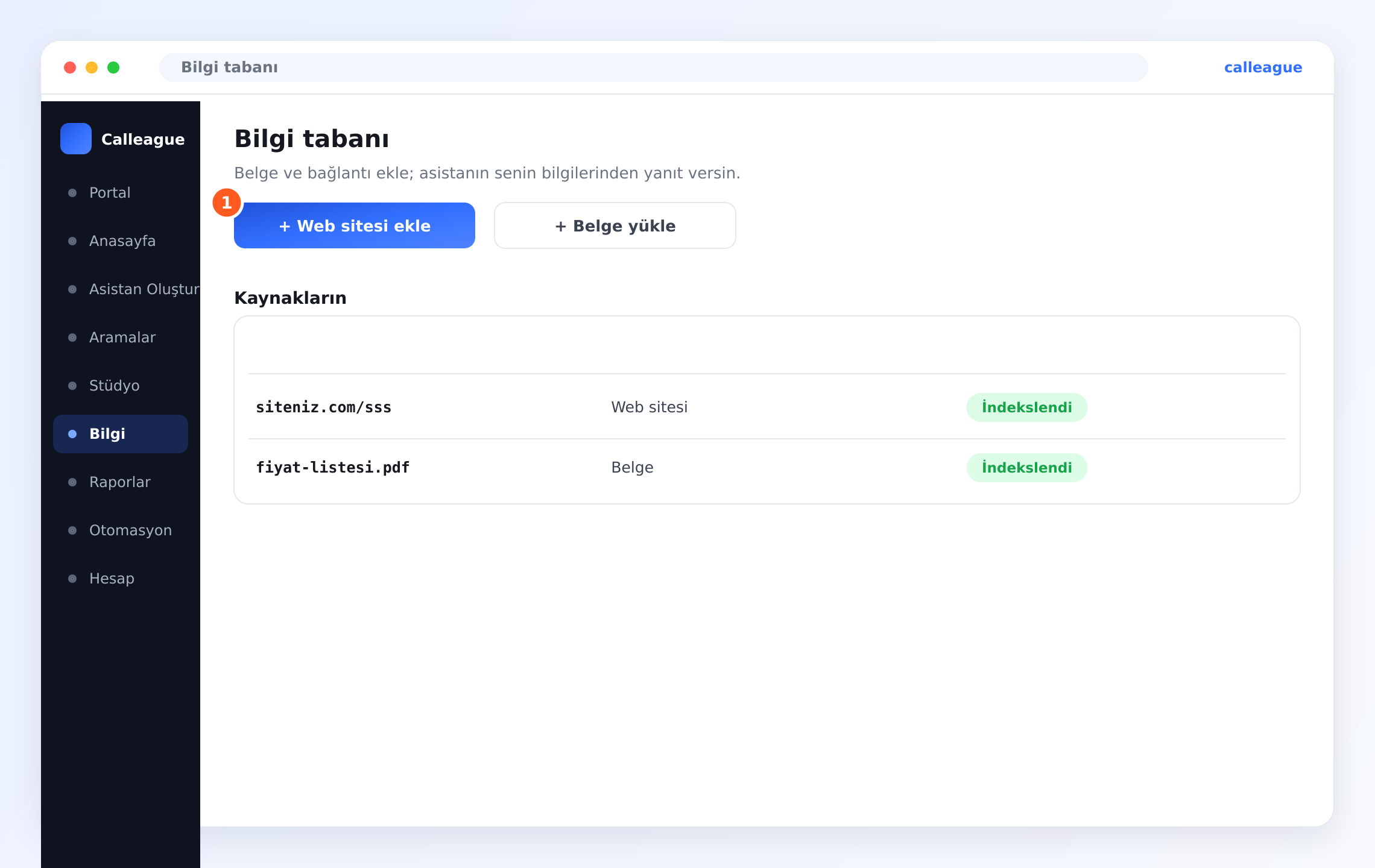
Üstte iki düğme görürsünüz: ① + Web sitesi ekle ve hemen yanında + Belge yükle. Altlarında ise Kaynakların listesi — asistanınızın şu anda bildiği her şey burada görünür.
Yeni bir hesapta bu liste boş görünür; bu gayet normaldir. Aşağıdaki adımlarla ilk bilginizi ekleyince burada belirir.
Bir web sitesi bağlayın
Hazır bilgilerin bulunduğu bir web sayfanız varsa — örneğin Sıkça Sorulan Sorular ya da fiyatlar sayfanız — onu bağlayabilirsiniz. ① + Web sitesi ekle'ye dokunun, açılan kutuya o sayfanın URL'sini (web adresi, ör. www.isiniz.com/sss) yapıştırın ve Eğit'e dokunun.
Calleague sayfayı okumaya başlar. Birkaç saniye sonra sayfa, Kaynakların listesinde yeşil bir İndekslendi etiketiyle belirir. İndekslendi, asistanınızın o sayfayı okuduğu ve artık oradaki bilgiyi kullanabileceği anlamına gelir.
Telefondan yapıyorsanız bağlantıyı şöyle alırsınız: O sayfayı tarayıcınızda açın, en üstteki adres çubuğundaki yazıya parmağınızı basılı tutup Kopyala deyin. Sonra Calleague'daki kutuya basılı tutup Yapıştır deyin. Hepsi bu.
Ya da bir belge veya fotoğraf yükleyin
Bir web siteniz yoksa ya da bilgilerinizi bir dosyada tutuyorsanız, bu yol daha da kolaydır. + Belge yükle'ye dokunun ve cihazınızdan dosyayı seçin. En çok kullanılan iki tür: PDF ve Word belgesi — bir fiyat listesi, bir menü ya da tek sayfalık bir kurallar metni gibi.
Menünüz ya da fiyat listeniz bir fotoğrafsa sorun değil — o fotoğrafı (JPG ya da PNG) olduğu gibi yükleyebilirsiniz. Telefondan menünüzün fotoğrafını çekip doğrudan ekleyebilirsiniz; özel bir şey hazırlamanıza gerek yok. Emin değilseniz dosyanızı info@arpanet.com.tr adresine gönderin, sizin için biz ekleyelim.
Dosyanız Kaynakların listesinde belirir ve Calleague okumayı bitirince yeşil İndekslendi etiketine döner.
Kaynaklarınızı kontrol edin
Kaynakların listesine bakın — burada örneğin 2 kaynak görebilirsiniz. Her satır bir kaynağı (örneğin siteniz.com/sss veya fiyat-listesi.pdf), türünü (Web sitesi veya Belge) ve durumunu gösterir.
Hazır olanların yanında yeşil bir İndekslendi etiketi görürsünüz. Bu etiket, asistanın o bilgiyi kullandığının işaretidir.
Bir kaynağı güncelleyin veya kaldırın
Bilgileriniz değiştiğinde — yeni fiyatlar, yeni saatler — güncel sayfayı veya dosyayı aynı şekilde yeniden eklemeniz yeter. Artık geçerli olmayan bir kaynağı ise Kaynakların listesinden kaldırabilirsiniz; ilgili satırı açtığınızda kaldırma seçeneğini görürsünüz.
Liste anında güncellenir ve asistanınız bir sonraki görüşmesinde yeni bilgileri kullanır.
Yeniden başlatmaya gerek yok, beklemek de yok. Bir kaynak İndekslendi durumuna geçtiği an, asistanınız ondan yanıt verebilir.
Ne tür şeyler ekleyebilirsiniz
Web sitelerini, belgeleri ve fotoğrafları istediğiniz gibi karıştırabilirsiniz. Bilgi tabanına koymak için iyi şeyler:
| Şunu ekleyin | Neden yardımcı olur |
|---|---|
| Sıkça Sorulan Sorular sayfanız | Arayanların en çok sorduğu soruları yanıtlar |
| Fiyatlarınız veya menünüz | Asistanın doğru fiyat vermesini sağlar |
| Çalışma saatleri ve adres | "Cumartesi açık mısınız?" "Neredesiniz?" |
| Hizmet veya ürün listesi | "Diş beyazlatma yapıyor musunuz?" "Teslimat var mı?" |
| İade / iptal kuralları | Zor soruları bir kişi olmadan ele alır |
İyi içerik için ipuçları
Bilgileriniz ne kadar netse, asistanınız o kadar iyi yanıt verir. Biraz düzen çok şey değiştirir.
- Güncel olanı ekleyin. Gerçek ve şu anki bilgilerin bulunduğu sayfayı ya da dosyayı ekleyin — eskisini değil.
- Her kaynakta tek bir konu daha kolaydır. Net bir fiyatlar sayfası ve ayrı bir saatler sayfası, her şeyin karıştığı tek bir dev sayfadan daha iyi çalışır.
- Sade metin, süslü tasarımdan iyidir. Net cümleler içeren basit bir belge, ağır tasarımlı bir broşürden daha iyi okunur.
- Güncel tutun. Fiyatlar veya saatler değişince yeni sürümü ekleyin, eskisini kaldırın.
- Başlangıçta az, çok şeydir. Önce en çok sorulan üç dört konunuzu ekleyin, birkaç çağrı dinleyin, sonra eksik kalanı tamamlayın.
Bir şey farklı görünüyorsa
| Gördüğünüz | Nedeni | Ne yapmalısınız |
|---|---|---|
| Bir kaynak takılı kaldı, hiç İndekslendi demiyor | Sayfa veya dosya hâlâ okunuyor ya da çok büyüktü | Biraz bekleyip sayfayı yenileyin; çok büyük dosyaları daha küçük parçalara bölün |
| Web sitesi eklenmedi | Bağlantıda yazım hatası var ya da sayfayı görmek için giriş gerekiyor | Bağlantıyı kontrol edin; herkesin giriş yapmadan açabildiği bir sayfa kullanın ya da bir belge yükleyin |
| Dosyam veya fotoğrafım kabul edilmedi | Desteklenen bir tür değil | PDF, Word, JPG veya PNG kullanın |
| Asistan hâlâ cevabı bilmiyor | O ayrıntı eklenen hiçbir kaynakta yok | İçinde bulunduğu sayfayı veya belgeyi ekleyin ve İndekslendi'yi bekleyin |
| Bilgi menü öğesini göremiyorum | Telefonda menü kapalı olabilir ya da rolünüz buna izin vermiyordur | Sol üstteki ☰ düğmesine dokunun; yine yoksa hesap sahibinizden rolünüzü düzenlemesini isteyin |
Sıkça sorulan sorular
Sırada ne var
Asistanınız artık işletmenizi tanıyor. Şimdi nereye gideceğinizi görelim.
İlk asistanınızı oluşturun
Arayanlarınıza cevap veren yardımcıyı sade sözlerle kurun.
Web sitene ekle
Sitesi olmayanlar için Paylaşım Bağlantısı dahil tüm yollar.
Başlangıç
Genel bakışa ve tüm kurulum yolculuğuna dönün.
Önce neyi ekleyeceğinizden emin değil misiniz? Memnuniyetle yardımcı oluruz — bize info@arpanet.com.tr adresinden yazın ya da calleague.ai üzerinden ulaşın.
Son güncelleme