
Web sitene ekle
Asistanınızı web sitenize tek satır kodla ekleyin — ya da web siteniz yoksa Paylaşım Bağlantısı ile müşterilerinize gönderin. Adım adım, teknik bilgi gerektirmez.
Asistanınız hazır olduğunda, onu web sitenizin köşesinde duran güler yüzlü bir sohbet balonuna — bir widget'a (sitenizin köşesinde beliren küçük sohbet penceresi) — dönüştürebilirsiniz. Başka sitelerin köşesinde gördüğünüz türden. Ziyaretçi tıklar, sorusunu sorar ve anında yanıt alır — hem yazarak hem sesle. Tek bir kopyala-yapıştır yeter ve kodu anlamanıza hiç gerek yoktur.
Önce şunlar gerekir: en az bir asistan oluşturmuş olmanız. Henüz oluşturmadıysanız, önce İlk asistanınızı oluşturun sayfasını izleyin. Hesabınız hiç yoksa, Başlangıç sayfasındaki "Giriş yapın" bölümünden başlayın.
Önce: web siteniz var mı?
İki durum da gayet kolay — sadece yolunuz biraz farklı:
- Web siteniz VARSA — harika. Aşağıdaki adımlarda tek satır kodu kopyalayıp sitenize ekleyeceğiz (ya da sitenizi yöneten kişiye göndereceğiz).
- Web siteniz YOKSA — hiç dert değil, çoğu işletmenin yoktur. Asistanınızı siteye hiç gerek kalmadan paylaşabilirsiniz. Aşağıdaki yeşil kutuya bakın.
Web siteniz yok mu? Sorun değil. Asistanınızı müşterilerinize ulaştırmanın, siteye hiç ihtiyaç duymayan üç kolay yolu var:
- Paylaşım Bağlantısı (müşterilerinize gönderdiğiniz hazır bir sohbet linki) — Stüdyo'dan asistanınızı açıp Yayınla sekmesine geçtiğinizde, Kullanmaya Başla kutusunda kendiliğinden hazırdır. Bağlantıyı kopyala deyip WhatsApp, Instagram ya da SMS ile gönderin; tıklayan herkes anında asistanınızla sohbet eder. (Tam adım adım anlatım hemen aşağıda.)
- Uygulamayı aç — asistan oluşturma sihirbazının son (4.) adımındaki Uygulamayı aç düğmesiyle asistanınızı doğrudan uygulamanın içinde (app.calleague.ai) kullanın; sohbeti orada sürdürün.
- Telefon — asistanınız bir telefon numarasına da cevap verebilir. Bkz. Telefon numarası bağla.
Web siteniz yoksa: Paylaşım Bağlantısını alıp gönderin
Web sitesi gerektirmeyen en hızlı yol budur. Şöyle yapın:
Uygulamayı açın
Telefonunuzda veya bilgisayarınızda bir internet tarayıcısı açın (Chrome, Safari gibi — telefonunuzun ana ekranındaki o simge). En üstteki adres çubuğuna app.calleague.ai yazın, klavyede Git / Ara (bilgisayarda Enter) tuşuna basın. (calleague.ai bizim tanıtım sitemizdir; işinizi yaptığınız yer ise uygulamanın kendisi olan app.calleague.ai'dir.)
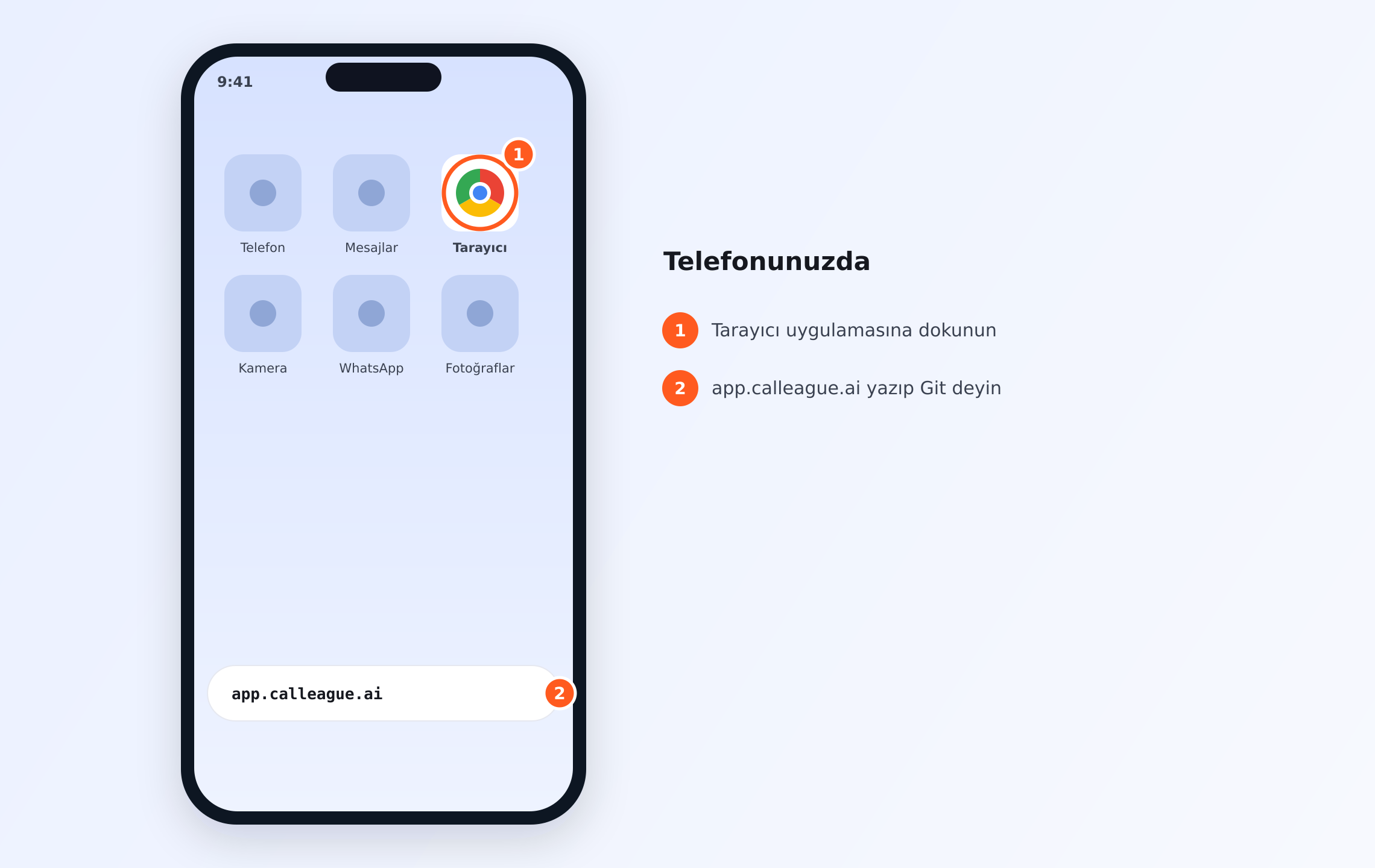
Telefonunuzda: ① "Tarayıcı" uygulamasına dokunun, ② adres çubuğuna app.calleague.ai yazıp Git deyin.
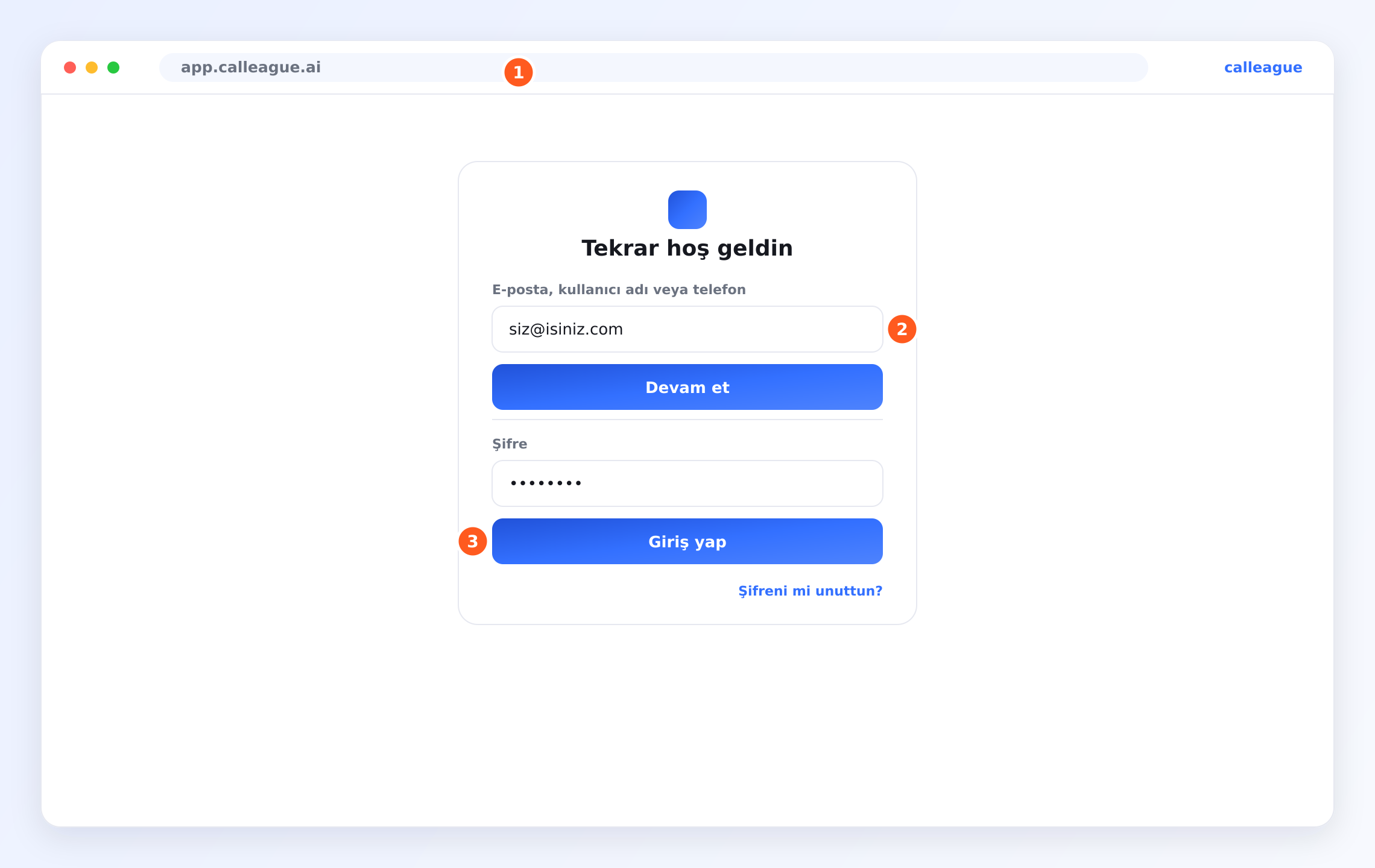
E-postanı yaz, Devam et'e bas; sonra Şifre alanına şifreni yaz, Giriş yap'a bas (giriş ekranı bu görseldeki gibidir). Şifrenizi unuttuysanız alttaki Şifreni mi unuttun? bağlantısını kullanın.
Paylaşım Bağlantısını bulun
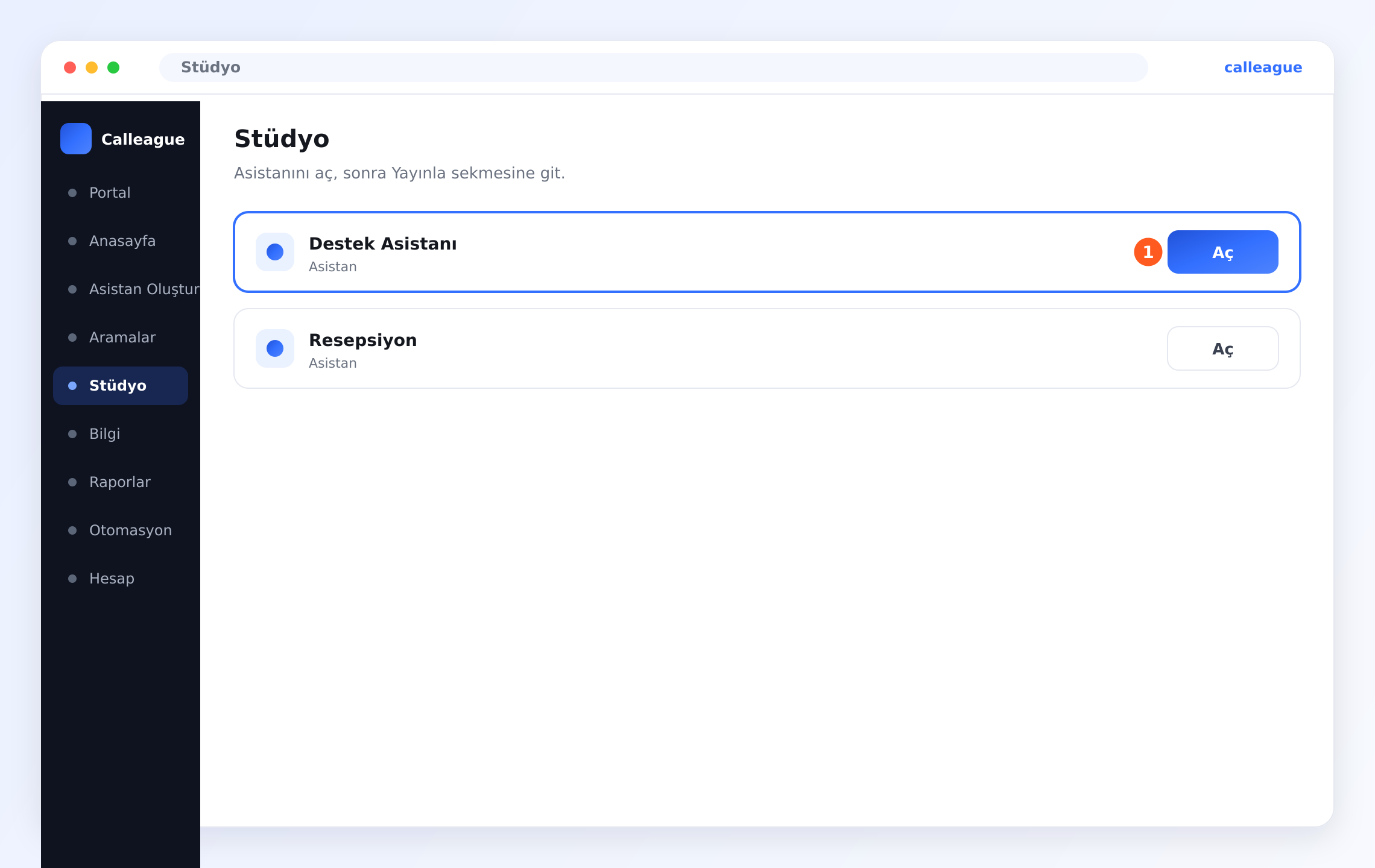
Sol menüden (telefonda sol üstteki ☰ — üç yatay çizgi — menü düğmesine dokunun) Stüdyo'ya girin. Açılan asistan listesinde, asistanınızın satırındaki ① "Aç" düğmesine basın.
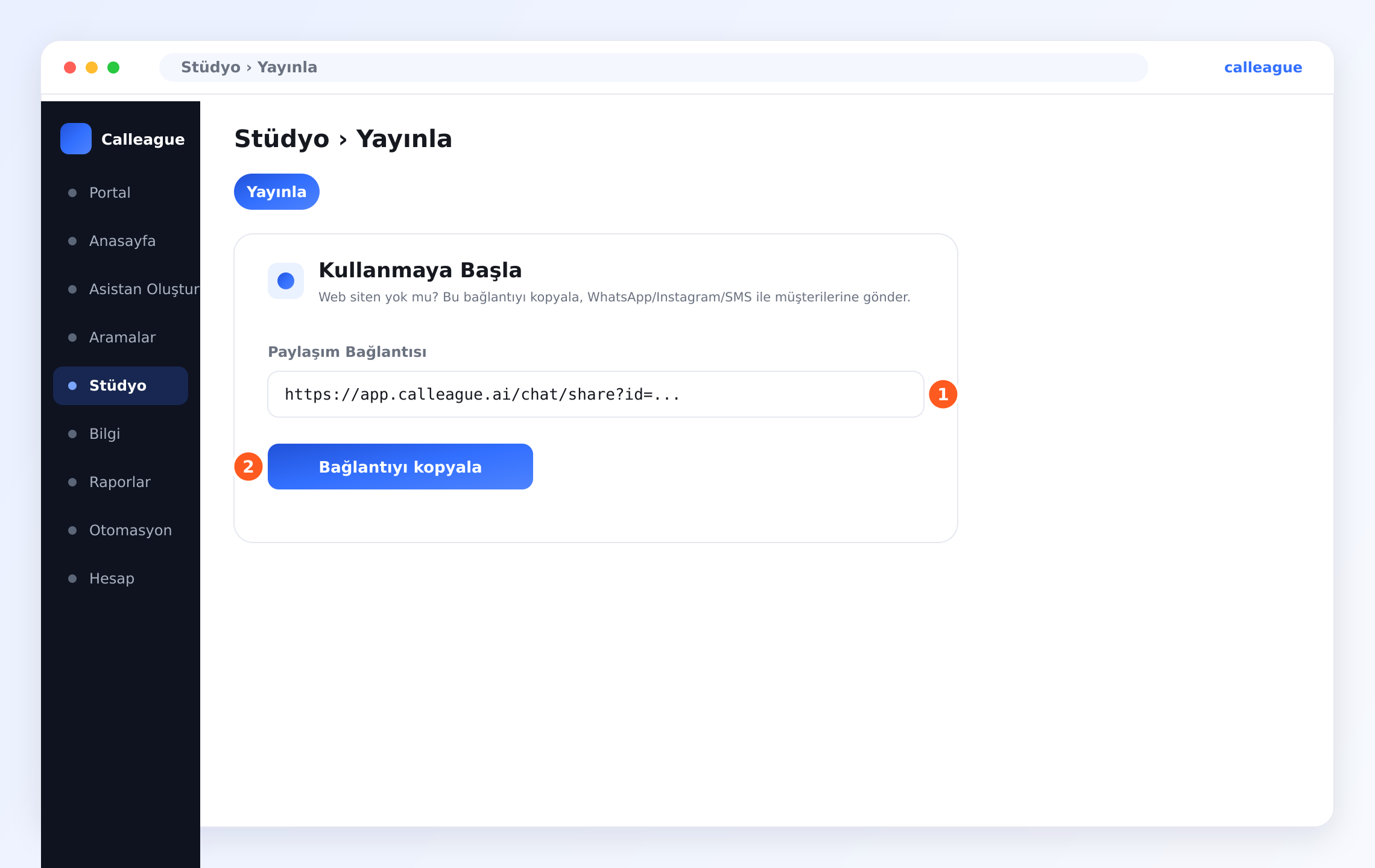
Asistanınız açılınca üstteki Yayınla sekmesine geçin; Kullanmaya Başla kutusunda ① "Paylaşım Bağlantısı" (size özel hazır sohbet linki) kendiliğinden hazırdır.
Bağlantıyı kopyalayıp gönderin
② "Bağlantıyı kopyala" düğmesine basın. Sonra bu linki müşterilerinize gönderin — örneğin WhatsApp ile: WhatsApp'ı açın → bir sohbete girin → mesaj alanına uzun basıp 'Yapıştır' deyin → Gönder. Instagram'da bağlantıyı profilinizdeki biyografi (bio) linkine koyabilir ya da bir DM/mesajda gönderebilirsiniz. (Aynısını SMS ile de yapabilirsiniz.) Müşteriniz linke dokununca — web sitenize hiç gerek kalmadan — anında asistanınızla sohbet eder.
Aşağıdaki adımlar web sitesi olanlar içindir. Siteniz yoksa yukarıdaki üç yoldan biriyle zaten hazırsınız; bu sayfanın geri kalanını atlayabilirsiniz.
Ne yapacaksınız
- Sihirbazın Web sitesi adımında aracın görünümünü ayarlarsınız.
- Kodu kopyala'ya basarsınız — tek satırlık kod panonuza kopyalanır.
- O satırı sitenize eklersiniz; ya da sitenizi yöneten kişiye gönderirsiniz.
Aracı sitenize ekleyin
Web sitesi adımını açın
Bu, asistan oluşturma sihirbazının (sizi adım adım yönlendiren ekran) 4. ve son adımıdır; başlığı Web sitesi'dir. Az önce Önizleme adımını bitirdiyseniz zaten buradasınız.
Buraya sonradan dönmek için: sol menüden (telefonda sol üstteki ☰ menü) Asistan Oluştur'a tıklayın, asistanınızı açın ve üstteki Web sitesi adımına geçin.
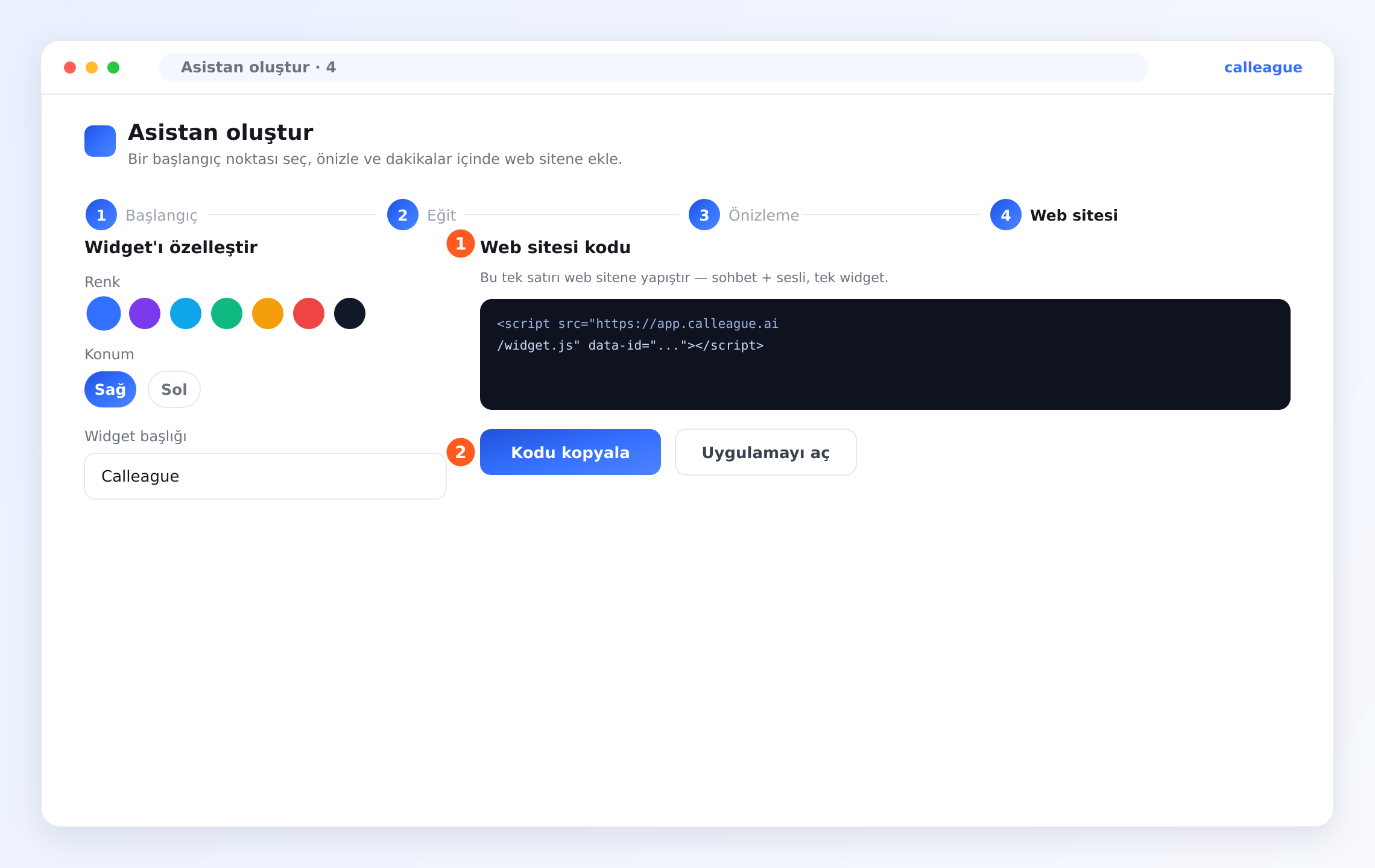
Göreceğiniz solda bir Widget'ı özelleştir paneli, sağda ise ① "Web sitesi kodu" (sitenize eklenecek tek satırlık metin). Kodun hemen yanında şu ipucu yazar: "Bu tek satırı web sitene yapıştır — sohbet + sesli, tek widget."
Henüz hiç asistan oluşturmadıysanız bu ekran boş görünür ya da kod çıkmaz — bu normaldir. Önce bir asistan oluşturun.
Görünümünü ayarlayın
Widget'ı özelleştir altında üç şeyi seçin:
- Renk — markanıza yakışan bir renk.
- Konum — balonun hangi köşede duracağı: Sağ veya Sol.
- Widget başlığı — ziyaretçilerin sohbetin üstünde gördüğü ad, örneğin "Gül Çiçekçilik".
Göreceğiniz seçimleriniz anında sağdaki koda yansır. Burada yanlış seçim yoktur; her şeyi sonradan değiştirebilirsiniz.
Kodu kopyalayın
② "Kodu kopyala" düğmesine basın. Bu, tek satırlık kodu (① "Web sitesi kodu" — siteye eklenen küçük bir metin parçası) panonuza kopyalar; artık yapıştırmaya hazırdır.
Bu satırın ne anlama geldiğini bilmenize hiç gerek yok. Tek yapmanız gereken Kodu kopyala'ya basmak. Gerisini bir sonraki bölümde hallediyoruz.
Web sitenizle hiç uğraşmak istemiyor musunuz? Bunun yerine Uygulamayı aç'a basıp asistanınızı doğrudan Calleague içinde kullanmaya başlayabilirsiniz.
Bu satırı sitenize ekleyin
Kopyaladınız — şimdi o tek satır sitenize girmeli. İki yol var; size kolay geleni seçin.
En kolay yol: sitenizi yöneten kişiye gönderin
Sitenizi siz kurmadıysanız (çoğu işletmede siteyi bir ajans ya da bir tanıdık yönetir), bu satırı ona gönderin — onun için iki dakikalık, rutin bir iştir. Aşağıdaki hazır e-postayı kullanabilirsiniz; köşeli parantezli yere Kodu kopyala ile aldığınız satırı yapıştırın:
Merhaba,

Web sitemize, ziyaretçilerle sohbet eden küçük bir yardımcı eklemek istiyorum.
Aşağıdaki tek satır kodu, sitenin kapanan </body> etiketinden hemen önce ekler
misiniz? Ardından siteyi yayınlamanız yeterli.

[BURAYA "Kodu kopyala" ile aldığınız satırı yapıştırın]

Çok teşekkürler.
Kendiniz mi ekleyeceksiniz?
Sitenizi kendiniz yönetiyorsanız aşağıdaki bölümü açın — kodu tam olarak nereye koyacağınızı anlatıyor.
Tamam! Satır sitenizde olduğunda asistanınız canlıya geçer — ziyaretçilerle sohbet etmeye ve sorularını sizin bilgilerinizden yanıtlamaya hazır.
Ziyaretçileriniz ne görecek
Sitenizin köşesinde, seçtiğiniz renk ve konumda küçük bir balon durur. Bir ziyaretçi tıkladığında üstünde Widget başlığınız yazan bir sohbet penceresi açılır. Soru yazıp anında yanıt alabilir ya da sesle asistanınızla konuşabilir — hepsi sayfanızdan ayrılmadan. Hem telefonlarda hem bilgisayarlarda çalışır.
Sonradan değiştirmek isterseniz
Renk, konum ya da başlığı dilediğiniz zaman değiştirebilirsiniz. Somut yol şöyle:
- Sol menüden (telefonda sol üstteki ☰ menü) Asistan Oluştur'a tıklayın.
- Asistanınızı açın ve üstteki Web sitesi adımına geçin.
- Renk, Konum veya Widget başlığı'nı değiştirin, sonra yeniden Kodu kopyala'ya basın.
- Sitenizdeki eski satırı yenisiyle değiştirin (ya da yenisini sitenizi yöneten kişiye gönderin).
Bir şey farklı görünüyorsa
| Gördüğünüz | Nedeni | Ne yapmalısınız |
|---|---|---|
| Web sitesi adımında kod görünmüyor | Henüz asistan oluşturmadınız | Önce bir asistan oluşturun |
| Balon sitede görünmüyor | Satır kaydedilmemiş ya da yanlış yerde | Satırın </body> öncesine eklendiğinden ve sitenin yayınlandığından emin olun (ya da sitenizi yöneten kişiye sorun) |
| Yanlış köşede görünüyor | Konum ters ayarlanmış | Web sitesi adımını açın, Sağ/Sol'u değiştirin, kodu tekrar kopyalayın |
| Renk veya başlık yanlış | Kopyaladıktan sonra değiştirildi | Ayarlayın, Kodu kopyala'ya tekrar basın, eski satırı değiştirin |
| Web sitem yok | Sorun değil | Yukarıdaki Paylaşım Bağlantısı'nı kullanın ya da bir telefon numarası bağlayın |
Sıkça sorulan sorular
Sırada ne var
Web siteniz (ya da paylaşım yönteminiz) hazır. Şimdi asistanınızın telefona da çıkmasını sağlayalım, sonra gerçek bir konuşma deneyelim.
Telefon numarası bağla
Asistanınızın gerçek çağrılara cevap vermesini sağlayın.
İlk konuşmanı dene
Onunla sohbet edin, arayın, sonra dökümü okuyun.
İşletmeni öğret
İstediğiniz zaman daha fazla web sitesi ve belge ekleyin.
Kodu yerleştirmekte ya da Paylaşım Bağlantısını kullanmakta yardıma mı ihtiyacınız var? Bize info@arpanet.com.tr adresinden yazın ya da calleague.ai üzerinden ulaşın — adım adım yardımcı olalım.
Son güncelleme