
İşletmeni öğret
Asistanınız SİZİN bilgilerinizden yanıt versin. Web sitenizi veya belgelerinizi (PDF, menü, fiyat listesi) ekleyin — oluşturma sırasında ya da sonradan, hiç teknik bilgi gerekmeden.
Yeni asistanınız güler yüzlüdür ama henüz sizin çalışma saatlerinizi, fiyatlarınızı veya hizmetlerinizi bilmez. Ona öğretmek çok kolay: ya web sitenizi gösterirsiniz ya da bir belge (örneğin fiyat listeniz veya menünüz) verirsiniz; o da yanıtları öğrenir. Bu sayfa bunu iki yerde yapabileceğinizi gösterir.
Hiçbir şeyi bilgisayardan anlamanıza gerek yok. Her adımda tıklayacağınız tam düğmeyi söyleyeceğiz.
Başlamadan önce. Bu adıma gelmeden önce Calleague'a giriş yapmış ve bir asistan (yapay zekâ — kısaca AI — yardımcınız) oluşturmuş olmanız gerekir. Henüz yapmadıysanız önce Başlangıç sayfasından başlayın; orada nasıl giriş yapacağınız tek tek anlatılır.
Web siteniz yok mu? Sorun değil. Asistanınızı öğretmek için web sitesine ihtiyacınız yok — bunun yerine bir belge (PDF, menü, fiyat listesi) yükleyebilirsiniz. Müşterilere ulaşmak için de site şart değil: asistanınız oluşturulduğu anda otomatik olarak hazır bir Paylaşım Bağlantısı (müşterilere gönderdiğiniz hazır sohbet linki) üretilir — ya da dilerseniz bir telefon numarası bağlarsınız.
Bu bağlantıyı bulmak kolaydır. Sol menüden Stüdyo'ya girin (telefonda sol üstte üç yatay çizgi ☰ menüsüne dokunun); asistan listenizde ilk satırdaki ① Aç düğmesine basarak asistanınızı açın.
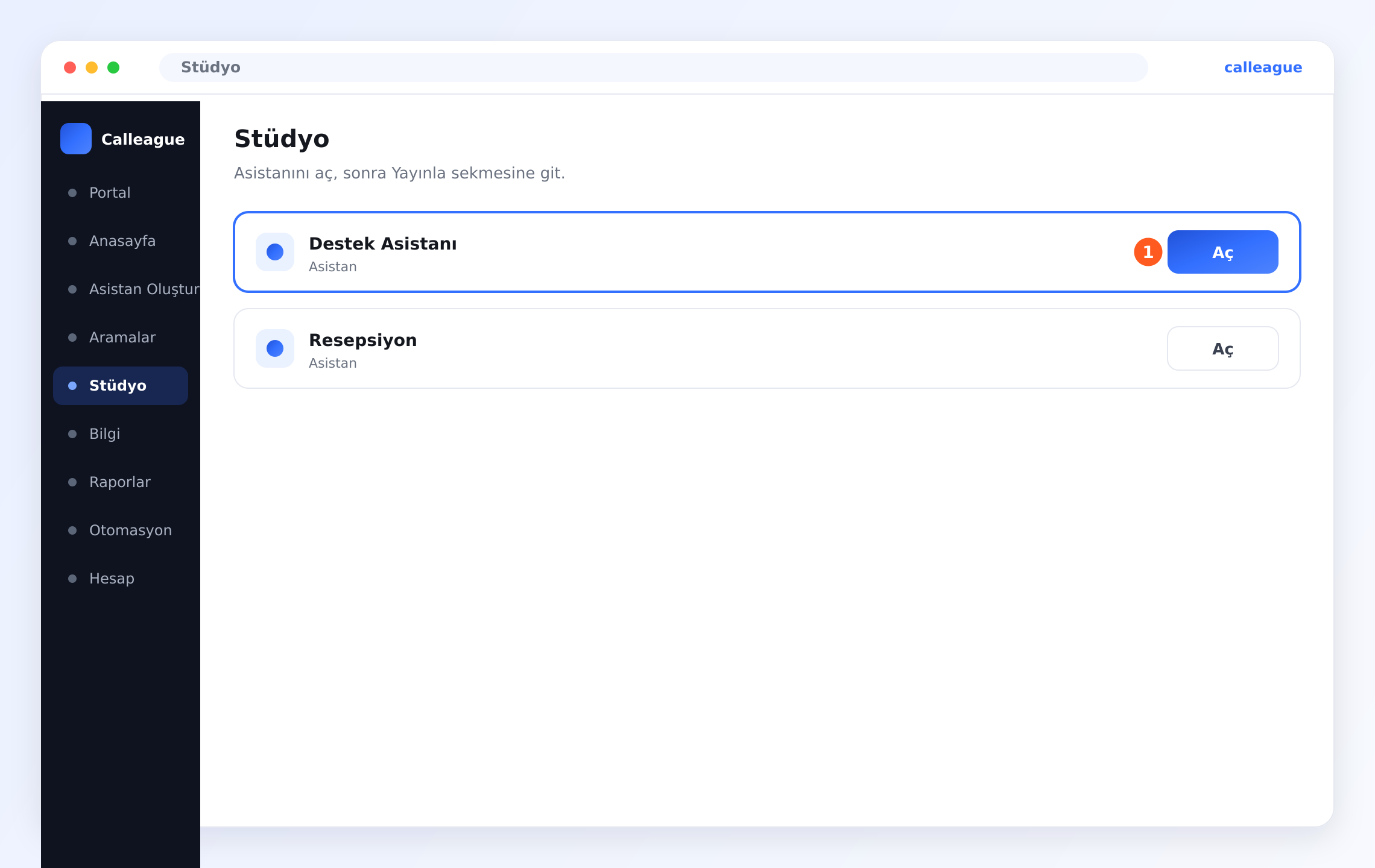
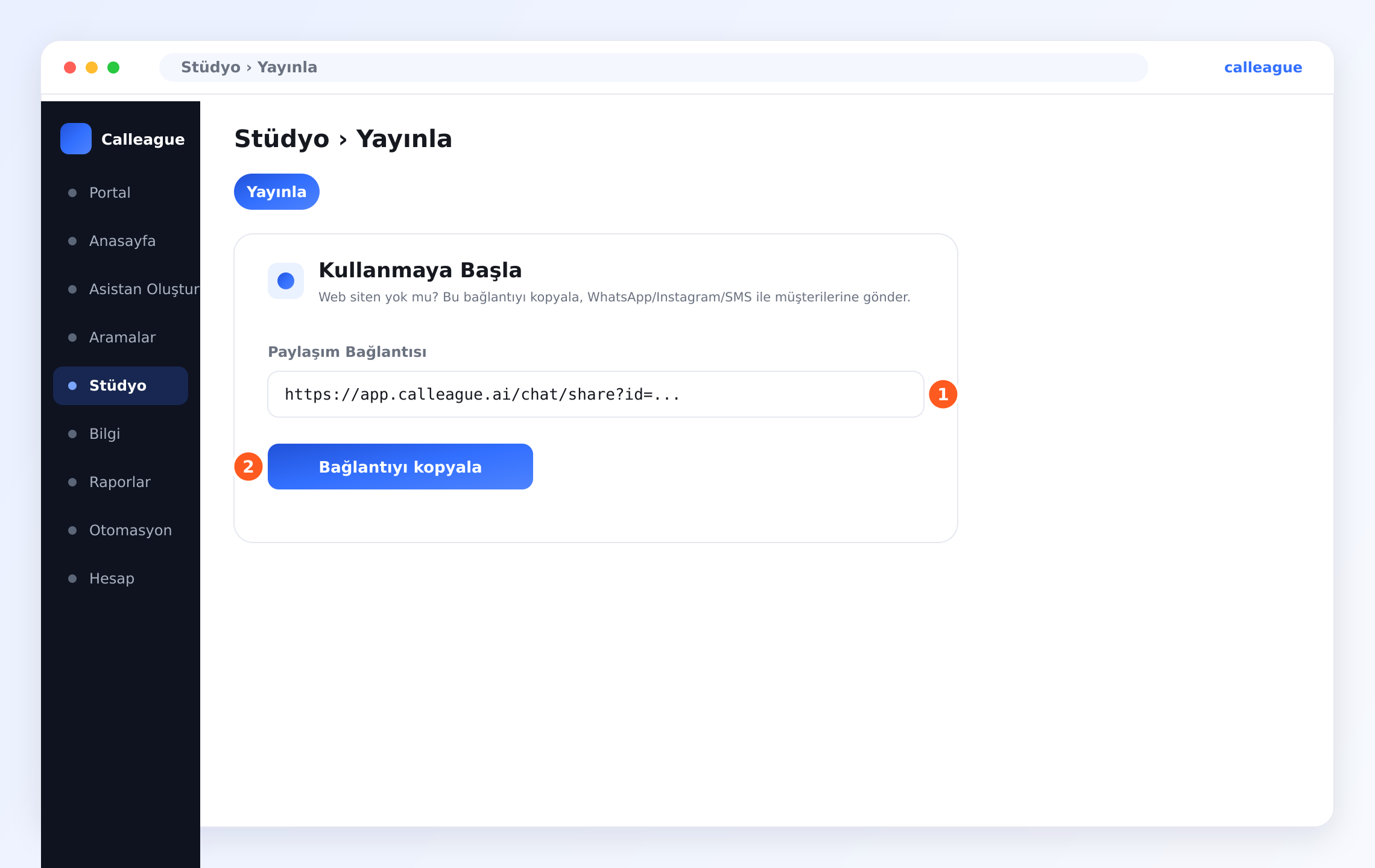
Asistan açılınca Yayınla sekmesine geçin (bu sekme açık/etkin görünür). Açılan Kullanmaya Başla kutusunda, ① Paylaşım Bağlantısı alanının altındaki ② Bağlantıyı kopyala düğmesine basın. (Yayınla sol menüde ayrı bir öğe değildir; asistanın içindeki bir sekmedir ve Stüdyo'dan açılır.)
Kopyaladığınız linki müşterilerinize gönderin: örneğin WhatsApp'ı açın → bir sohbete girin → mesaj alanına uzun basıp "Yapıştır" deyin → Gönder. Aynı bağlantıyı SMS ile de gönderebilir, Instagram'da profilinizdeki ("biyografi") linke koyabilir ya da bir DM/mesajda paylaşabilirsiniz. Müşteriniz linke dokunduğunda doğrudan asistanınızla konuşur. (Tanıtım sitemiz calleague.ai ile karıştırmayın: işinizi yaptığınız uygulamanın kendisi app.calleague.ai'dir.)
Ne yapacaksınız
Bilgi eklemenin iki yolu vardır; ikisi de aynı sonucu verir:
- Yol 1 — oluştururken: Sihirbazın (sizi adım adım yönlendiren ekran) Eğit adımında bir web sitesi veya belge ekleyin.
- Yol 2 — sonradan, istediğiniz zaman: Sol menüdeki Bilgi bölümünden dilediğiniz kadar ekleyin.
Henüz sihirbazda değil misiniz? Sorun değil. İki seçeneğiniz var: ya sol menüden Asistan Oluştur'a girip Eğit adımına gelin (Yol 1), ya da hiç sihirbaza girmeden doğrudan Yol 2'yi (sol menüdeki Bilgi) kullanın. Bu sayfayı okurken hangisi elinizdeyse onu takip edin.
Yol 1 — Asistanı oluştururken öğretin (Eğit adımı)
Hâlâ oluşturma sihirbazındaysanız zaten doğru yerdesiniz: burası 4 adımdan ikincisi olan Eğit adımıdır.
Web sitesi adresi mi, belge mi? Birini seçin
Eğit adımının üstünde iki düğme görürsünüz: Web sitesi URL ve Belge yükle. (URL, "web adresi" demektir — örneğin www.isiniz.com.)
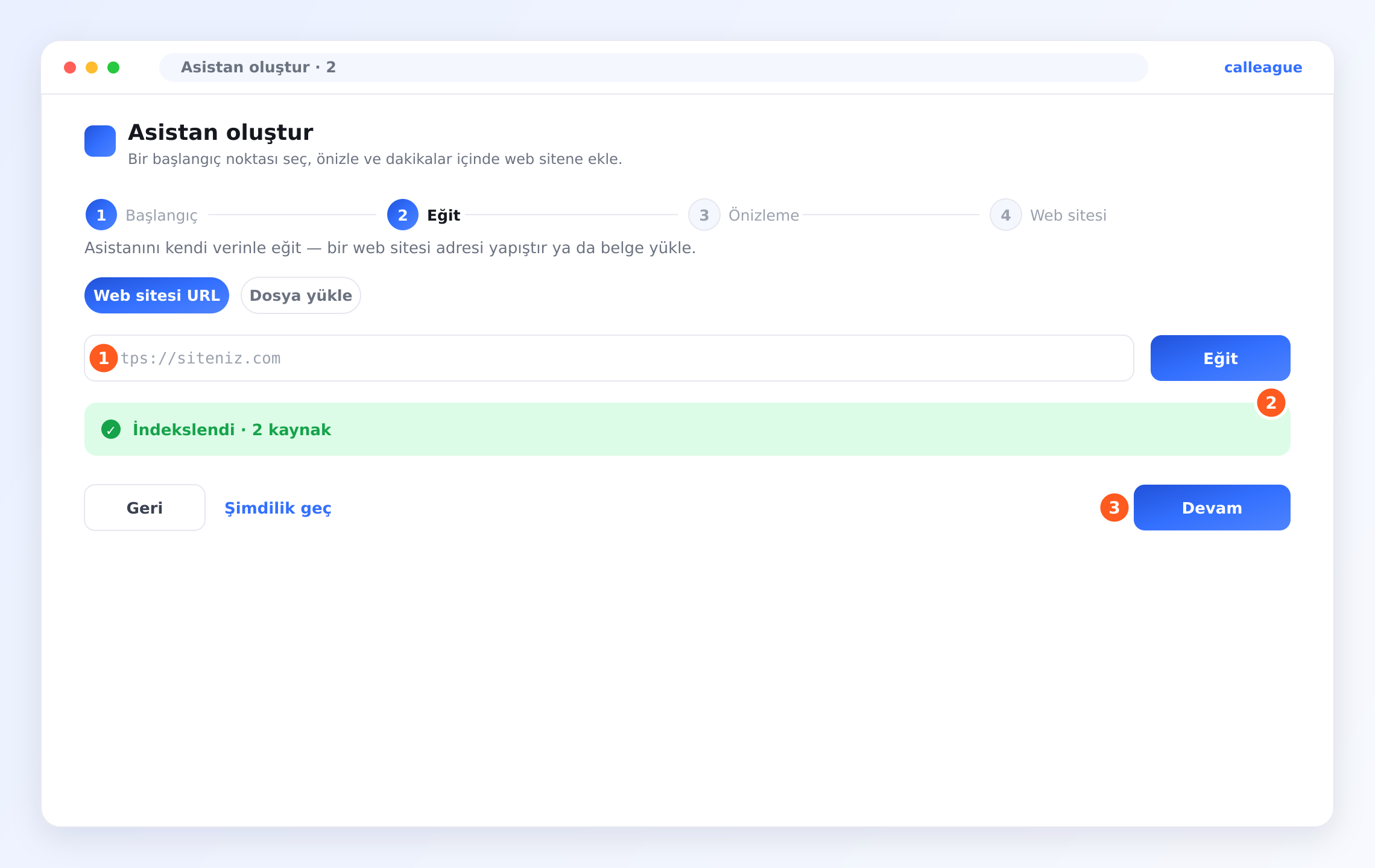
- Web siteniz varsa: adresinizi ① adres alanına yapıştırın, ardından hemen yanındaki mavi Eğit düğmesine basın. Bu adım çok önemlidir: düğmeye basmazsanız adres yalnızca kutuda bekler ve İndekslendi yazısı asla çıkmaz. Düğmeye basınca asistan sayfayı okumaya başlar.
- Belge eklemek istiyorsanız: Belge yükle'ye basın ve bir PDF dosyası seçin (Word belgesi de olur). Çoğu işletme için fiyat listenizin, menünüzün veya broşürünüzün bir PDF'i birebirdir.
Göreceğiniz: adresiniz için hazır bekleyen bir kutu ve hemen yanında mavi Eğit düğmesi.
Telefondan mı kullanıyorsunuz? Belge yerine fotoğraf/JPG de yükleyebilirsiniz — menünüz bir fotoğrafsa olduğu gibi çekip yükleyin, asistan onu da okur.
"İndekslendi" yazısını bekleyin
Eklediğiniz şeyi okuması için asistana birkaç saniye verin.
Göreceğiniz: yeşil bir ② "İndekslendi · 2 kaynak" yazısı belirir. İndekslendi, "asistanınız okudu, artık o bilgiyi biliyor" demektir; bu, işin tamam olduğunun onayıdır. Ardından devam etmek için ③ "Devam" düğmesine basın.
Yol 2 — İstediğiniz zaman öğretin (Bilgi)
Dilediğiniz zaman daha fazla bilgi ekleyebilirsiniz; asistanınızı baştan oluşturmanıza gerek yok.
Bilgi ekranını açın
Sol menüden Bilgi'ye basın (telefonda sol üstte üç yatay çizgi ☰ düğmesine dokunun). Dilerseniz Anasayfa'daki (giriş yaptıktan sonra açılan ana ekran) Bilgi tabanı kartındaki Bilgiyi yönet düğmesini de kullanabilirsiniz. Bilgi tabanı ekranı açılır.
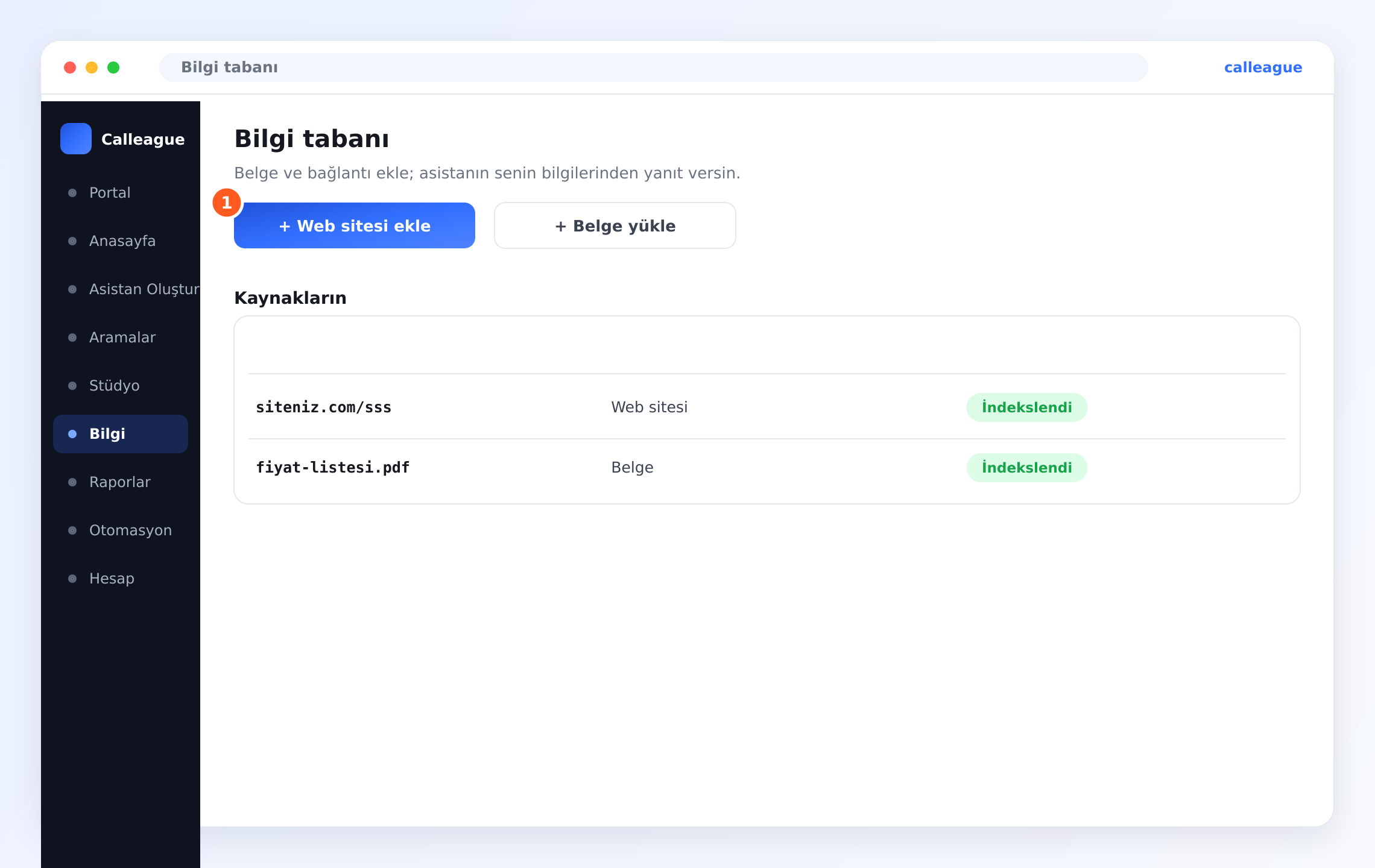
Göreceğiniz: üstte iki düğme (işaret ①) — + Web sitesi ekle ve + Belge yükle — ve altında bir Kaynakların listesi.
Yeni bir hesapta Kaynakların listesi boş görünür — bu normaldir. İlk kaynağınızı ekler eklemez burası dolmaya başlar.
Web sitesi veya belge ekleyin
+ Web sitesi ekle'ye basıp bir adres yapıştırın ya da + Belge yükle'ye basıp dosyanızı (PDF veya Word belgesi) seçin.
Göreceğiniz: yeni öğeniz hazır olunca yeşil bir İndekslendi etiketiyle Kaynakların listesinde belirir — örneğin siteniz.com/sss · Web sitesi · İndekslendi.
Zaman içinde birkaç kaynak ekleyin. Her biri bir boşluğu doldurur; böylece asistanınız gerçek soruları yanıtlamakta giderek daha iyi olur.
İyi bir bilgi neye benzer
Eklenecek en iyi şeyler, müşterilerinizin en çok sorduğu sayfa ve belgelerdir:
- SSS (sık sorulan sorular) sayfanız — zaten soru-cevap biçiminde yazılıdır.
- Fiyat veya hizmet sayfanız — fiyat verebilsin ve ne sunduğunuzu anlatabilsin.
- "Hakkımızda" veya "İletişim" sayfanız — çalışma saatleri, adres ve size ulaşma yolları.
- Bir menü, broşür ya da fiyat listesi (PDF) — bir restoran, kuaför veya mağaza için birebir.
Dakika dakika değişen (canlı kargo takibi gibi) ya da görmek için şifre gerektiren sayfaları eklemeyin — asistan, tıpkı bir ziyaretçi gibi yalnızca açıkça okuyabildiği sayfalardan öğrenebilir.
Kısa bir örnek
Bir çiçekçi siteniz.com/sss sayfasını ekler ve fiyat-listesi.pdf dosyasını yükler. Artık bir müşteri "Gül buketi ne kadar?" ya da "Pazar günü teslimat yapıyor musunuz?" diye sorduğunda, asistan mağazanın kendi bilgilerinden doğru yanıtı verir — tahmin yok.
Bir şey farklı görünüyorsa
| Gördüğünüz | Nedeni | Ne yapmalısınız |
|---|---|---|
| Yeşil İndekslendi yazısı çıkmıyor | Adresi yapıştırdınız ama mavi Eğit düğmesine basmadınız ya da adres yanlış/sayfa şifreli | Önce mavi Eğit düğmesine basın; sonra adresin https:// ile başladığını kontrol edin veya bir belge yükleyin |
| Belgem yüklenmiyor | Dosya türü desteklenmiyor | PDF veya Word belgesi kullanın; telefondaysanız menünüzün fotoğrafını yükleyin |
| Asistan hâlâ bir şeyi bilmiyor | O bilgi henüz hiçbir kaynakta yok | İçeren sayfayı veya belgeyi ekleyin |
| Bilgi ekranını bulamıyorum | Başka bir ekrandasınız | Sol menüde Bilgi'ye basın (telefonda sol üstteki ☰ menü) |
Sıkça sorulan sorular
Sırada ne var
Asistanınız artık işletmenizi biliyor. Şimdi onu müşterilerinizin ulaşabileceği yere koyalım.
Web sitene ekle
Tek satır kodu kopyalayıp sohbet aracını sitenize ekleyin (siteniz olmasa da yöntem var).
Telefon numarası bağla
Asistanınızın gerçek çağrılara cevap vermesini sağlayın.
İlk konuşmanı dene
Onunla sohbet edin, arayın, sonra konuşmanın yazısını (dökümünü) okuyun.
Ne ekleyeceğinizden emin değil misiniz? Bize info@arpanet.com.tr adresinden yazın; doğru sayfa ve belgeleri seçmenize yardımcı olalım.
Son güncelleme