
Örnek: CRM ve takvim
Dostça, eksiksiz bir adım adım anlatım — asistanına bilgilerini ver ve müşteri listenle takvimini bağla ki arayanları tanısın ve randevu versin.
Hadi bunu küçük bir klinik üzerinden gerçek kılalım. Sonunda asistanın kendi bilgilerinden soruları yanıtlayacak, kimin aradığını tanıyacak ve randevu verecek — hepsini kendi başına. Birkaç dakika sürer ve hiçbir teknik bilgi gerekmez.
Bu, küçük işletmeler için en sevilen kurulumdur; çünkü bu parçalar bir araya geldiğinde asistanın, kibar bir not bırakıcıdan; hizmetlerini, müşterilerini ve ajandanı bilen gerçek bir resepsiyoniste dönüşür.
Bugün tek başına yalnızca bilgilerinle başlayabilirsin — ekran görüntülü kısım aşağıda. Müşteri listesi ve takvim eklemek, aramaları kişisel kılan ve asistanın kendi başına randevu vermesini sağlayan adımdır; onları seninle birlikte kurarız.
Sonunda elinde ne olacak
Bir arayanın deneyimi şöyle görünecek:
- Birisi kliniğini arar.
- Asistanın kendi bilgilerinden soruları yanıtlar — hizmetler, fiyatlar, açılış saatleri.
- Arayanı müşteri listenden tanır ve adıyla selamlar.
- Arayan randevu ister; asistan takvimini kontrol eder ve birkaç boş saat önerir.
- Arayan birini seçer, asistan randevuyu oluşturur ve kısa bir not kaydeder.
Geri arama yok, çift kayıt yok, yapışkan notlar yok.
Bir bakışta
| Parça | Nedir | Asistanın bununla ne yapar |
|---|---|---|
| Kendi bilgilerin | Hizmetlerin, fiyatların, saatlerin, politikaların | Senin yanıtlayacağın gibi soruları yanıtlamak |
| Müşteri listesi (CRM) | Kişileri ve geçmişlerini sakladığın yer | Arayanı tanımak, adıyla selamlamak, not kaydetmek |
| Takvim | Randevu ajandasın | Boş saatleri görmek, seçenek sunmak, randevuyu oluşturmak |
Başlamadan önce
Birkaç küçük şey bunu kolaylaştırır:
- Zaten oluşturulmuş bir asistanın var. Yoksa önce birini kur — bkz. Asistanını oluştur.
- Müşteri listene ve takvimine giriş yapabiliyorsun.
- Müşterilerinin telefon numaraları, aradıkları biçimde (ülke koduyla birlikte) kayıtlı.
1. Adım — Asistanına kliniğinin bilgilerini ver
Bu kısmı hemen şimdi, tek başına yapabilirsin.
Bilgi tabanını aç
app.calleague.ai adresinden giriş yap, sonra sol menüden Bilgi'ye tıkla.
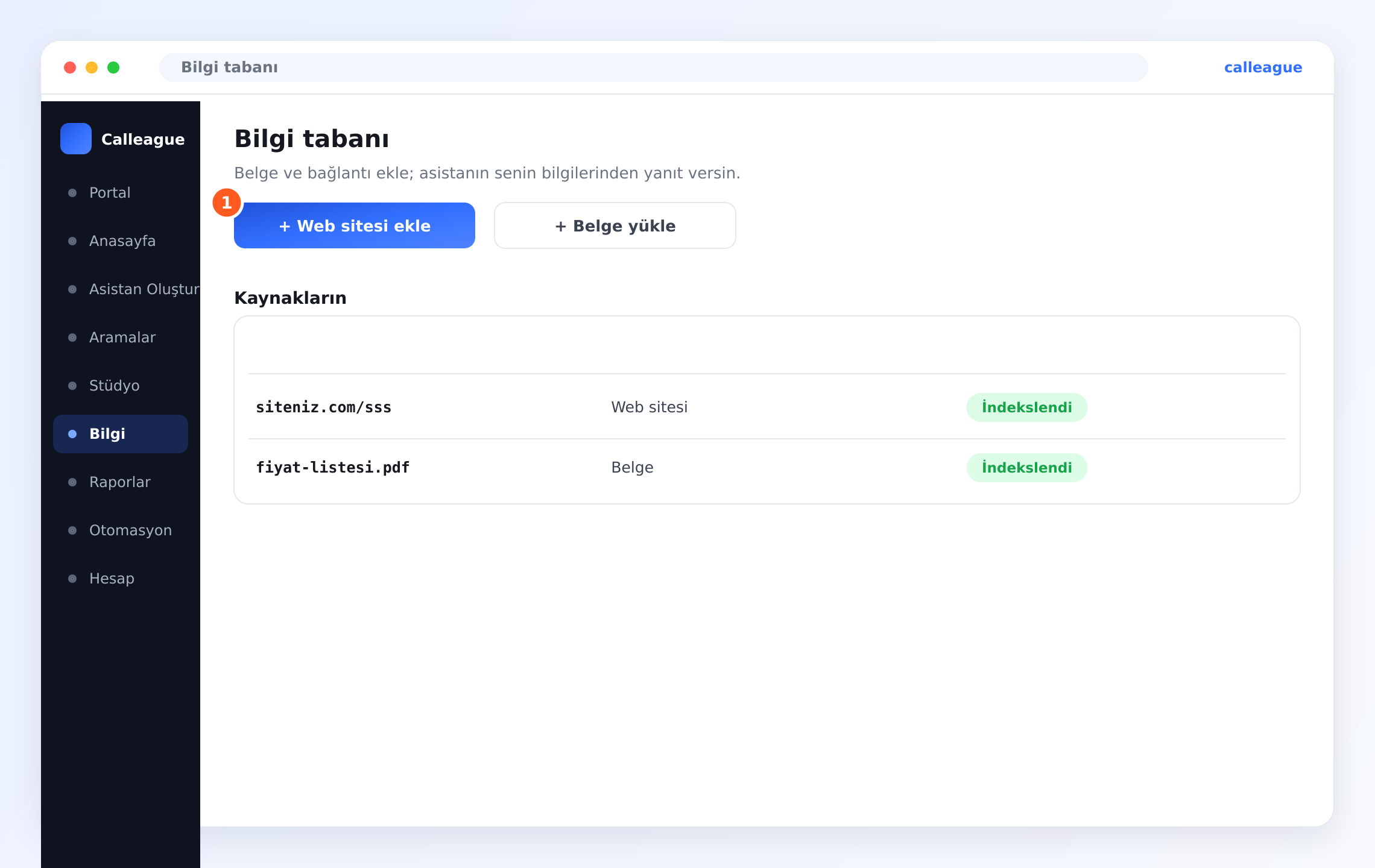
① Web sitesi ekle düğmesi, bir Belge yükle düğmesi ve altında bir Kaynaklarınız listesi olan Bilgi tabanı sayfasını görürsün.
Hizmetlerini ve fiyatlarını ekle
Web sitesi ekle'ye tıklayıp hizmet veya fiyat sayfana bir bağlantı yapıştır, ya da fiyat listeni PDF olarak eklemek için Belge yükle'ye tıkla.
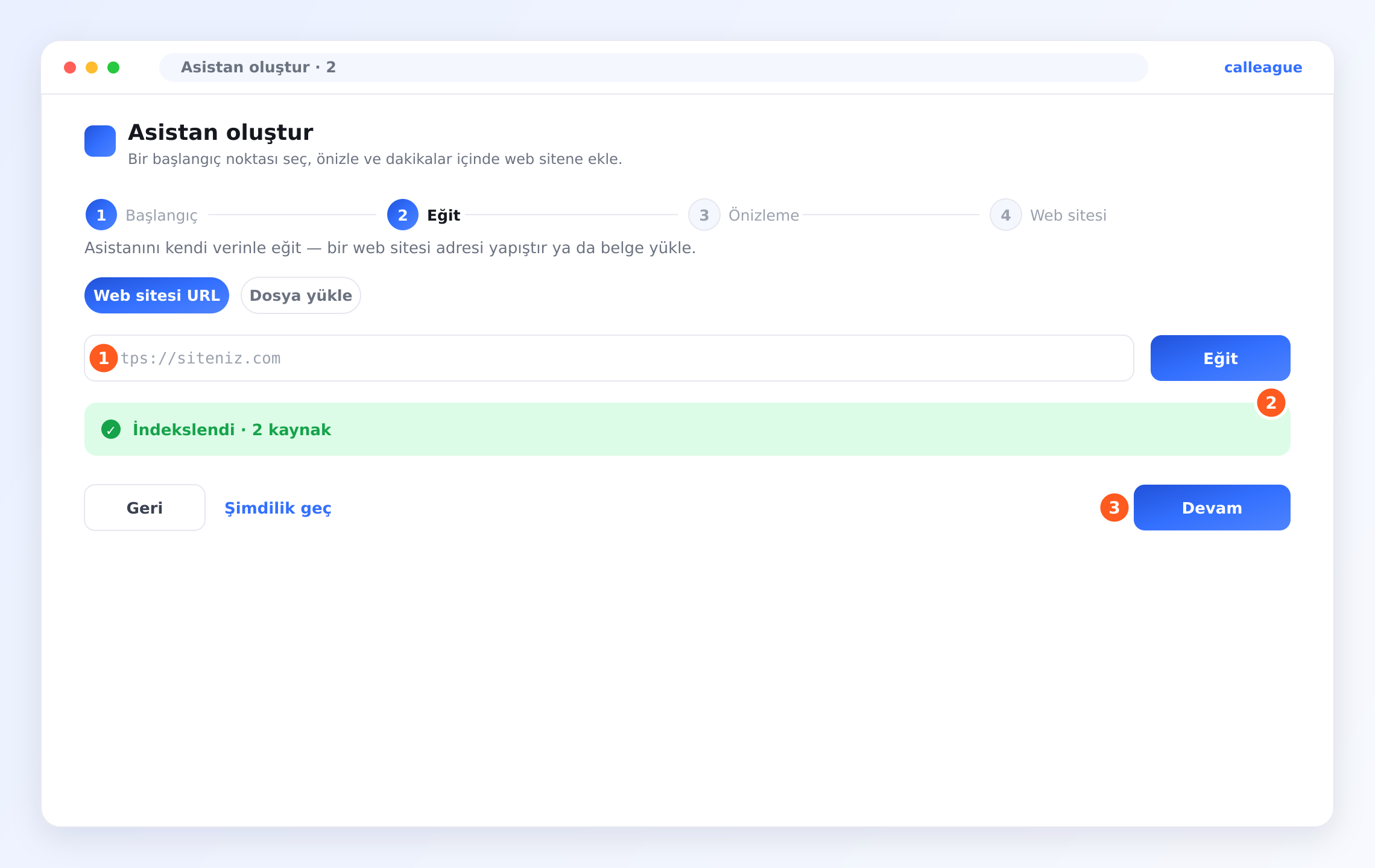
Asistanın okuduktan sonra yeşil bir ② İndekslendi onayı görürsün — örneğin "İndekslendi · 2 kaynak". Artık "Kontrol muayenesi ne kadar?" gibi soruları senin sözlerinle yanıtlayabilir.
2. Adım — Müşteri listeni ve takvimini bağla
Asistanının arayanları tanıması ve senin uygulamalarına randevu vermesi için, bağlantıyı seninle birlikte kurarız; böylece hesapların güvende ve doğru olur.
Hangi araçları kullandığını bize söyle
Kullandığın müşteri listesini ve takvimi (örneğin kliniğinin hâlihazırda çalıştığı randevu uygulamasını) info@arpanet.com.tr adresine yaz.
Asistanın neye izinli olacağını seç
Birlikte yalnızca ihtiyacın olanı açarız. Bu klinik örneği için bunlar:
- Telefon numarası veya isimle bir müşteri bul
- Müşteri kaydına bir not kaydet
- Takvimde boş saatleri gör
- Arayan bir saat seçince randevu oluştur
Diğer her şey — özellikle bir müşteriyi veya randevuyu silmek — kapalı kalır.
Onayla ve yayına al
Bağlandıktan sonra asistanın her aramada arayanları tanıyabilir ve randevu verebilir.
"Müşteri sil" iznini vermediğimize dikkat et. Daima yalnızca asistanının gerçekten ihtiyaç duyduğunu aç — bunu istediğin zaman değiştirebilirsin ve giriş bilgilerin asla paylaşılmaz.
İzinler hakkında bir not
Her bağlantı için ne kadar erişim vereceğine sen karar verirsin. Bu senin güvenlik ağın.
| Asistanın şunu yapabilir | Hangi araçtan | Varsayılan açık mı? |
|---|---|---|
| Hizmetler ve fiyatlar hakkındaki soruları yanıtlamak | Kendi bilgilerin | Evet, ekledikten sonra |
| Arayanı tanımak ve adıyla selamlamak | Müşteri listesi | Yalnızca "müşteri bul" iznini verdiysen |
| Arama hakkında not kaydetmek | Müşteri listesi | Yalnızca "not kaydet" iznini verdiysen |
| Hangi saatlerin boş olduğunu görmek | Takvim | Yalnızca "boş saatleri gör" iznini verdiysen |
| Yeni randevu oluşturmak | Takvim | Yalnızca "randevu oluştur" iznini verdiysen |
| Müşteri veya randevu silmek | İkisinden biri | Hayır — bunu kapalı bırakmanı öneririz |
Asistan, bir arayanın istediği bir şeyi yapamıyorsa, neredeyse her zaman yukarıdaki ilgili satır kapalı olduğu içindir — bu kasıtlıdır, böylece senin onayın olmadan hiçbir şey olmaz.
3. Adım — Gerçek bir randevu aramasını dene
Gerçek müşteriler gelmeden önce dene, sonra sonucu Aramalar'da kontrol et.
Asistanını ara ve randevu iste
Tam bir müşteri gibi onu kendin ara ve "Yarına bir kontrol muayenesi almak istiyorum" gibi doğal bir şey söyle.
Aramayı aç ve sonucu kontrol et
Sol menüden Aramalar'a tıkla, sonra az önce yaptığın aramaya tıklayarak ayrıntısını aç.
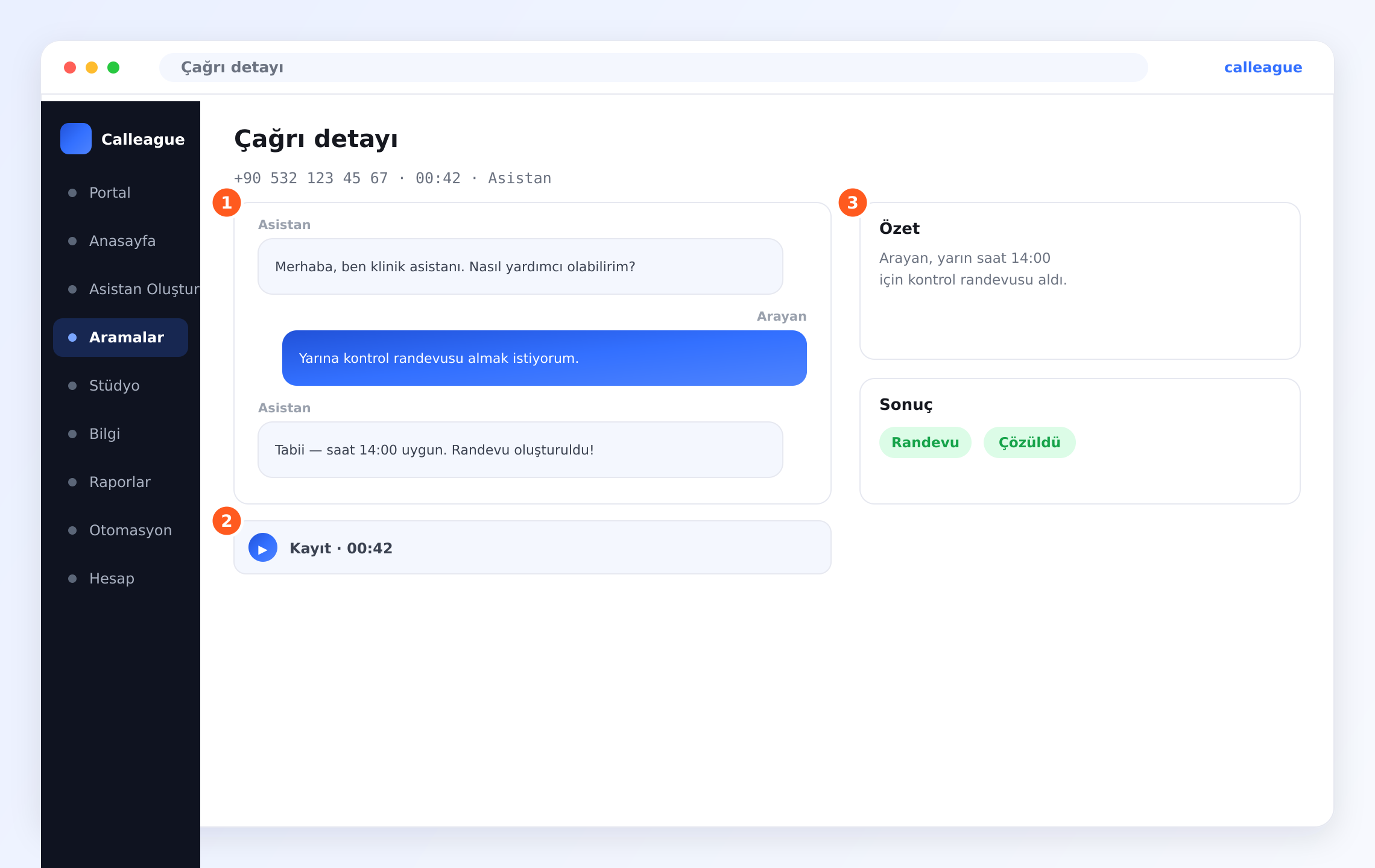
① dökümü görürsün — burada Arayan "Yarına bir kontrol muayenesi almak istiyorum" diyor, Asistan "Elbette — 14:00 uygun. Randevu alındı!" diye yanıt veriyor — oynatabileceğin bir ② Kayıt ve sağda bir ③ Özet ("Arayan yarın 14:00'e bir kontrol muayenesi aldı") ile Sonuç kısmında Randevu ve Çözüldü işaretli.
O ilk randevunun kendi başına oluştuğunu görmek, çoğu kişinin buna âşık olduğu andır. Çalışıyorsa, yayına almaya hazırsın.
Kelimesi kelimesine bir örnek arama
Her şey bağlandığında gerçek bir arama şöyle olabilir.
Arayan: Merhaba, ben Ayşe.
Asistan: Merhaba Ayşe, sizi tekrar duymak güzel. Bugün nasıl yardımcı olabilirim?
Arayan: Yarın bir kontrol muayenesine gelmek istiyorum.
Asistan: Elbette. Sabah 10'um ya da öğleden sonra 14'üm var. Hangisi size uygun?
Arayan: Öğleden sonra ikisi, lütfen.
Asistan: Harika — saat 14:00'e yazdım. Başka bir şey var mı?
Arayan: Hayır, bu kadar. Teşekkürler!
Asistan: Rica ederim. Yarın görüşürüz!
Perde arkasında asistan, Ayşe'yi müşteri listesinden tanıdı, takvimden boş saatleri okudu, randevuyu oluşturdu ve bir not kaydetti — kimse telefona el sürmeden.
Sorun giderme
| Gördüğün şey | Nedeni | Ne yapmalısın |
|---|---|---|
| Asistan bir fiyatı bilmiyor | O bilgi henüz Bilgi tabanında değil | İçinde geçtiği sayfayı veya belgeyi ekle (1. Adım) ve yeşil İndekslendi etiketini bekle |
| Arayan tanınmadı | Numarası müşteri listende farklı biçimde kayıtlı | Aradığı biçimde, ülke koduyla birlikte kayıtlı olduğundan emin ol |
| Randevu oluşturulmadı | "Randevu oluştur" izni kapalı | O izni açmamızı iste |
| Not kaydedilmedi | "Not kaydet" izni kapalı | O izni açmamızı iste |
| Hâlâ takıldın | Kuruluma özgü bir durum | info@arpanet.com.tr adresine yaz, seninle birlikte bakalım |
Sıkça sorulan sorular
Sonraki adımlar
Araçlarını bağla
Bağlayabileceğin her tür aracın genel görünümü.
Aramalarını izle
Canlı dökümleri, kayıtları ve sonuçları gör.
Otomasyonları kur
Bir takip mesajı gönder veya aramayı otomatik kaydet.
Verileriniz güvende
Müşteri bilgilerinin nasıl gizli kaldığı.
Takılırsan yardıma hazırız — info@arpanet.com.tr adresine yaz, seninle birlikte bakalım.
Son güncelleme