
Developers
Build on top of Calleague with the hosted app API — start and review calls, read your assistants, react to call events, and connect MCP clients. API key, Bearer auth, and a real worked example.
The Calleague app gives you a simple web API, so anything your team does by hand in the dashboard you can also do from your own code. If a person can run a voice assistant, place a call, and look at the result, your software can do the same — and you can wire Calleague straight into your shop's order system, a clinic's booking tool, or any back-office app you already run.
Everything in this section is app-level. You sign in with an API key, send and receive plain JSON over a secure (HTTPS) connection, and optionally let Calleague push you events or talk to MCP-capable tools. There is nothing to install.
This section is for people who write code. The rest of the documentation needs no technical skills — if you are setting up an assistant for the first time, start with Getting started instead.
What you'll do
You'll get an API key, send one request to start a call, and read the result back as JSON. The example below is the real request and response shown in the screenshot, so you can copy it and adapt it to your own assistant.
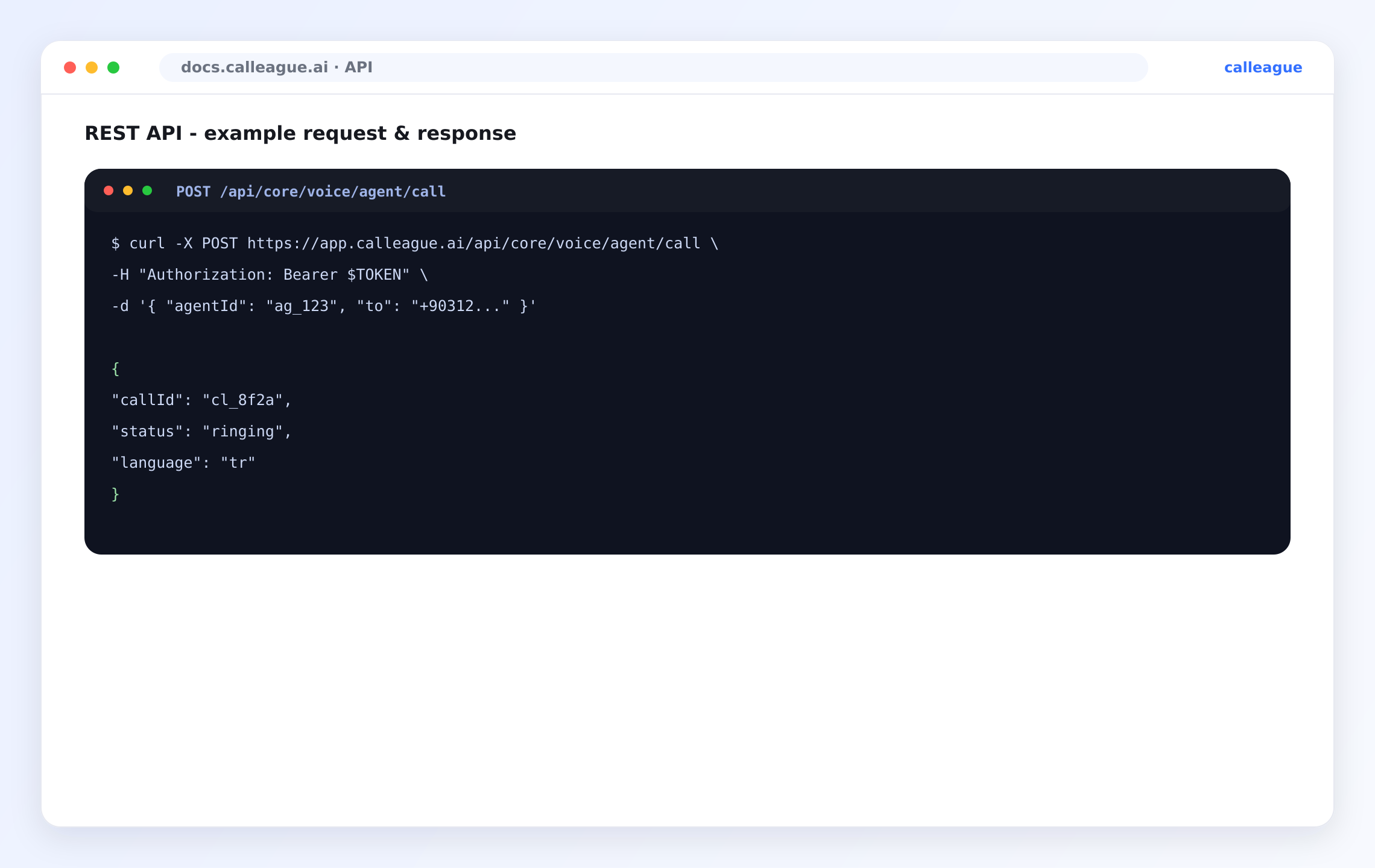
The screenshot shows the whole round trip: a POST to /api/core/voice/agent/call with your assistant's id and a phone number, and a JSON reply with the new call's id, its status, and the language it will speak.
What you can build
| Capability | What it lets you do | Where |
|---|---|---|
| Calls | Start an outbound call, then look up how it went. | REST API |
| Assistants | Read your voice assistants so you know which one to call with. | REST API |
| Transcripts & recordings | Pull the words spoken and the recording reference once a call ends. | REST API |
| Events | Get told the moment a call starts, finishes, or a recording is ready — no constant checking. | Webhooks |
| Tools (MCP) | Let an assistant call your tools mid-conversation, or let an outside assistant reach Calleague. | MCP |
An API key inherits the permissions of the account that made it. If you cannot do something in the dashboard, the key cannot do it either — so a key is never more powerful than the person who created it.
Base URL
Every request goes to your Calleague workspace over a secure connection. The address in the screenshot is the public one:
https://app.calleague.aiAll the calls on these pages are rooted at that address followed by /api/.... Requests and responses are JSON.
Authentication
You prove who you are with an API key, sent as a Bearer token in the standard Authorization header — exactly as in the screenshot:
Authorization: Bearer $TOKENYou create, name, and revoke keys from your account settings inside the app.
Open your account settings and create a key
Go to your account settings and open the API keys area, then create a new key. Give it a name that says what it is for, such as shop-orders or clinic-reminders, so you can recognise and revoke it later.
You'll see the new key shown once, in full.
Copy and store it safely
Copy the key while it is on screen — it is shown in full only at creation time. Keep it in your own secret store. Never paste it into a chat, a shared document, or your code repository.
You'll see only a masked preview if you return to the list later, which is normal.
Send it with every request
Attach the key as a Bearer token on each request, like the Authorization: Bearer $TOKEN line in the screenshot.
You'll get a normal JSON reply when the key is accepted, or a 401 if it is missing or wrong.
Treat an API key like a password. Keep it in your own secret store, never commit it to a code repository, and replace it immediately if it is ever exposed. The values on these pages (ag_123, cl_8f2a, $TOKEN) are illustrative — they are not real keys.
Quick start — start a call
The shortest path to a working integration is a single request: ask an assistant to call a number. This is the exact request and response from the screenshot.
curl -X POST https://app.calleague.ai/api/core/voice/agent/call \
  -H "Authorization: Bearer $TOKEN" \
  -H "Content-Type: application/json" \
  -d '{ "agentId": "ag_123", "to": "+90312..." }'
A successful start returns the new call's id, its status, and the language it will speak:
{
  "callId": "cl_8f2a",
  "status": "ringing",
  "language": "tr"
}
Here agentId is your assistant's id, to is the number to dial, callId is the handle you use to look the call up later, and status moves from ringing to in-progress to completed as the call plays out.
Build defensively: read fields you know, ignore fields you do not recognise (so new ones can be added safely), and check a value exists before you use it. That single habit prevents the most common integration bugs.
A typical workflow
Most integrations combine all three building blocks — "place a call, wait for it to finish, then store the transcript":
Start the call (REST)
Send POST /api/core/voice/agent/call with an agentId and a to number. You'll get back a callId you can hold onto.
Wait for it to finish (webhook)
Subscribe to call.completed and recording.ready. Calleague pushes an event the instant the call ends, so you'll be told rather than having to keep asking.
Fetch the result (REST)
When the event arrives, look the call up by its callId to read its outcome, transcript, and recording reference, and save it against your own record.
Endpoints overview
A quick map of the most common operations. The first row is the real endpoint from the screenshot; see the REST API page for full detail.
| Method | Path | Purpose |
|---|---|---|
POST | /api/core/voice/agent/call | Start an outbound call with an assistant. |
GET | /api/core/voice/call/{callId} | Look up one call's detail and outcome. |
GET | /api/core/voice/call/list | List recent calls (paginated). |
GET | /api/core/voice/agent/list | List your voice assistants. |
POST | /api/core/webhook | Register a webhook endpoint. |
Choosing an integration style
| You want to… | Use | Page |
|---|---|---|
| Trigger or look up calls and assistants on demand | REST API | REST API |
| React the instant a call event happens | Webhooks | Webhooks |
| Let an assistant call your tools, or expose Calleague tools | MCP | MCP |
If something looks different
| What you see | Why it happens | What to do |
|---|---|---|
401 on every request | Key missing, mistyped, or revoked | Re-check the Authorization: Bearer line and that the key is active |
| Your key isn't shown in full | You're viewing it after creation | Keys are shown in full only once — create a new one if you lost it |
| The reply has fields you don't recognise | The API grew a new field | Ignore unknown fields; read only what you need |
| A list comes back empty | No data matches yet | Treat an empty list as normal and default to an empty array before looping |
FAQ
Next steps
Last Updated
Terms of Service
The simple rules for using Calleague, what you can expect from us, and what we expect from you.
REST API
Call the Calleague app API with a Bearer token — start a call, look it up, read assistants, paginate lists, and handle errors and rate limits. With the real worked example from the screenshot.