
Using your assistant
Your day-to-day home base — where everything lives, what your assistant can do, and how to find your way around. No technical knowledge needed.
Once your assistant is set up, this is where you live with it day to day: answering calls, reading conversations, checking what happened, and making small tweaks. Everything happens in one place — the app at app.calleague.ai. (calleague.ai is our marketing site; the place where you do your work is the app itself, app.calleague.ai.) There is nothing to install and nothing technical to learn.
This page is your map. It shows you Home (the main screen you land on after signing in), the menu down the left, and where each part of your day lives.
No account or no assistant yet? This page is a map, not a setup guide — it shows where everything lives in the app. To use it, you first need an account and at least one assistant.
- No account? Calleague has no public "Sign up" button; we give you the account. Ask through "Try for free" on calleague.ai or email info@arpanet.com.tr — you'll get an email and a password.
- No assistant yet? First, create your first assistant.
- Brand new? Start from the very beginning: Getting started.
Think of the app like the reception desk of a small office. Home is the desk you sit at; the menu on the left is the row of doors leading to each room — calls, knowledge, reports, and so on.
No website? No problem. You do not need a website to use your assistant.
- Share its Share link (a ready-made chat link you send to customers) over WhatsApp, Instagram, or SMS.
- Or chat with it yourself right here from the Portal (in the left menu).
- Your assistant also works by phone.
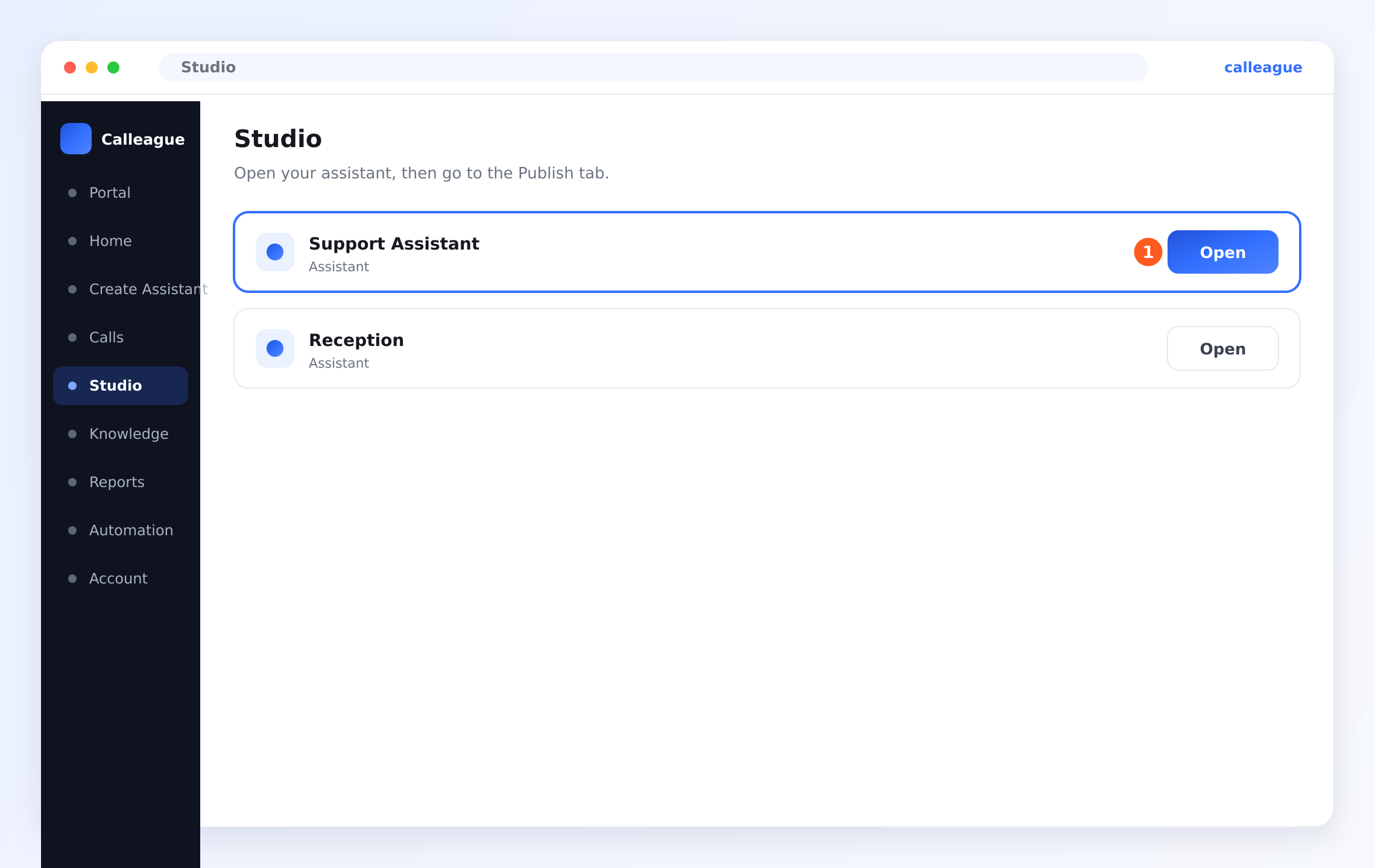
Without a website, the most practical route is the Share link — a ready-made chat link you send to customers. This link is generated automatically when you create your assistant. To find it, go to "Studio" in the left menu (on a phone, tap the three horizontal lines ☰ menu at the top left) and, in the list that opens, click the "Open" (①) button on your assistant's row.
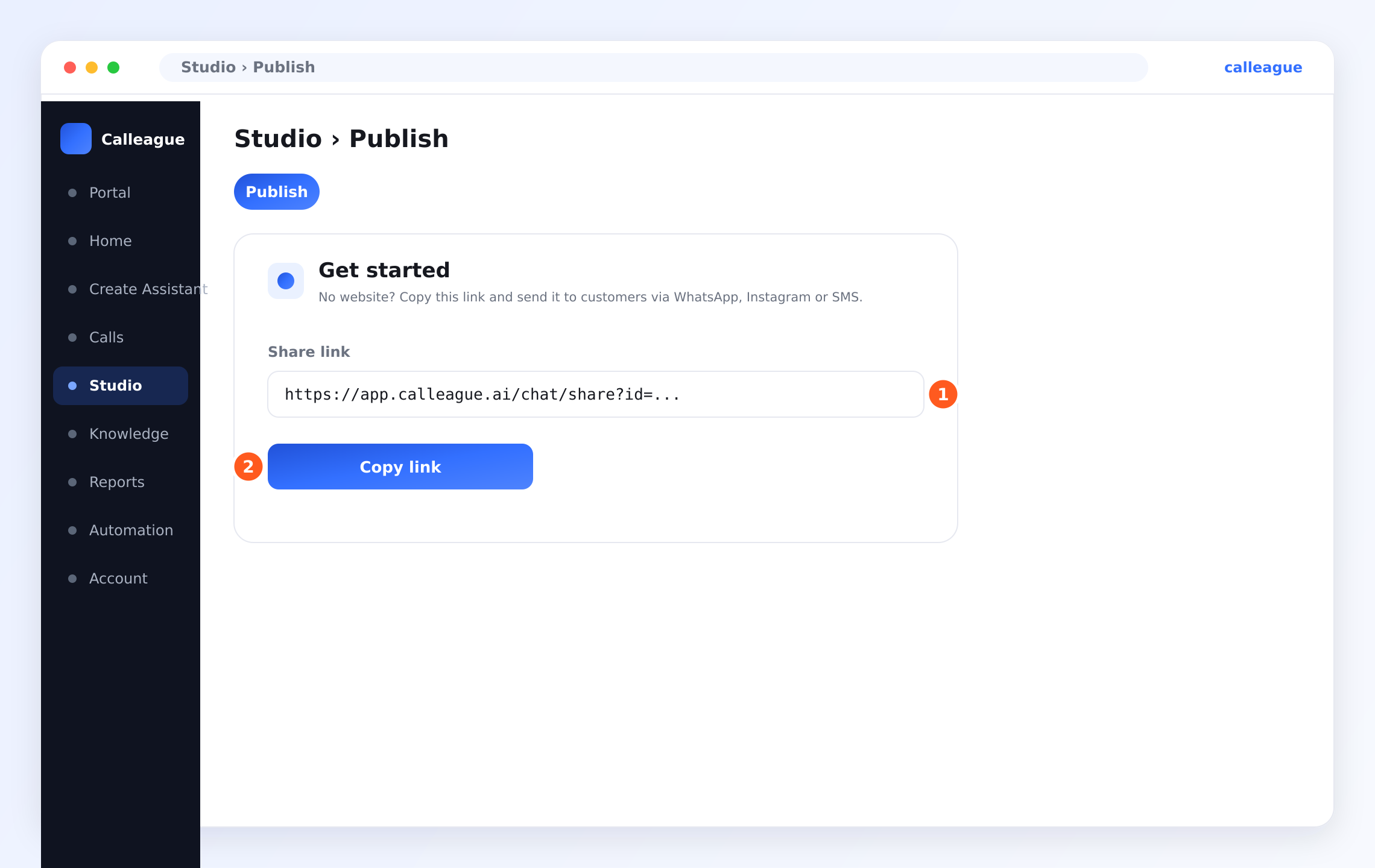
When your assistant opens, switch to the "Publish" tab at the top; in the "Get started" box there, click "Copy link" (②) under the "Share link" (①).
Then open WhatsApp → go into a chat → press and hold the message field and tap "Paste" → Send. On Instagram, you can put the link in your profile ("bio") link or send it in a DM/message. When your customer taps the link, they talk to your assistant.
What you'll do here
Sign in, land on Home, and use the four big cards and the left menu to reach everything: open your call inbox, chat with your assistant, create or edit an assistant, and manage what it knows.
Find your way around the Home screen
Open your browser and sign in
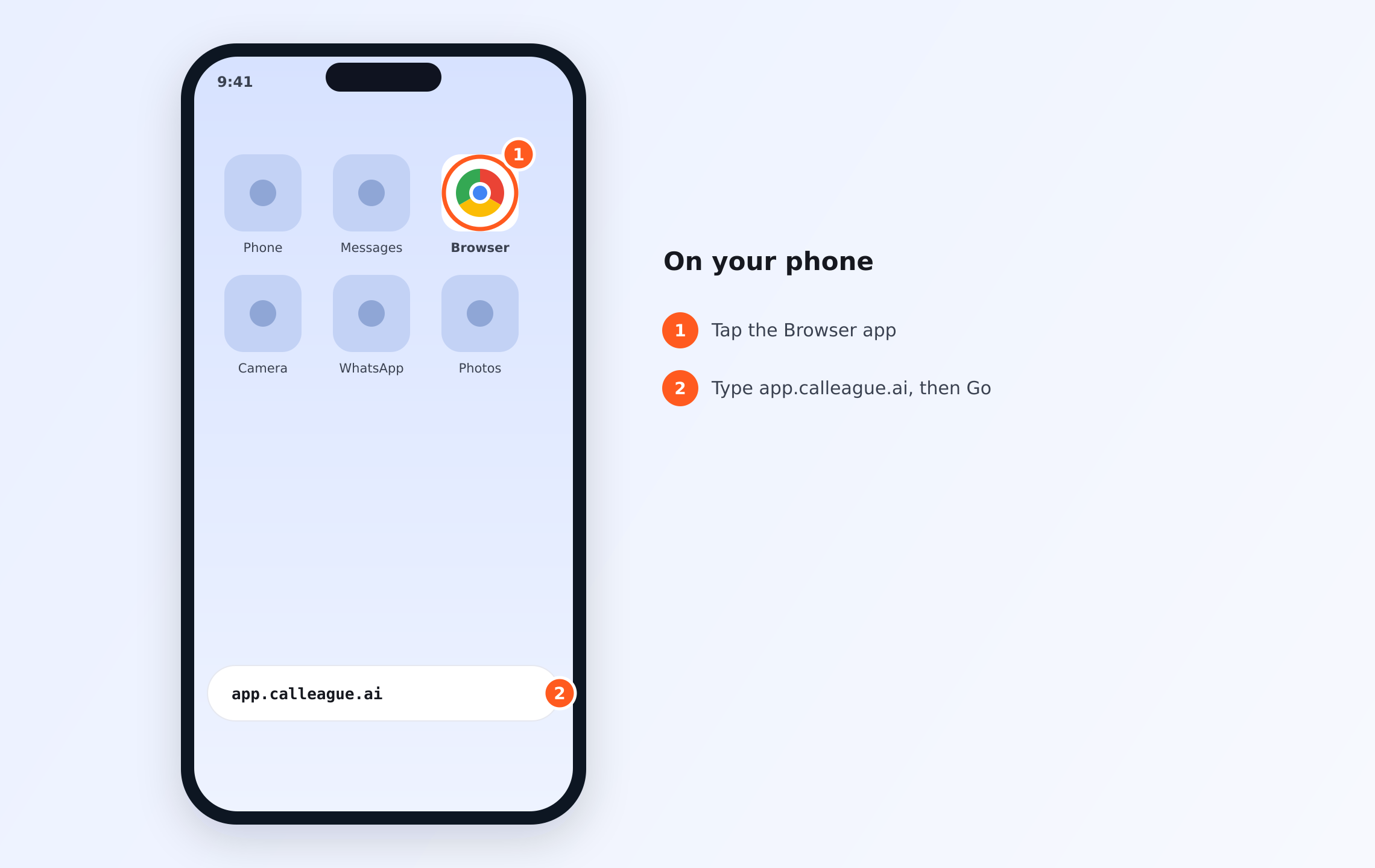
- Open a web browser on your phone or computer (such as Chrome or Safari — that icon on your phone's home screen) (①).
- In the address bar at the top (the long white bar at the top of the browser), type
app.calleague.aiand press "Go" / "Search" (Enter on a computer) on your keyboard (②).
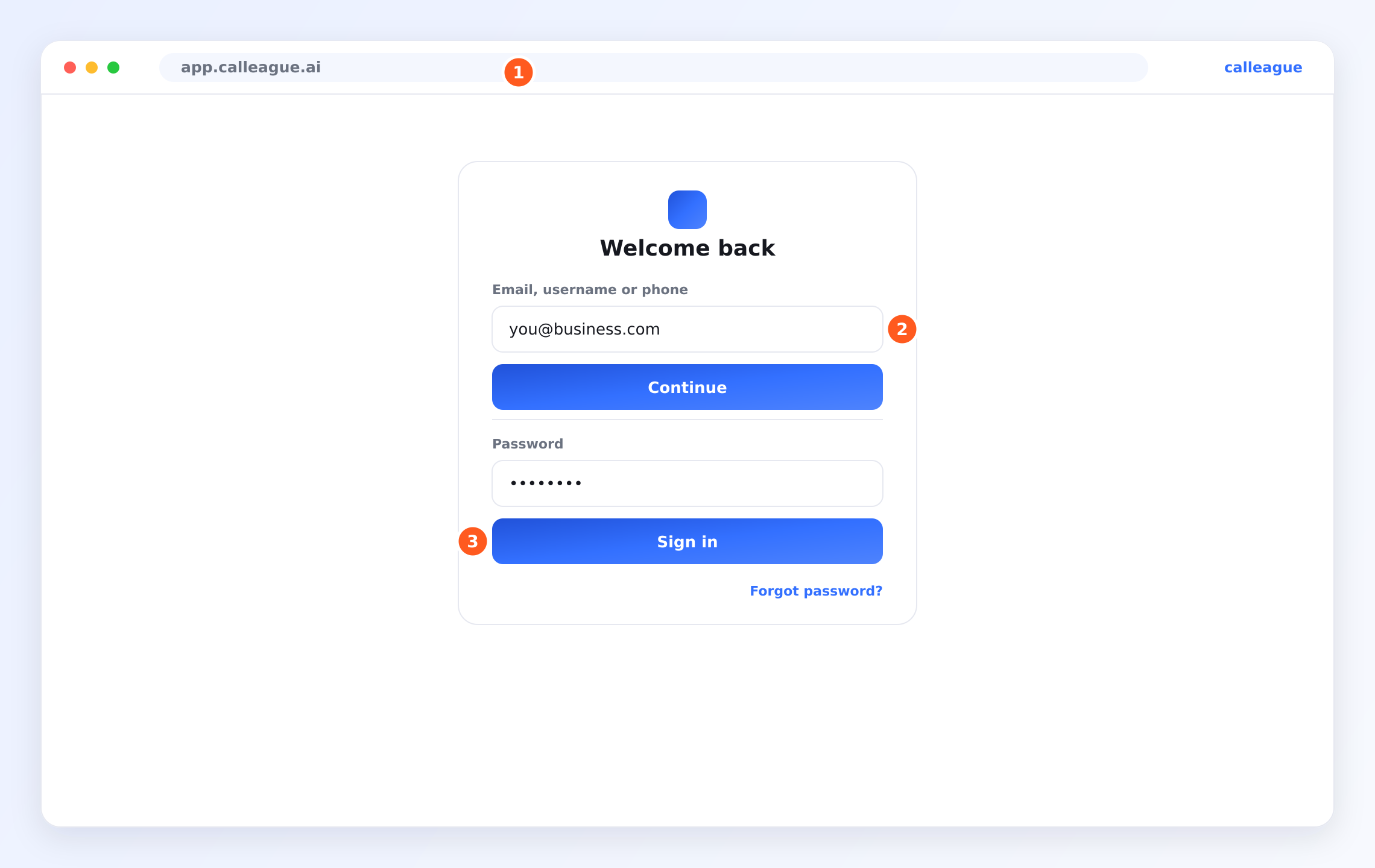
- On the sign-in screen that opens, type your email into the "Email, username, or phone" box and click "Continue"; then type your password into the "Password" field and click "Sign in" (the sign-in screen looks like this image). If you forgot it, use the "Forgot your password?" link below.
Once you sign in, you arrive at the Home screen. It opens with a friendly greeting like "Good morning" and the question "What would you like to do today?".
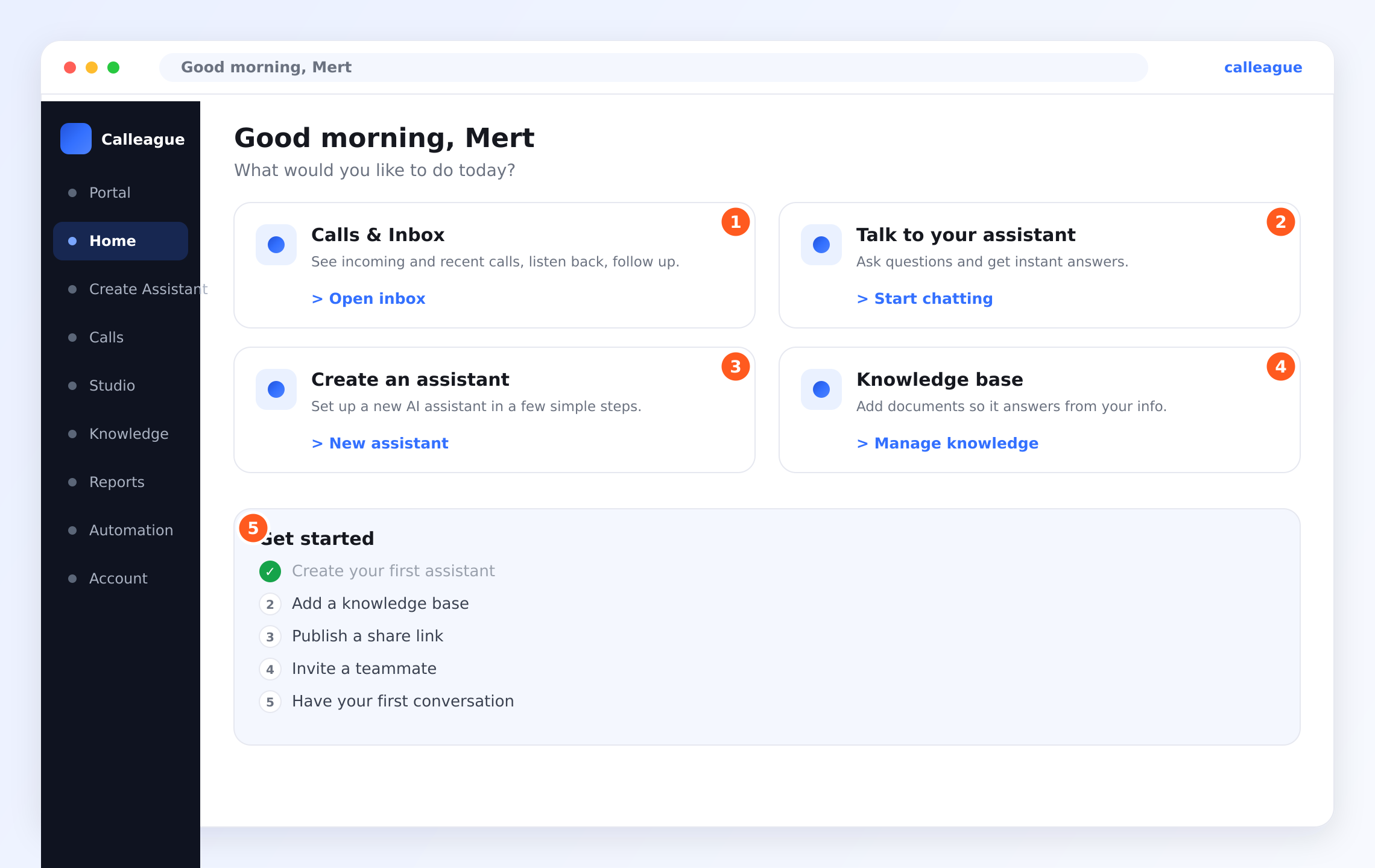
You'll see four large cards in the middle and a Get started checklist below them.
A screen-by-screen walkthrough of every sign-in step is on the Getting started page. You will not be asked for a "verification code" when signing in.
Open your call inbox
The ① "Calls & Inbox" card in the picture is your list of phone calls. Click "Open inbox" to see incoming and recent calls, listen back, and follow up.
You'll see every call laid out in a tidy list — covered fully in See your calls.
Talk to your assistant
The ② "Talk to your assistant" card lets you chat with your assistant yourself. Click "Start chatting" to ask it questions and get instant answers — the easiest way to test what it knows. This chat screen is also called the Portal (the screen where you chat with your assistant).
A chat window opens where you can type a message, just like a customer would ask by phone.
Create or edit an assistant
The ③ "Create an assistant" card is where new assistants are born. Click "New assistant" to set one up in a few simple steps. A wizard (a screen that guides you step by step) appears.
The full walkthrough is on the Create your first assistant page.
Manage what it knows
The ④ "Knowledge base" card holds the information your assistant answers from. Click "Manage knowledge" to add documents and websites.
A knowledge area opens where you can add a web address (URL — that is, a web address, e.g. www.yoursite.com) or upload a document, so the assistant answers from your information. When the assistant has finished reading it, you'll see the "Indexed" (the assistant has read it and now knows it) message.
Follow the Get started checklist
Below the cards is the ⑤ "Get started" checklist. It walks you through the first few things to do and ticks them off automatically as you go: create your first assistant, add a knowledge base, publish a Share link (a ready-made chat link you send to customers), invite a teammate, and have your first conversation.
A green tick appears next to each item as you finish it — a simple way to know you haven't missed a step.
You don't have to do everything at once. Most businesses start by creating one assistant and having a first conversation, then add knowledge and invite teammates later. The checklist will still be there when you come back.
The menu on the left
The dark menu running down the left side is how you move between rooms, and it's the same on every screen. (On a phone this menu is hidden — tap the ☰ button at the top left to open it. ☰ is three horizontal lines; that is, the menu button.)
| Menu item | What it's for |
|---|---|
| Portal | Your front door — the screen where you chat with your assistant yourself. |
| Home | The main screen with the four cards and the checklist. |
| Create Assistant | Starts the wizard (a screen that guides you step by step) to build a new assistant. |
| Calls — your inbox | Your list of incoming and recent phone calls. |
| Studio | Where you create and manage your assistants. You open an assistant here and get its Share link from the "Publish" tab. |
| Knowledge | The documents and websites your assistant answers from (the page title is Knowledge base when you open it). |
| Reports | A simple view of how your calls and assistant are doing. |
| Automation | Set up ready-made rules that run on their own around your calls (e.g. an automatic SMS after a missed call). Not required for a beginner. |
| Account | Your profile, team, billing, and phone numbers. |
The main areas at a glance
| Area | What you do there | Where to read more |
|---|---|---|
| Calls | Read the list of calls; spot the ones marked In progress, Completed, and Failed | See your calls |
| Call detail | Open one call to read its transcript (the conversation written out), play the recording, and see the summary | Read a call |
| Knowledge | Teach your assistant from your websites and documents | Teach it your business |
| Phone & numbers | From the left menu open Account (on a phone, tap the three horizontal lines ☰ menu at the top left), then open the Voice Calls section on that page; add a number, assign it to an assistant, and see call history | Connect a phone number |
| Add to a website | Place the assistant on your site as a widget (the chat bubble that appears in the corner of your website) | Add it to your website |
| Languages & voices | Choose how it sounds and which of 32 languages it speaks | Languages & voices |
| Recordings & privacy | Turn recording on or off and stay compliant with GDPR/KVKK (laws that protect personal data) | Recordings & privacy on calls |
| Account & team | Invite people, set roles, and manage billing | Account & team |
How to edit your assistant
Changing your assistant is just as easy as creating it. Go to Left menu > Create Assistant (on a phone, open the ☰ menu at the top left first), pick the assistant you want to edit, make your change, and save. The very next call or chat uses your new settings — there is nothing to restart and no waiting.
A clinic might start with a simple "answer questions about opening hours" assistant, then a week later add appointment booking and a friendlier greeting. Every change is live straight away, so you can improve a little at a time.
On a brand-new account, this can all look empty — the call list, reports, and numbers start out blank. That is completely normal; it fills up as you create your first assistant and have your first conversation.
If something looks different
| What you see | Why it might happen | What to do |
|---|---|---|
| No greeting or cards on Home | You're not signed in yet, or the page didn't finish loading | Sign in again at app.calleague.ai and refresh the page |
| The call list, reports, or numbers are empty | A brand-new account with no data yet | This is normal — create your first assistant and have your first conversation |
| A card's button does nothing | The page is still loading | Wait a moment and click again, or refresh |
| The left menu is missing | Your window is narrow, or you're on a phone | Tap the ☰ button at the top left, or widen the window |
| A menu item looks greyed out | That feature isn't part of your current plan (your subscription package) | Check your plan under Account, or write to us |
| The checklist items won't tick | The matching step hasn't been finished yet | Complete the step (e.g. create an assistant) and it ticks itself |
Frequently asked questions
Next steps
See your calls
Read the list of incoming and recent calls at a glance.
Read a call
Open one call to see the transcript, recording, and summary.
Connect your phone
Let your assistant answer real phone calls.
Languages & voices
32 languages including Turkish — and how to choose a voice.
Create your first assistant
The guided, point-and-click setup from start to finish.
Need a hand? We're happy to help at info@arpanet.com.tr.
Last Updated
Try your first conversation
Test your assistant for real — chat with it first, optionally call the number you connected, then open Calls (Inbox) to read the transcript, hear the recording, and see the short summary and outcome.
See your calls
Read your inbox at a glance — who called, which assistant answered, when, and whether the call is in progress, completed, or failed.