
Teach it about your business
Make your assistant answer from YOUR information. Add your website or documents (PDF, menu, price list) — during creation or later, with no technical skills needed.
Your new assistant is friendly, but it doesn't yet know your hours, prices, or services. Teaching it is easy: you either show it your website or hand it a document (like your price list or menu), and it learns the answers. This page shows the two places you can do that.
You don't need to understand anything technical. At every step we'll tell you the exact button to click.
Before you start. Before this step you should have signed in to Calleague and created an assistant (your AI — artificial intelligence — helper). If you haven't yet, begin with the Getting started page; it walks you through signing in step by step.
No website? No problem. You don't need a website to teach your assistant — you can upload a document instead (PDF, menu, price list). And you don't need one to reach customers either: when your assistant is created, a ready Share Link (a ready-made chat link you send to customers) is generated automatically — or you can attach a phone number if you prefer.
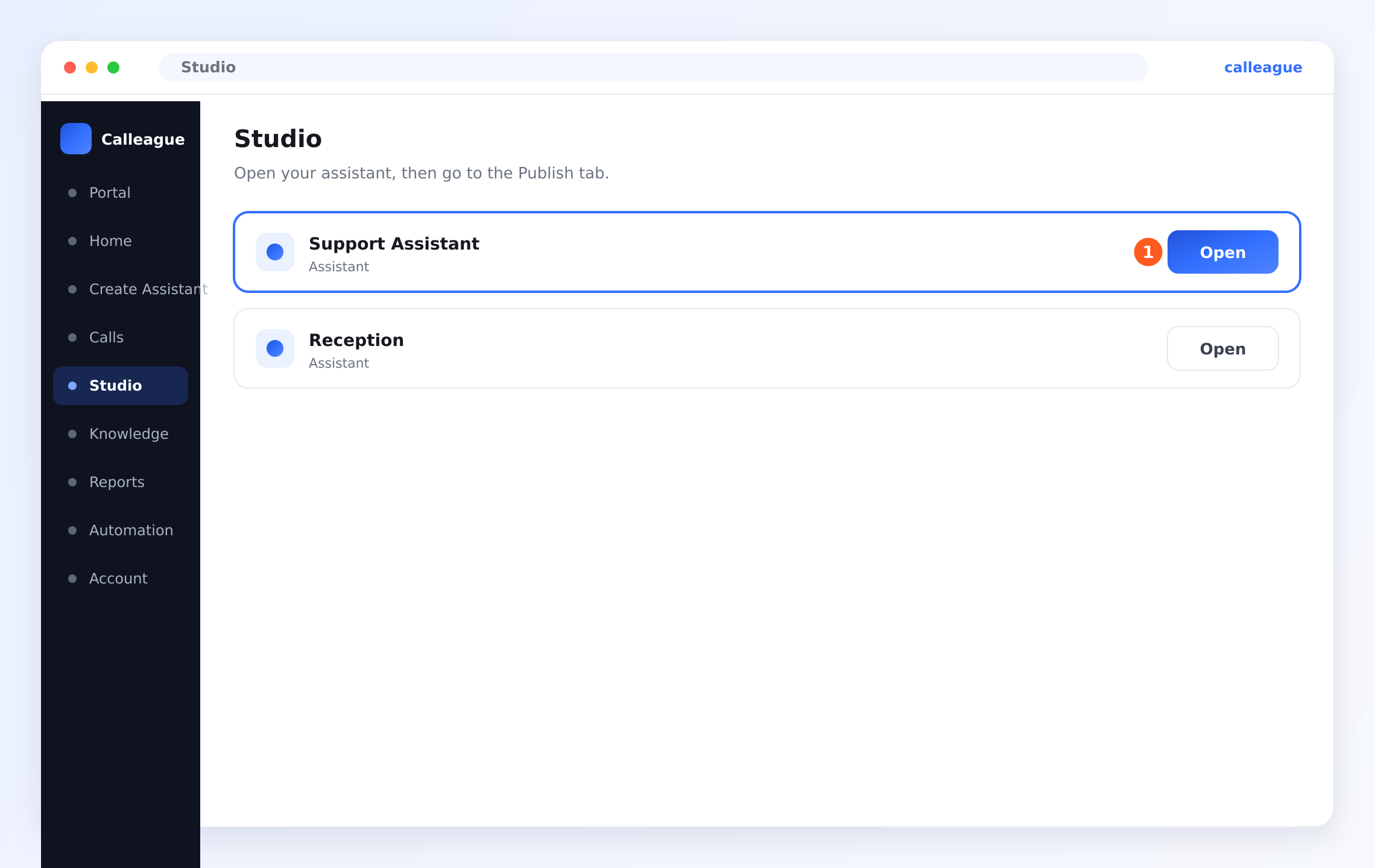
It's easy to find. In the left menu, open Studio (on a phone, tap the three-horizontal-lines ☰ menu at the top left); in your assistant list, click the ① Open button on the first row to open your assistant.
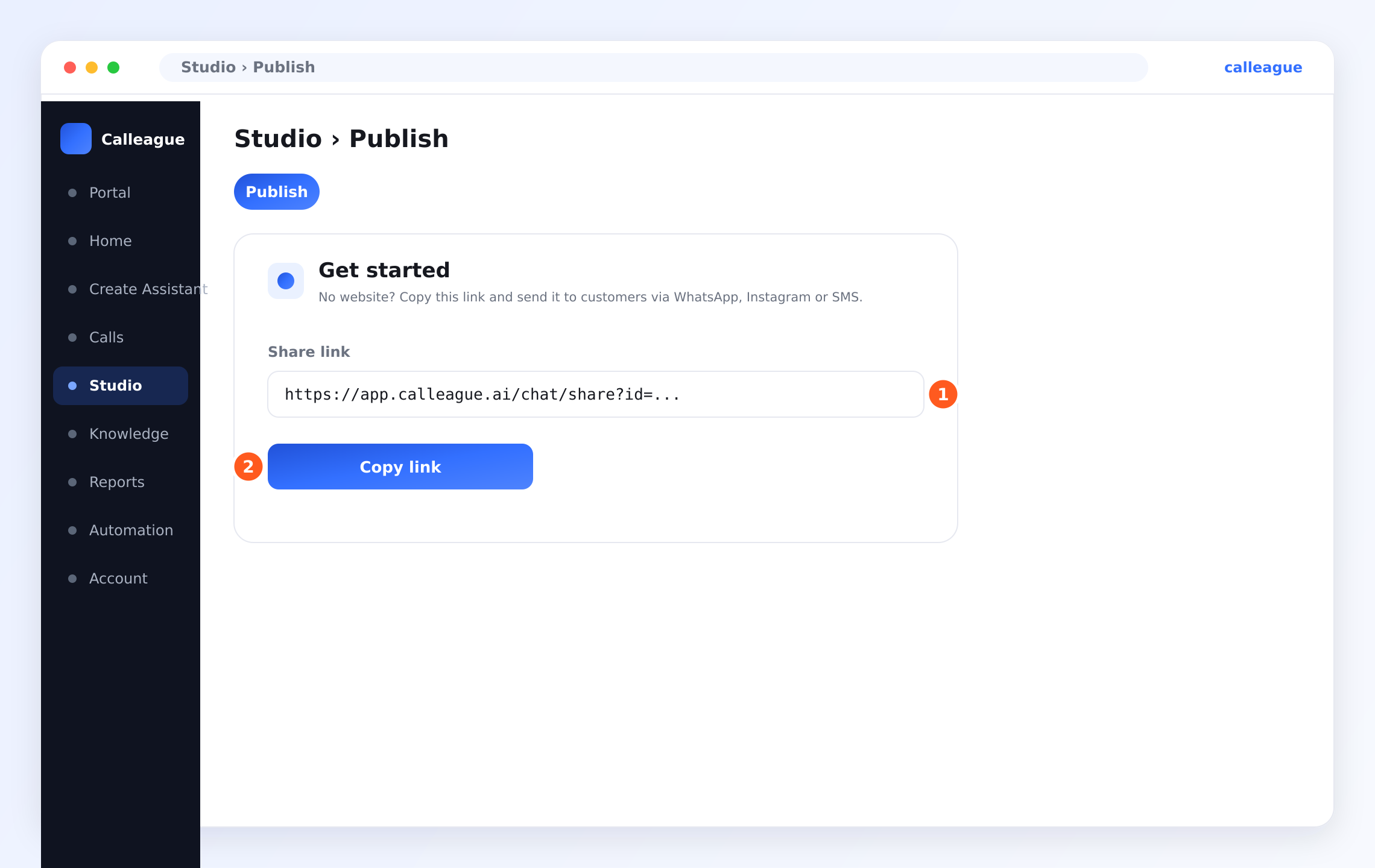
Once the assistant opens, switch to the Publish tab (this tab appears open/active). In the Get started box that appears, click the ② Copy link button below the ① Share Link field. (Publish is not a separate item in the left menu; it's a tab inside the assistant, opened from Studio.)
Send the copied link to your customers: for example, open WhatsApp → go to a chat → press and hold the message box and tap "Paste" → Send. You can also send the same link by SMS, put it in the link in your Instagram profile ("bio"), or share it in a DM/message. When your customer taps the link, they talk directly to your assistant. (Don't confuse it with our marketing site calleague.ai: the app itself, where you do the work, is app.calleague.ai.)
What you'll do
There are two ways to add knowledge; both give the same result:
- Way 1 — while you build: On the wizard's (the screen that guides you step by step) Train step, add a website or a document.
- Way 2 — later, any time: Add as much as you like from the Knowledge section in the left menu.
Not in the wizard right now? No problem. You have two choices: either open Create Assistant in the left menu and go to the Train step (Way 1), or skip the wizard entirely and use Way 2 directly (the Knowledge section in the left menu). As you read this page, follow whichever one you have in front of you.
Way 1 — Teach it while you build (the Train step)
If you're still in the create wizard, you're already in the right place: this is the second of the four steps, Train.
A website address or a document? Pick one
At the top of the Train step you'll see two buttons: Website URL and Upload a document. (URL just means "web address" — for example www.yourbusiness.com.)
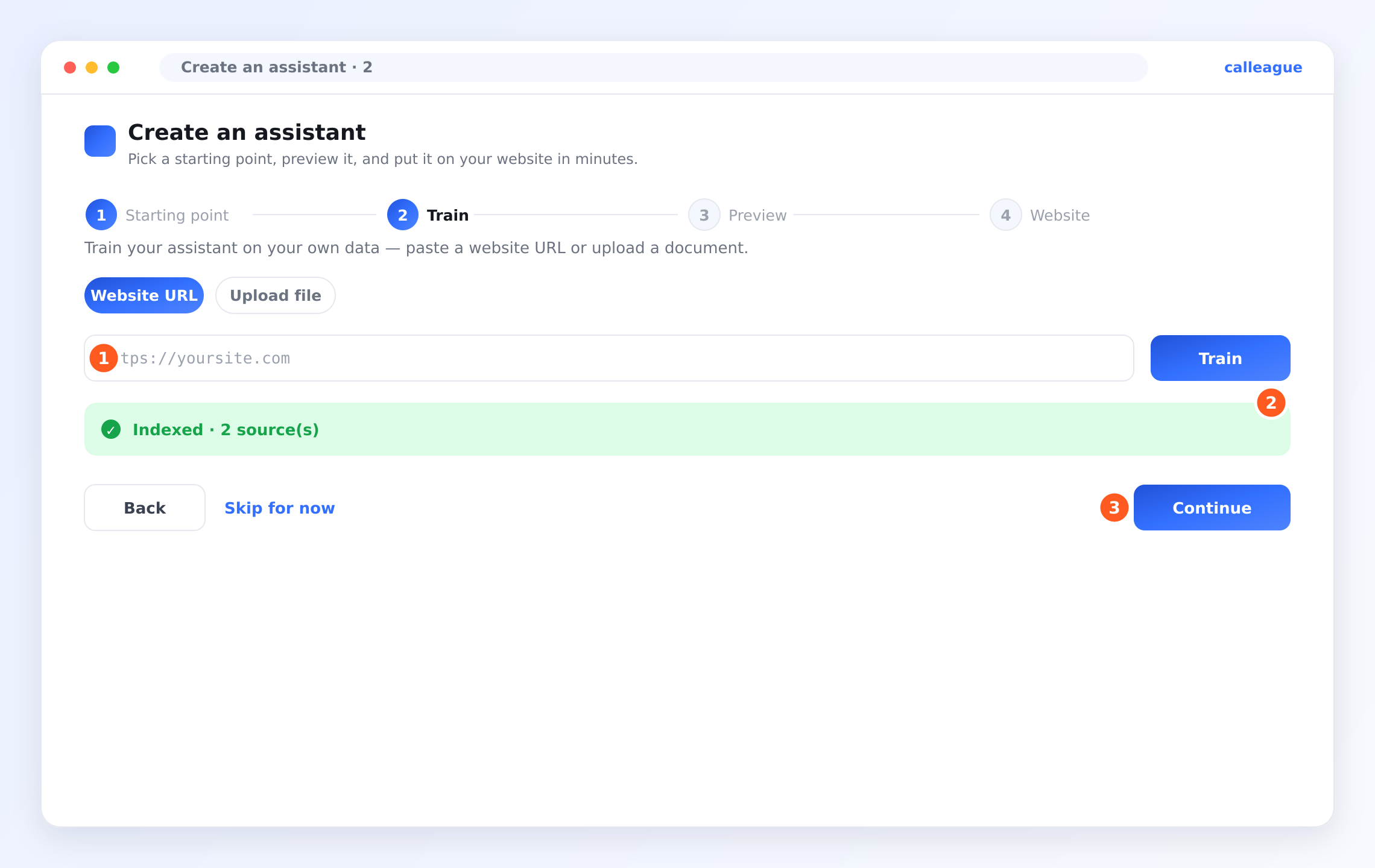
- If you have a website: paste your address into the ① address field, then click the blue Train button right beside it. This step matters: if you don't click it, the address just sits in the box and the Indexed message never appears. Once you click it, the assistant starts reading the page.
- If you'd rather add a document: click Upload a document and choose a PDF (a Word document works too). For most businesses, a PDF of your price list, menu, or brochure is perfect.
You'll see a box waiting for your address, with the blue Train button right beside it.
Using a phone? You can also upload a photo/JPG instead of a document — if your menu is a photo, just snap it and upload it as-is, and the assistant will read it too.
Wait for "Indexed"
Give the assistant a few seconds to read what you added.
You'll see a green ② "Indexed · 2 sources" message appear. Indexed means "your assistant has read it and now knows that information"; it's your confirmation that it's done. Then click the ③ "Continue" button to move on.
Way 2 — Teach it any time (Knowledge)
You can add more information whenever you like; you don't need to rebuild your assistant.
Open the Knowledge screen
In the left menu, click Knowledge (on a phone, tap the three-horizontal-lines ☰ button at the top left). You can also use the Manage knowledge button on the Knowledge base card of your Home screen (the main screen that opens after you sign in). The Knowledge base screen opens.
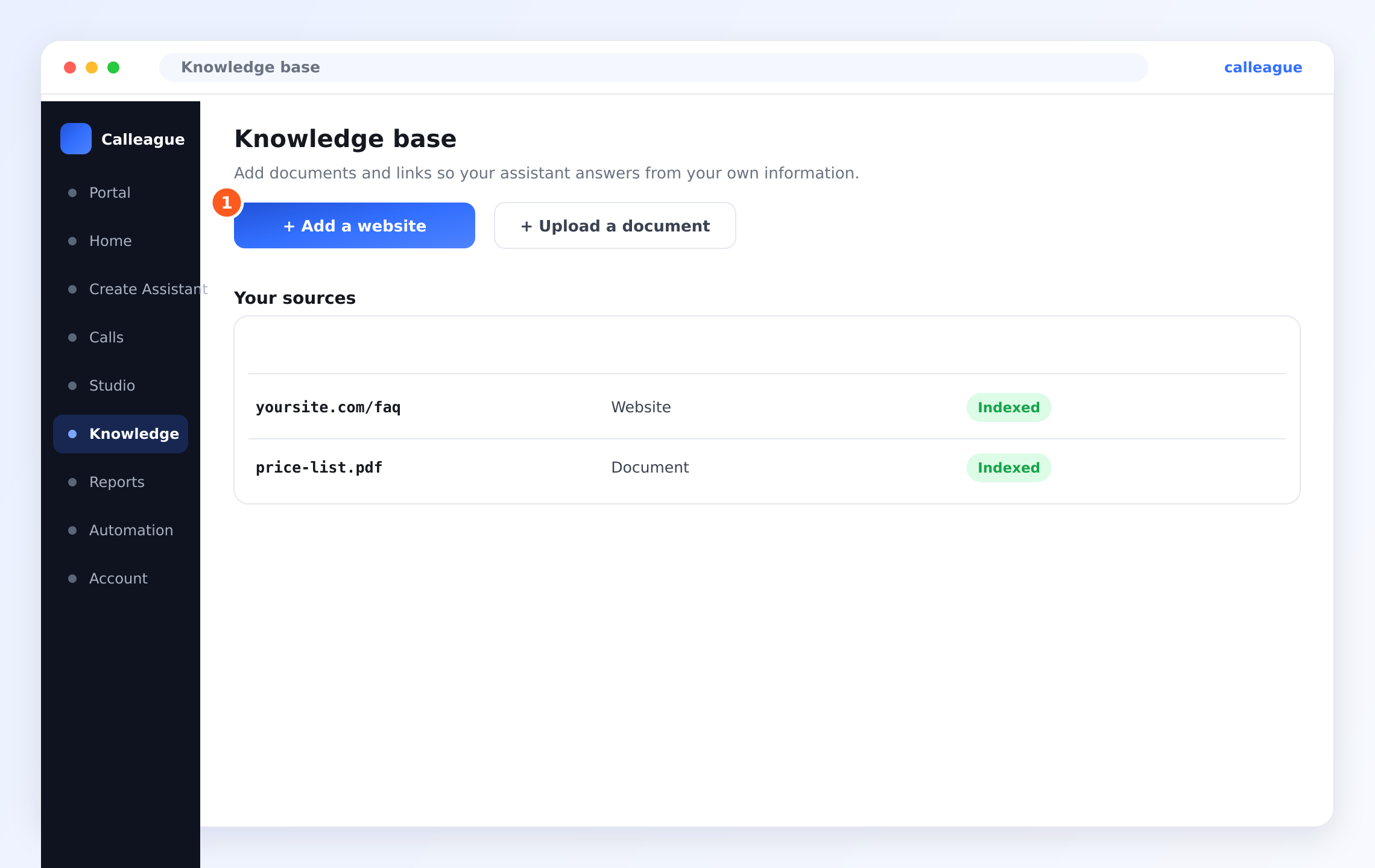
You'll see two buttons at the top (marker ①) — + Add a website and + Upload a document — and a Your sources list below.
On a brand-new account the Your sources list looks empty — that's normal. It starts filling up as soon as you add your first source.
Add a website or a document
Click + Add a website and paste an address, or click + Upload a document and choose your file (a PDF or Word document).
You'll see your new item appear in the Your sources list with a green Indexed label once it's ready — for example yoursite.com/faq · Website · Indexed.
Add several sources over time. Each one fills a gap, so your assistant keeps getting better at answering real questions.
What good knowledge looks like
The best things to add are the pages and documents your customers ask about most:
- Your FAQ (frequently asked questions) page — it's already written in question-and-answer form.
- Your pricing or services page — so it can quote prices and explain what you offer.
- Your "About" or "Contact" page — hours, address, and how to reach you.
- A menu, brochure, or price list (PDF) — perfect for a restaurant, salon, or shop.
Don't add pages that change minute to minute (like a live order tracker) or that need a password to view — the assistant can only learn from pages it can openly read, just like a visitor.
A quick example
A flower shop adds its yoursite.com/faq page and uploads price-list.pdf. Now when a customer asks "How much is a rose bouquet?" or "Do you deliver on Sundays?", the assistant answers correctly from the shop's own information — no guessing.
If something looks different
| What you see | Why it happens | What to do |
|---|---|---|
| No green Indexed message | You pasted the address but didn't click the blue Train button, or the address is wrong / the page is password-protected | First click the blue Train button; then check the address starts with https://, or upload a document instead |
| My document won't upload | The file type isn't supported | Use a PDF or Word document; on a phone, upload a photo of your menu |
| The assistant still doesn't know something | That fact isn't in any source yet | Add the page or document that contains it |
| I can't find the Knowledge screen | You're on a different screen | Click Knowledge in the left menu (on a phone, the ☰ menu at the top left) |
Frequently asked questions
Next steps
Your assistant now knows your business. Let's put it where your customers can reach it.
Put it on your website
Copy the one line of code and add the chat widget to your site (there's a way even without a website).
Connect a phone number
Let your assistant answer real phone calls.
Try your first conversation
Chat with it, call it, then read the written transcript of the conversation.
Not sure what to add? Write to us at info@arpanet.com.tr and we'll help you choose the right pages and documents.
Last Updated
Create your first assistant
Build your assistant with the 4-step wizard — name it, add your information, test it, and get it to your customers. Even if you don't have a website.
Put it on your website
Add your assistant to your website with one line of code — or, if you have no website, share it with customers via a Share link. Step by step, no tech skills needed.