
Create your first assistant
Build your assistant with the 4-step wizard — name it, add your information, test it, and get it to your customers. Even if you don't have a website.
This is the best part. Creating your assistant (your AI — artificial intelligence — helper that chats and answers the phone for you) happens in a friendly wizard. A wizard is a screen that guides you one step at a time — each step has a clear title at the top (Starting point, Train, Preview, Website), so you always know where you are.
Before you start: you need to be signed in to Calleague and on the Home screen (the main screen you land on after signing in). If you haven't signed in yet, first follow the steps on the Getting started page — it walks you through signing in with your email and password.
No website? No problem. You can use your assistant without a website. At the end of the wizard, a Share link is created automatically (a ready-made chat link you send to your customers); you copy it from Studio › Publish in the left menu and share it over WhatsApp, Instagram or SMS. You can also connect a phone number so the assistant answers calls.
You can't get this wrong. Every choice can be changed later, and nothing reaches your customers until you decide to publish it.
What you'll do
- Starting point — give your assistant a name and pick a ready-made template.
- Train — teach it about your business from your website or a document.
- Preview — chat with it to test it.
- Website — get it to your customers (add to your site, share a link, or use it by phone).
The 4-step wizard
Open the wizard
In the left menu (if you're on a phone, tap the three horizontal lines ☰ at the top-left — that's the menu button), click Create Assistant. The Create an assistant card on Home, with its New assistant button, takes you to the same place.
The wizard opens on step 1, titled Starting point. At the very top you see the four steps in order: Starting point · Train · Preview · Website. The step you're on is highlighted.
On a brand-new account these screens may start out empty — that's completely normal. We'll create your first assistant together in a moment.
Name your assistant and pick a ready-made template
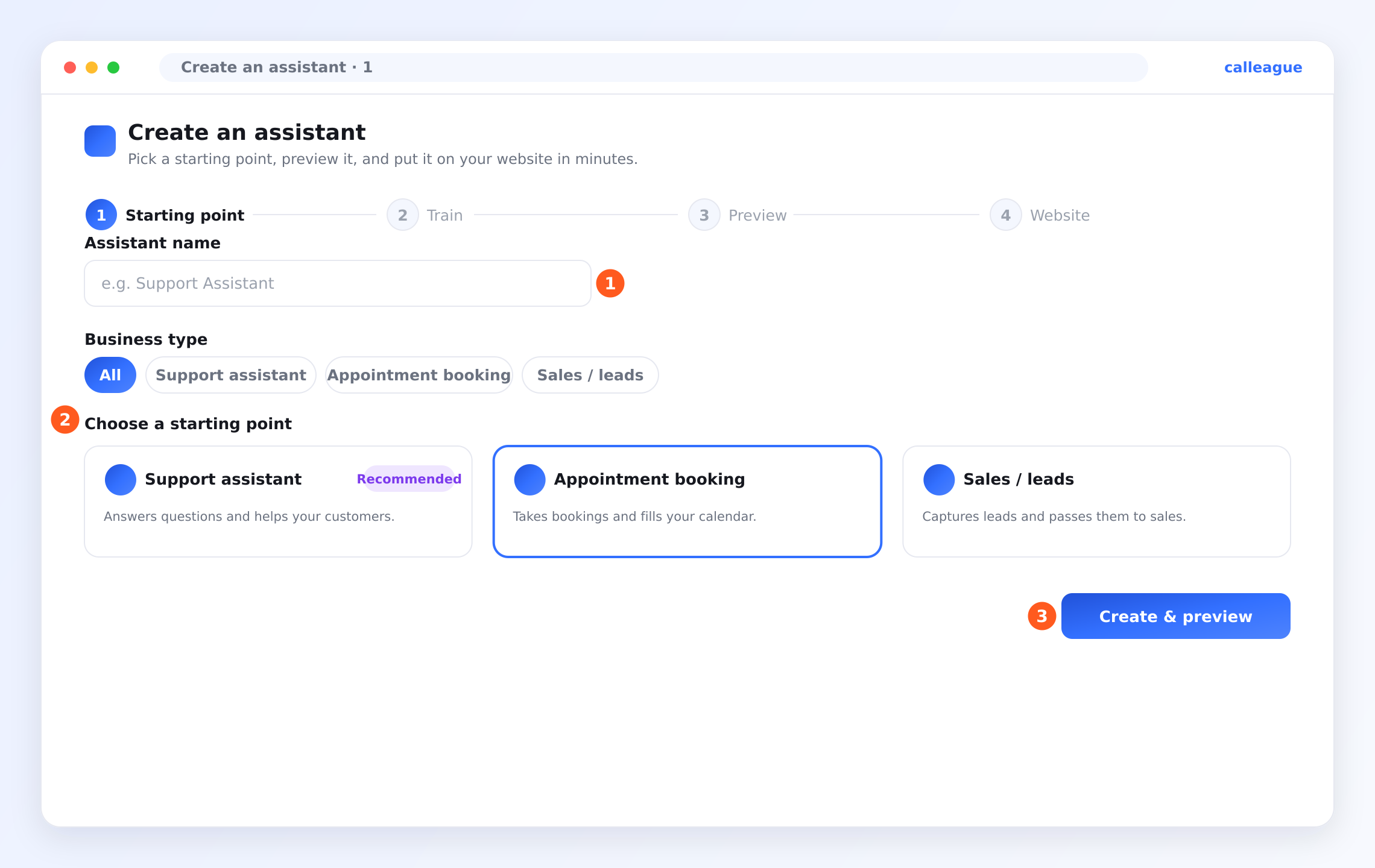
In the field marked ①, "Assistant name", type a simple name — for example Support Assistant or Reception. Only you see this name; your customers don't. Optionally, pick one from the "Business type" filter row above the cards (All, Support assistant, Appointment booking, Sales / leads) to narrow the cards, then choose a card.
Then, under ② "Choose a starting point", you'll see three starting cards: "Support assistant" (answers questions and helps your customers — it has a "Recommended" badge), "Appointment booking" (takes bookings and fills your calendar), and "Sales / leads" (captures leads and passes them to sales). Click the one closest to your business — for example, "Appointment booking" for a business that takes appointments. (A template fills the assistant with a ready-made personality and ready-made answers for that job — so you don't start from scratch.) If your exact industry isn't one of these three, don't worry: pick the closest one, then customize it with your own information in a moment. The card you choose turns blue.
When you're ready, click ③ "Create & preview".
You'll see the wizard move to step 2, Train.
The template is just a starting point. You can change everything later — nothing is locked in.
Train it on your own information
Now let's teach the assistant about your business so it answers from your facts. There are two tabs (the heading buttons at the top): "Website URL" and "Upload file".
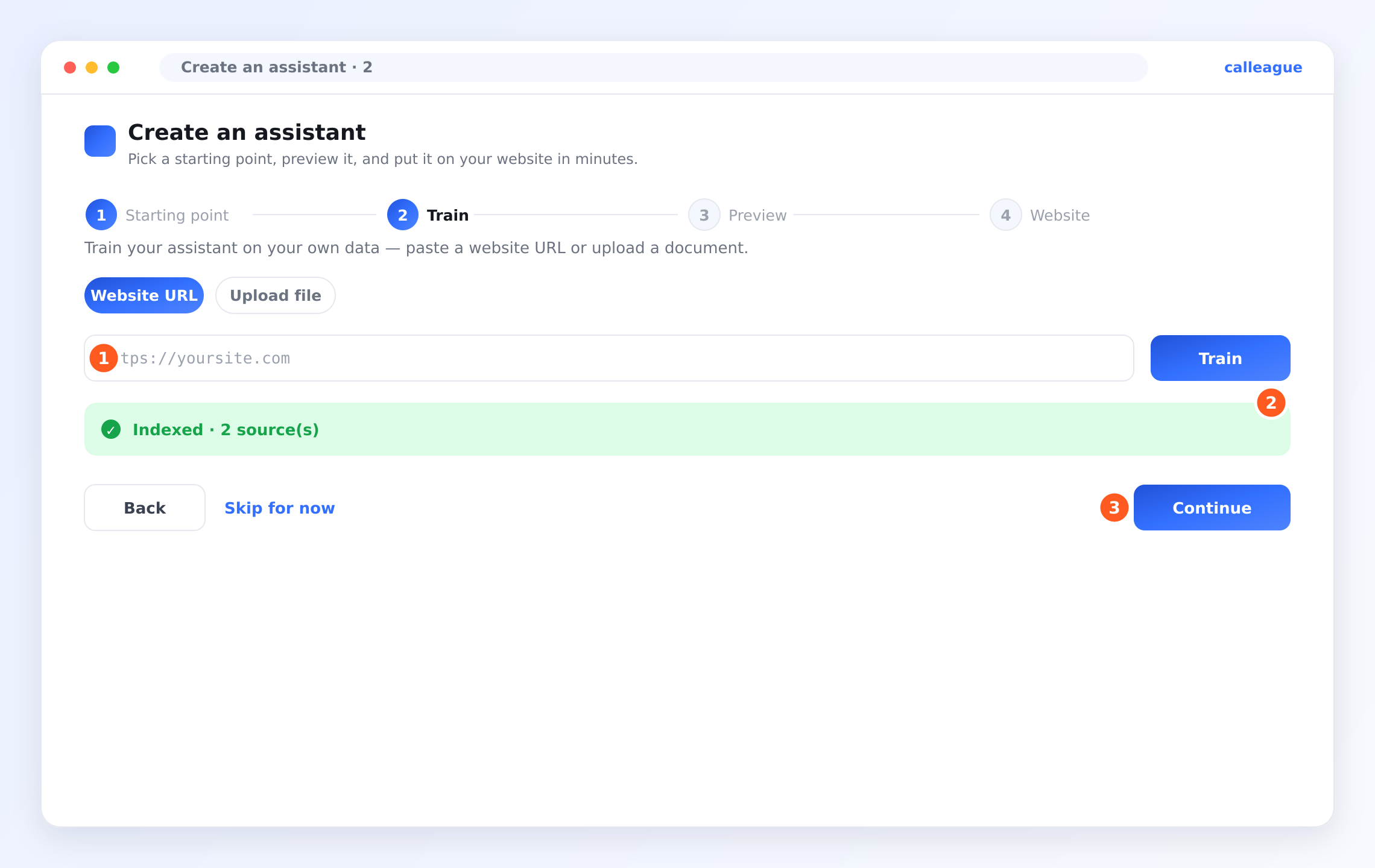
- If you have a website: keep the "Website URL" tab selected, type your web address into the field marked ① (a URL — your web address, for example
yoursite.com), then click the "Train" button next to it. - If you don't have a website or want to provide the information from a document: switch to the "Upload file" tab and choose a file (PDF, Word, text file, and so on). If you're on a phone, you can upload a photo/JPG too; if your menu is a photo, upload it as is.
You'll see a green "Indexed · 2 source(s)" message (marked ②) once the assistant has finished reading your information. "Indexed" means the assistant has read that information and now knows it; the number is how many sources you added. Then click ③ "Continue".
In a hurry? You can click "Skip for now" and add your information later from the Knowledge section. But even one website or document makes the assistant noticeably smarter.
Preview and test it
The wizard now shows a live chat box, so you can try your assistant before anyone else does.
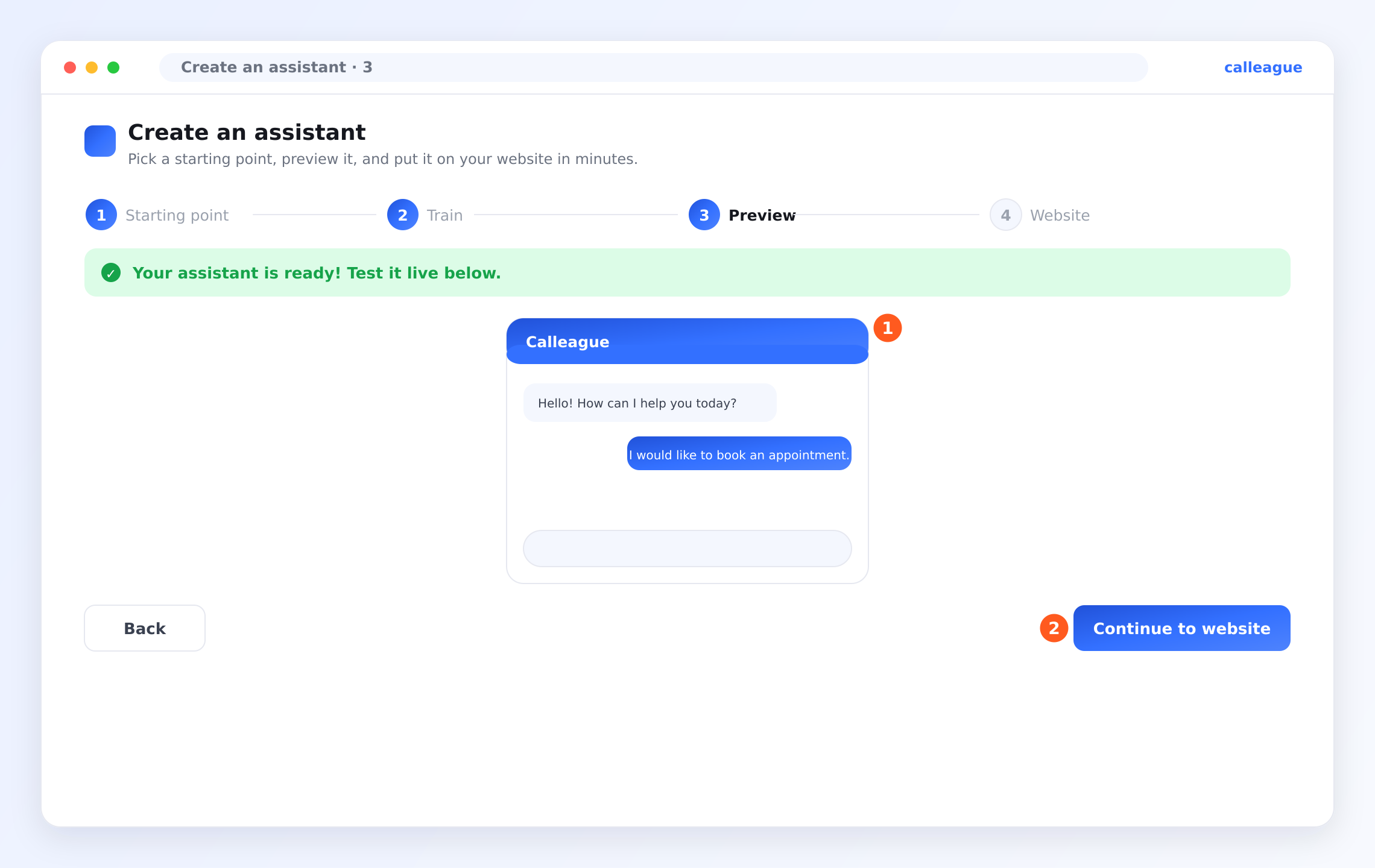
In the chat box marked ①, type a real question a customer might ask — for example "What are your opening hours?" or "I would like to book an appointment." — and read its reply. A green "Your assistant is ready! Test it live below." note appears at the top.
When you're satisfied, click ② "Continue to website".
Try a couple of questions a real customer would ask. If an answer isn't quite right, that usually means you need to add a bit more information — see Teach it about your business.
Get it to your customers
The last step, Website, gives you easy ways to put your assistant live. First, on the left under "Customize widget", set the look: "Color", "Position" ("Right" or "Left" — which corner the chat bubble sits in), and the "Widget title" (the name visitors see at the top of the chat). A widget is the small chat bubble that appears in the corner of your site.
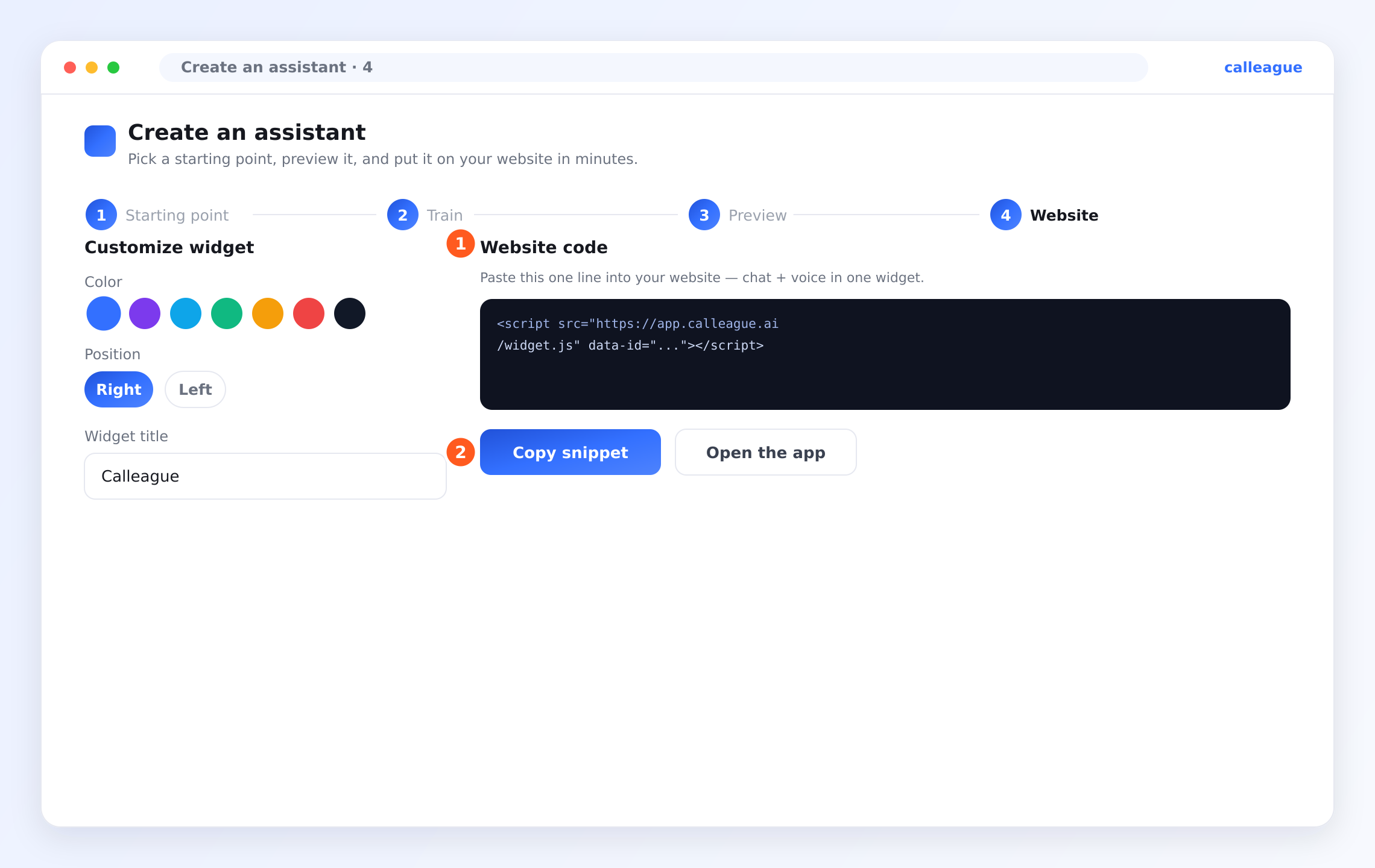
Now choose the way that fits you:
- If you have a website: the "Website code" marked ① is a one-line snippet (a small piece of text added to your site). Calleague shows this hint next to the box: "Paste this one line into your website — chat + voice, one widget." Click ② "Copy snippet" to copy it. You don't need to understand this code at all. If you didn't build your site yourself, send that one line to whoever manages your website — you can use the ready-made email below. Full instructions are on the Put it on your website page.
- If you don't have a website: click "Open the app". This opens the app itself — that is, app.calleague.ai. (Our marketing site is calleague.ai; the address where you actually do your work is app.calleague.ai.) When your assistant is created, a personal Share link is generated automatically — a ready-made link your customers can click to start chatting with your assistant right away; we'll show you where to get it next. You can also connect a phone number if you like.
Finding and sending the Share link. You get this link in one place: in the left menu go to Studio (on a phone, tap the three horizontal lines ☰ at the top-left). In the assistant list that opens, click the "Open" button marked ① on your assistant's row.
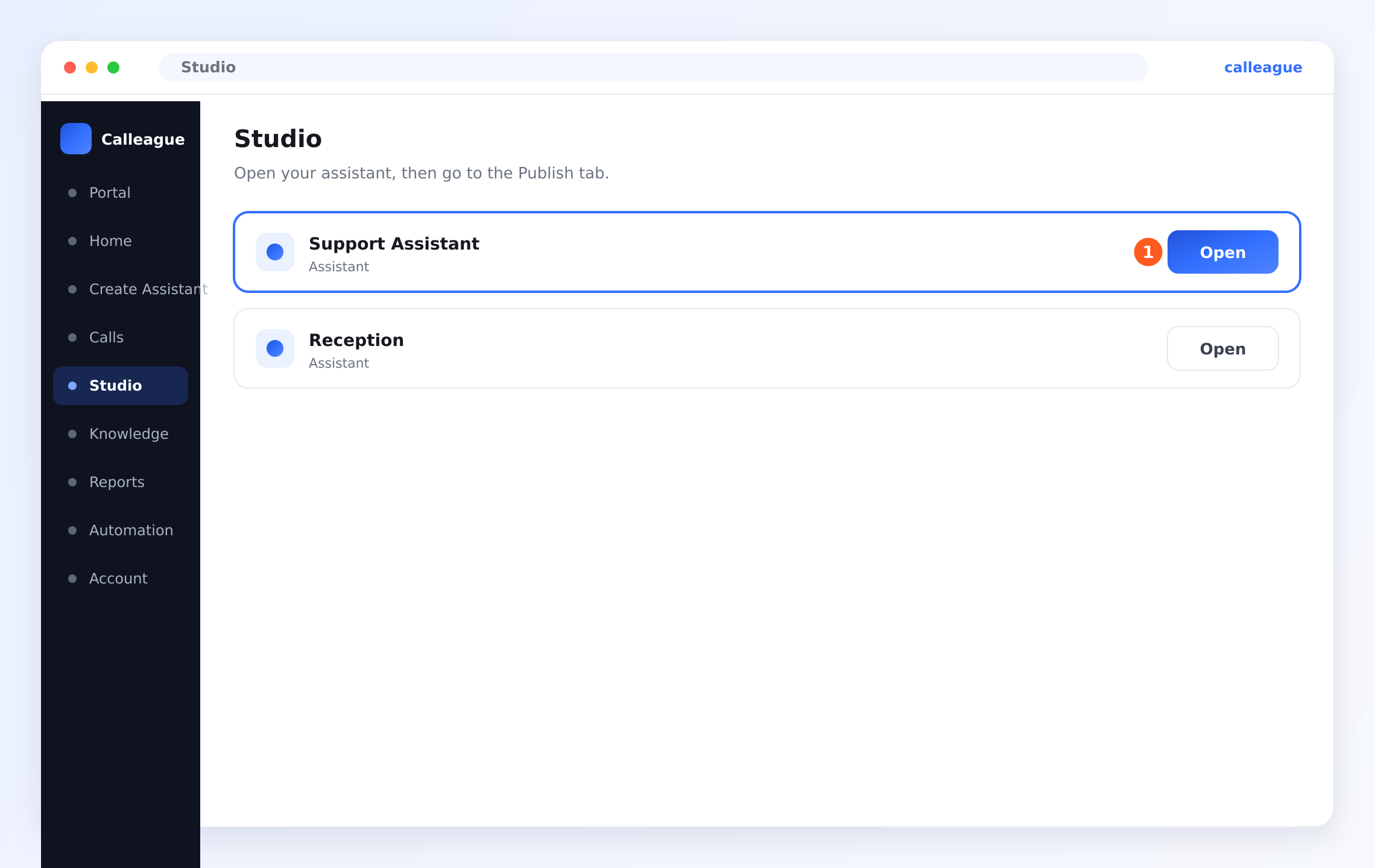
Once your assistant opens, switch to the "Publish" tab at the top and find the "Get started" box. "Publish" is not a separate item in the left menu; it's a tab inside the assistant, opened from Studio.
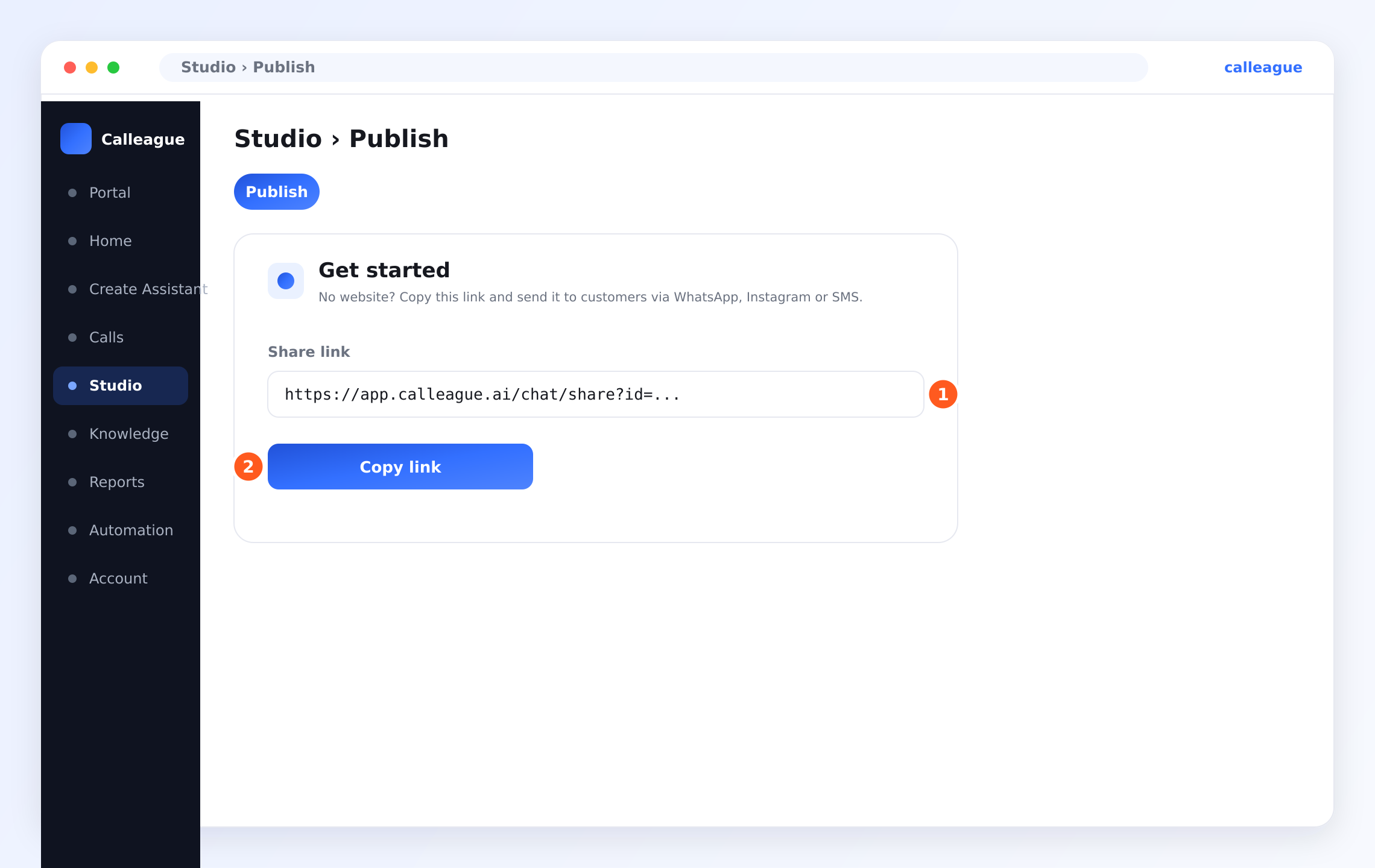
In the "Get started" box on the "Publish" tab, you'll see the "Share link" field marked ①. Click ② "Copy link" to copy it. Now send it to your customer: open WhatsApp → go to a chat → long-press the message box and tap "Paste" → Send. On Instagram you can put the link in your profile ("bio") link or send it in a DM/message; you can also text it over SMS. When your customer taps the link, they start chatting with your assistant right away — no website needed.
For the person who manages your site. After you copy the code, send whoever built or manages your website an email like the one below. For them it's a routine, two-minute job:
Hi,

I'd like to add a chat/assistant widget to our website.
Could you add the ONE-LINE code below just before the
closing </body> tag on every page of the site? Then just
publish the site.

[PASTE the line you got from "Copy snippet" here]

Thanks.
That's it — your assistant exists and works! Everything you chose here can be edited again whenever you like.
Tips for a great start
- Pick the closest template. It saves you time and sets the right tone. Don't hunt for an exact name; the closest one is enough.
- Name it for its job. "Support Assistant" or "Reception" helps you tell assistants apart later. Customers don't see this name.
- Train it with your best page or document. Your FAQ, price list, or "About" info is perfect — it answers the questions people actually ask.
- Test like a customer. In the Preview step, ask the things your callers really ask.
If something looks different
| What you see | Why it happens | What to do |
|---|---|---|
| Create & preview seems to do nothing | The Assistant name is empty | Type a name in the field marked ①, then click again |
| No green Indexed message appears | The web address is mistyped, or the page is private | Check the address is correct, or use Upload file to add a document |
| You don't want to train it yet | You'd rather add information later | Click Skip for now and continue |
| The preview reply seems off | The assistant doesn't have that fact yet | Add the missing info — see Teach it about your business |
| You closed the wizard early | It happens, no problem | Click Create Assistant in the left menu to start again |
| I don't have a website | Very common | In the left menu go to Studio › Publish, copy the Share link and send it to your customers |
Frequently asked questions
Next steps
Your assistant is built. Now let's make it really yours by teaching it more about your business, then put it where your customers are.
Teach it about your business
Add websites and documents so it answers from your info.
Put it on your website
Copy the one-line code and add the chat widget to your site.
Connect a phone number
Let your assistant answer real phone calls.
Try your first conversation
Chat with it, call it, then read the conversation.
Want a hand wording your assistant? Write to us at info@arpanet.com.tr or reach us through calleague.ai — we're glad to help.
Last Updated
Getting started
Sign in to Calleague, get to know your Home screen, and get ready to build your first AI assistant — step by step, with no technical skills required.
Teach it about your business
Make your assistant answer from YOUR information. Add your website or documents (PDF, menu, price list) — during creation or later, with no technical skills needed.