
Connect a phone number
Let your assistant answer real phone calls — open Voice Calls from your Account, add your number with Add your own number on the My Numbers tab, and connect it to your assistant with Assign to app.
Your assistant does more than type on your website — it can answer your phone too. When someone calls the number you connect, your assistant picks up, says hello, and helps them, just like a friendly receptionist — day and night, even while you sleep. This page walks you, step by step, through adding a number and connecting it to your assistant.
Before you start you need two things: (1) to be signed in to Calleague — the Getting started page shows you how; and (2) at least one assistant — if you don't have one, create your first assistant first. No phone number of your own? Don't worry: Calleague can provide one for you.
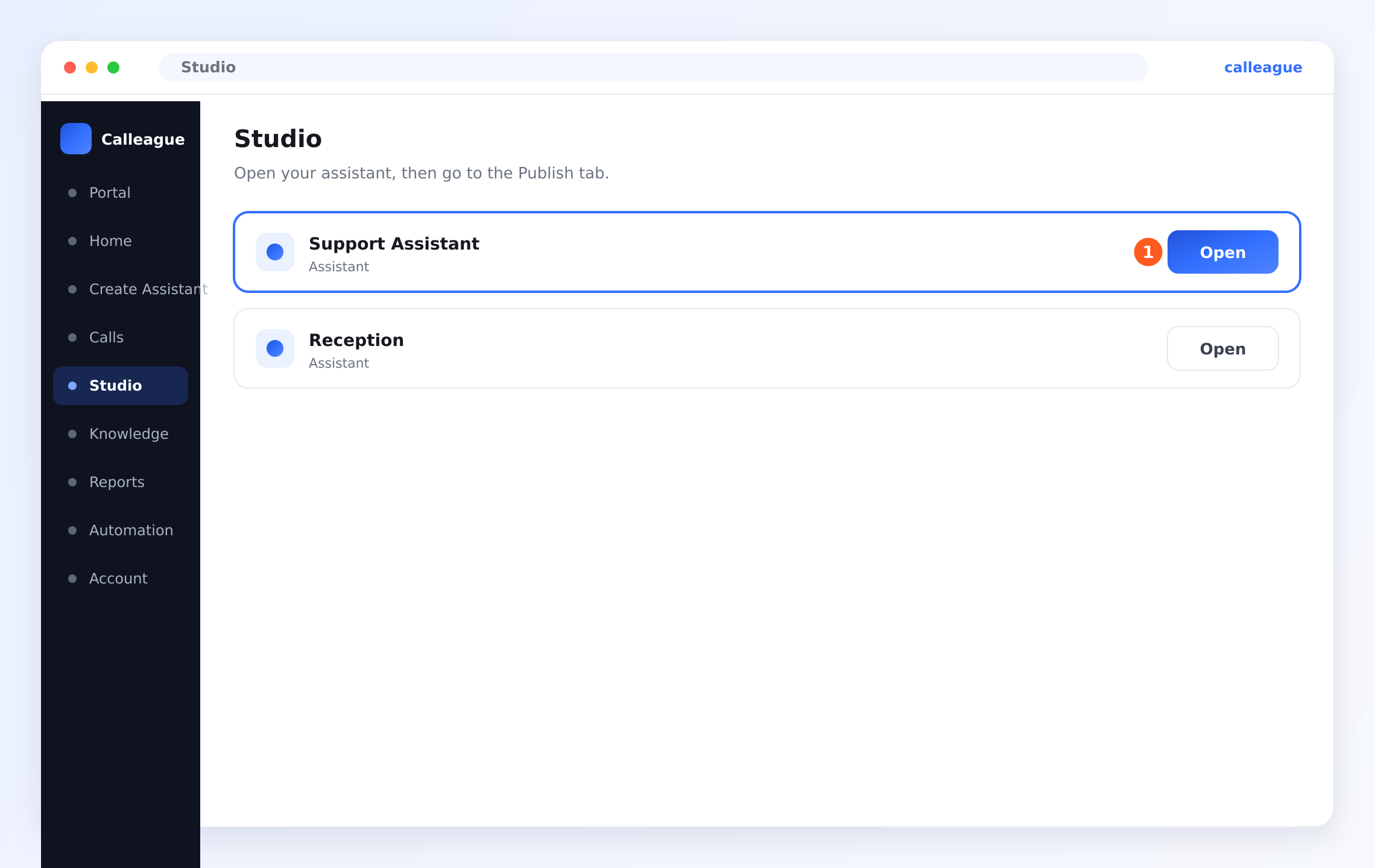
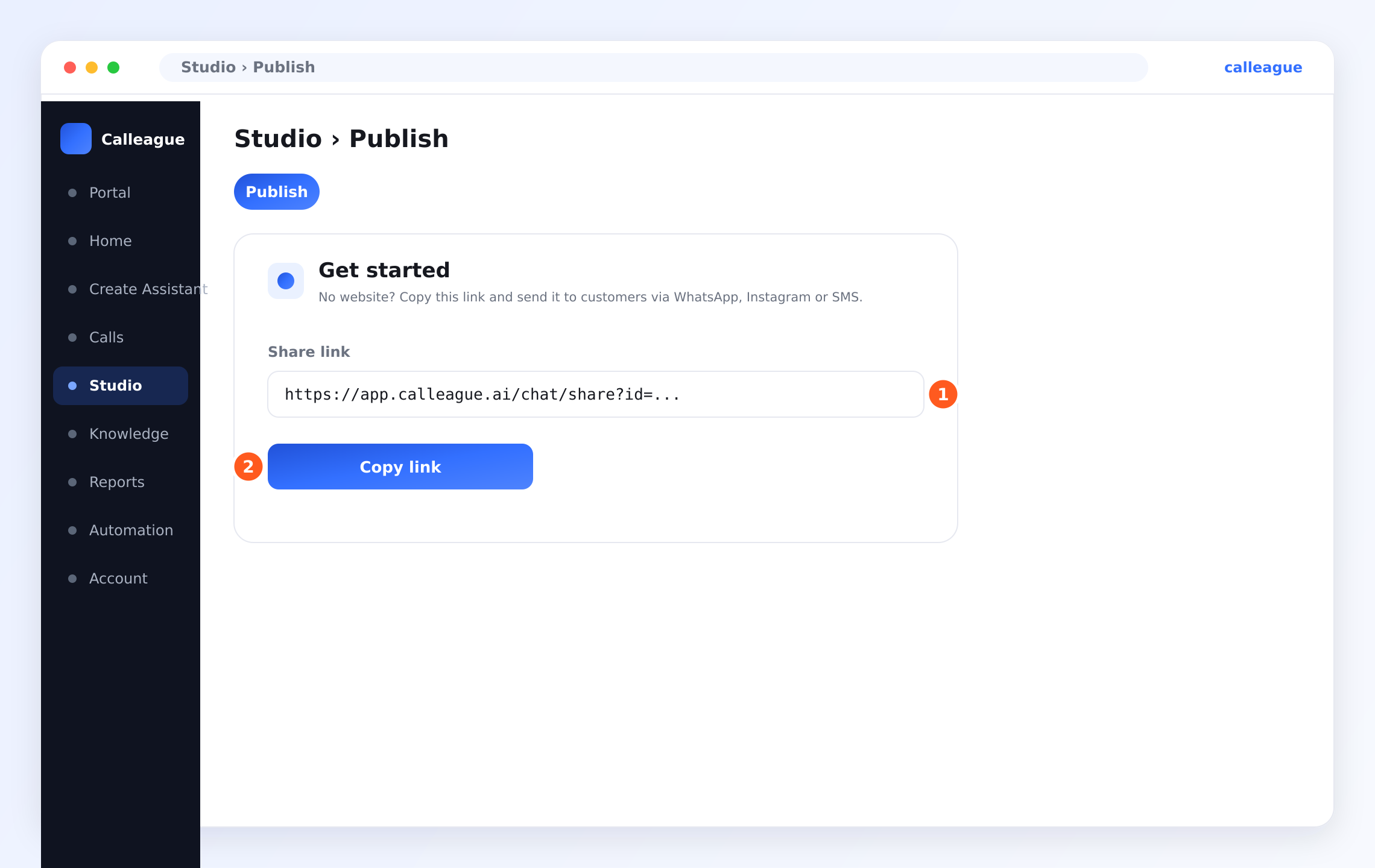
No website? No problem. The phone works whether or not you have a website. If you don't have a website, use your assistant's Share Link: this ready-made chat link is created automatically when you build an assistant. To find it: in the left menu (on a phone, tap the three horizontal lines ☰ menu at the top left) open Studio → open your assistant → switch to the Publish tab → in the Get started box, in the Share Link (①) row, tap Copy link (②). Then send the link to your customers: open WhatsApp → go to a chat → long-press the message field and choose "Paste" → Send. When your customer taps the link, they start talking to your assistant. On Instagram, you can put the link in your profile (your "bio") link or send it in a DM/message. (You can also send the same link over SMS.)
What you'll do
- Open Account in the left menu (on a phone, tap the three horizontal lines ☰ menu button at the top left), then open Voice Calls.
- On the My Numbers tab, add your number with Add your own number.
- Connect that number to your assistant with Assign to app.
Connect the number
Open Voice Calls
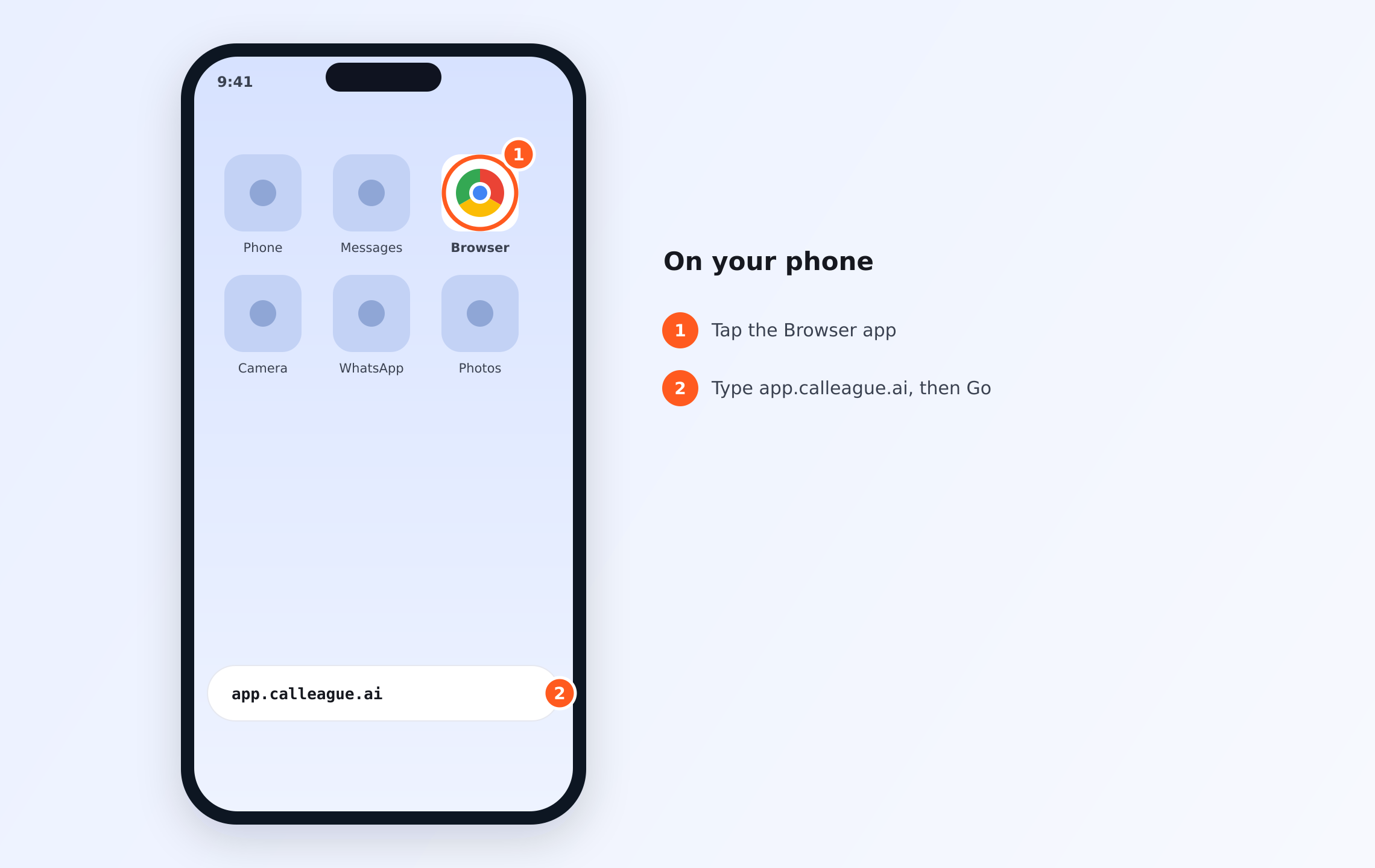
First open the app: on your phone or computer, open a web browser (such as Chrome or Safari — that icon on your phone's home screen, ①), type app.calleague.ai into the address bar at the top (②), and press Go / Search (or Enter on a computer). (calleague.ai is our marketing site; app.calleague.ai is the app itself — this is where you do your work.)
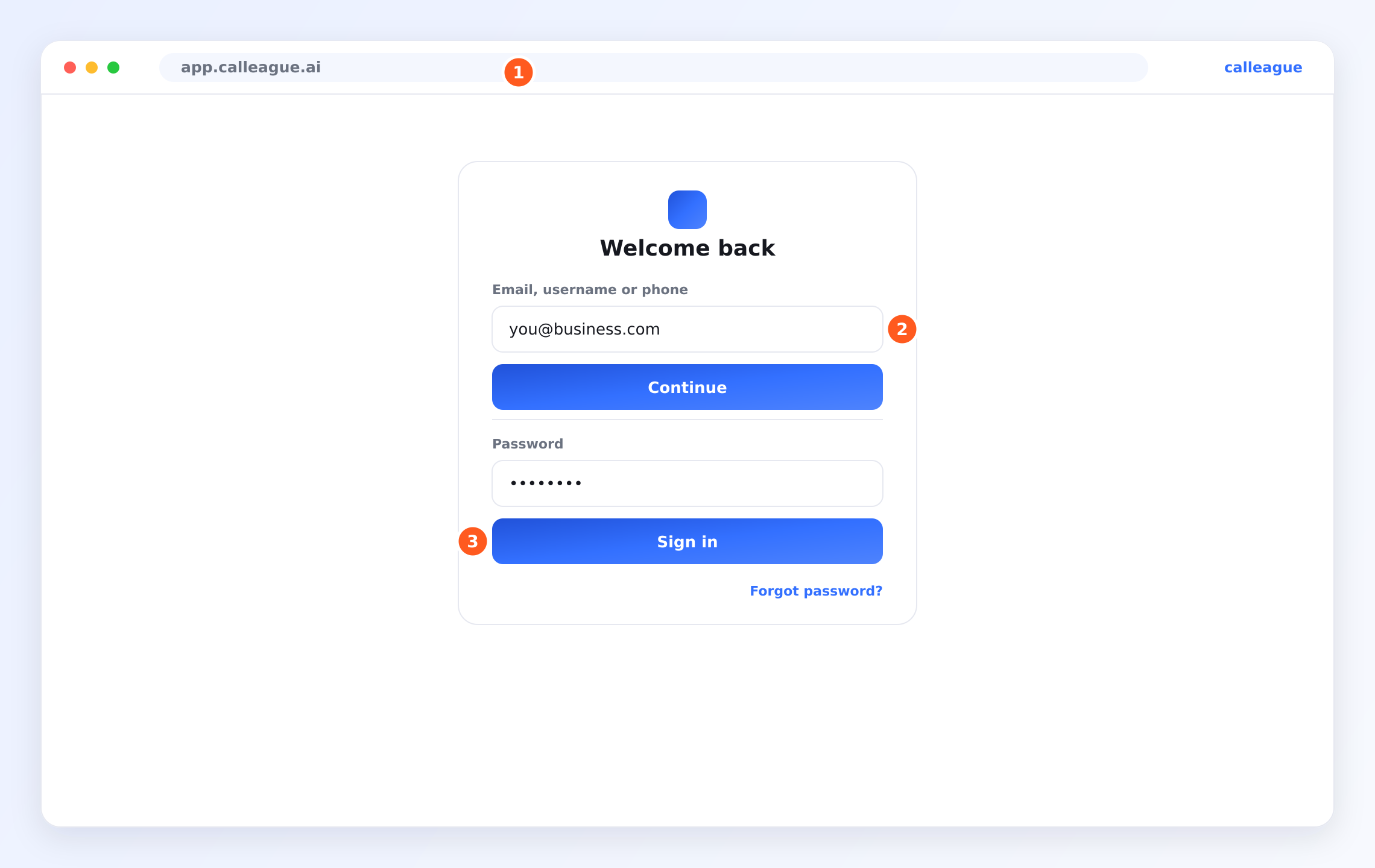
The sign-in screen appears (the sign-in screen looks like this image): type your email in the "Email, username or phone" field and tap "Continue"; then type your password in the "Password" field and tap "Log in". (If you've forgotten your password, use the "Forgot your password?" link below.)
After signing in, in the left menu (on a phone, the ☰ button at the top left), open Account and, on the page that opens, open the Voice Calls section. The Voice Calls screen opens.
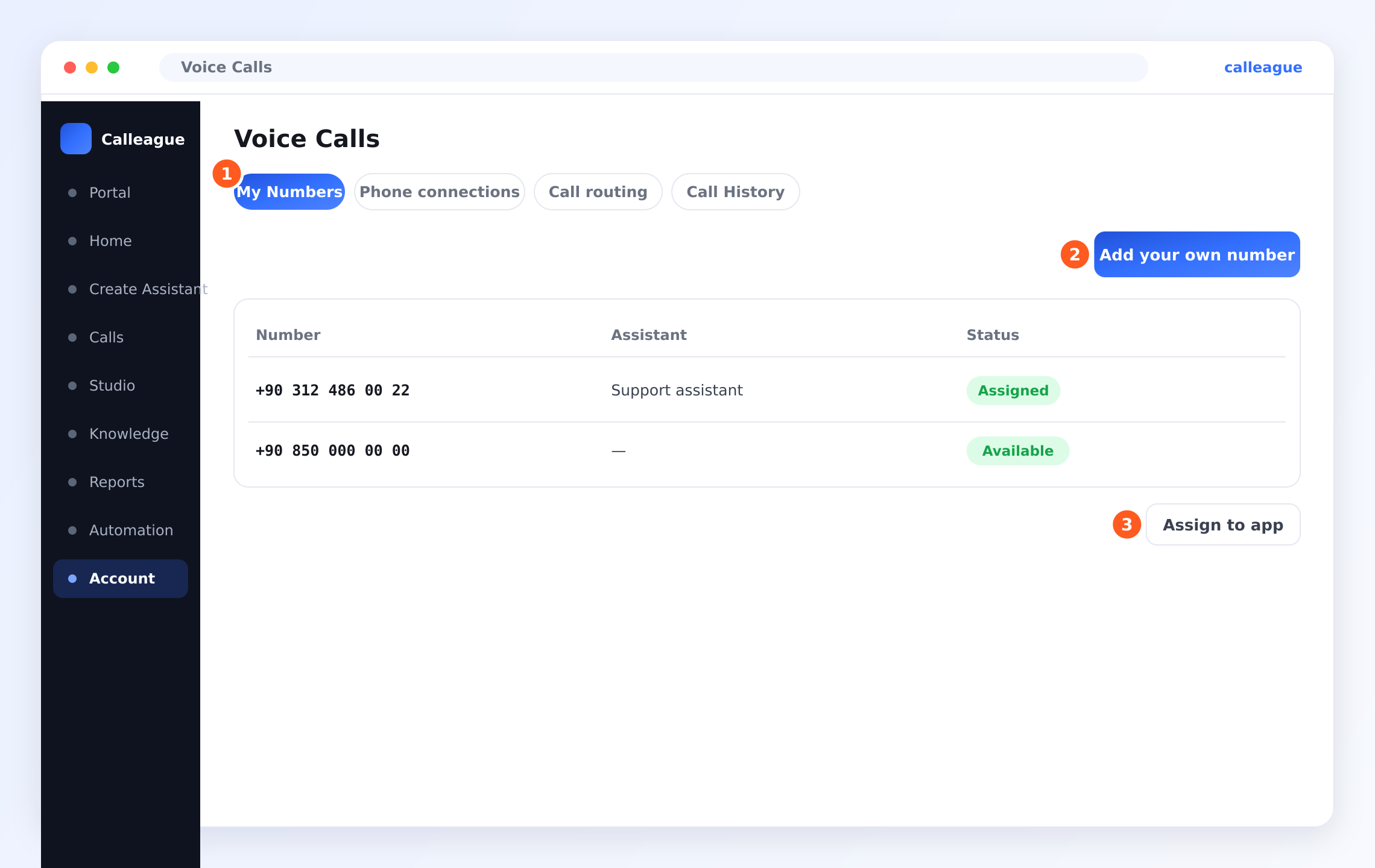
You'll see four tabs (the heading buttons at the top; marker ①) — My Numbers, Phone connections, Call routing and Call History. My Numbers opens by default; stay here.
On a brand-new account this list looks empty — that's completely normal, we'll add your first number in a moment.
Add your number
On the My Numbers tab, tap the ② "Add your own number" button at the top right. A small window opens. (There's no separate picture of this window, but it's very easy to fill in — just two boxes.)
The boxes in the window:
- Phone Number — type the number calls will come in on, with the country code at the front (for example
+90 312 486 00 22). - Display Name — a short name so you can recognise this number later, such as "Support line" or "Bookings line".
(You may also see some optional provider settings in the window. If you're not sure what they are, leave them blank — we'll help if needed.) Then save.
You'll see your number appear in the list below, showing Number, Assistant and Status. Because you haven't connected it to an assistant yet, Status reads Available for now.
Connect it to your assistant
Tap the Assign to app button below the number table and choose the assistant you built earlier (for example "Support assistant"). This says "let this assistant answer calls to this number."
You'll see your assistant's name in the Assistant column and Assigned in the Status column. Assigned means the number is ready and your assistant will now answer its calls.
That's it — your assistant is answering the phone now. Call your number from your own phone to hear it in action.
Your existing number, or a new one?
There are two paths; pick the one that fits you:
- I already have a number. If you want to use a line your business is known by, you may need a quick step with your phone provider (your phone company) to point that line to Calleague. That link is set up on the Phone connections tab. If you're not sure, send us the number you want to use and we'll guide you.
- I don't have a number — let Calleague provide one. Ask us for a number and we'll give you a new one so you can start right away.
The four tabs, briefly
| Tab | What it's for |
|---|---|
| My Numbers | The numbers connected to your assistants — where you'll work most |
| Phone connections | How your own phone line links into Calleague |
| Call routing | Rules for sending calls to the right assistant or person |
| Call History | A log of past calls (you'll also see calls on your Inbox screen) |
If something looks different
| What you see | Why it happens | What to do |
|---|---|---|
| The list is empty | A new account with no numbers added yet | That's normal — start with Add your own number |
| Status still says Available | The number isn't connected to an assistant | Tap Assign to app below the number table and choose your assistant |
| No assistant to choose | You haven't built one yet | Create one first — see Create your first assistant |
| You can't find Voice Calls | It lives under Account | In the left menu (on a phone, ☰), tap Account → Voice Calls |
| Calls aren't coming through | Your own line may not be pointed at Calleague yet | Check the Phone connections tab, or write to us |
Frequently asked questions
Next steps
Your assistant answers the phone now. Let's make a real call and watch the whole thing work together.
Try your first conversation
Call the number, then read the transcript and listen to the recording.
Teach it about your business
Add websites and documents so it answers better.
Put it on your website
Add the chat widget so visitors can reach it too.
Stuck connecting a number? Phone setup can vary by provider. Write to us at info@arpanet.com.tr or reach us via calleague.ai, and we'll help you connect it, step by step. Calleague is built by Arpanet Bilişim Teknolojileri A.Ş. in Ankara.
Last Updated
Put it on your website
Add your assistant to your website with one line of code — or, if you have no website, share it with customers via a Share link. Step by step, no tech skills needed.
Try your first conversation
Test your assistant for real — chat with it first, optionally call the number you connected, then open Calls (Inbox) to read the transcript, hear the recording, and see the short summary and outcome.