
Try your first conversation
Test your assistant for real — chat with it first, optionally call the number you connected, then open Calls (Inbox) to read the transcript, hear the recording, and see the short summary and outcome.
This is the fun part: seeing your assistant work for real. You'll chat with it first, optionally call it on the phone, and then open the Calls (Inbox) screen to read exactly what was said. By the end of this page you'll have had your first real conversation.
Before you start: For this step you need an assistant that is already created and taught about your business. To try it on the phone you also need a connected number; if you don't have one, skip the phone step and just try the chat — that's fine. If you haven't done these yet, follow the Getting started pages in order first.
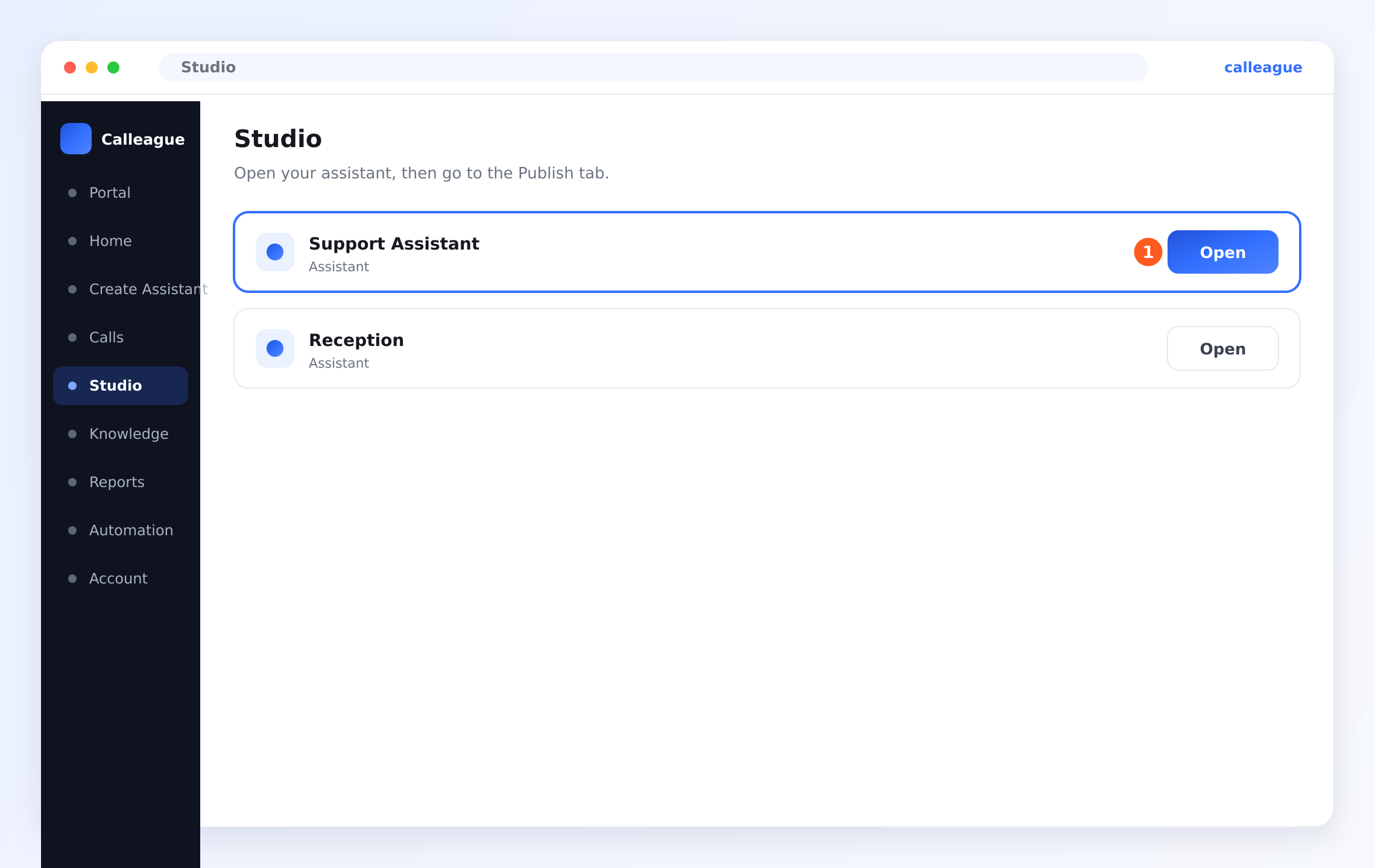
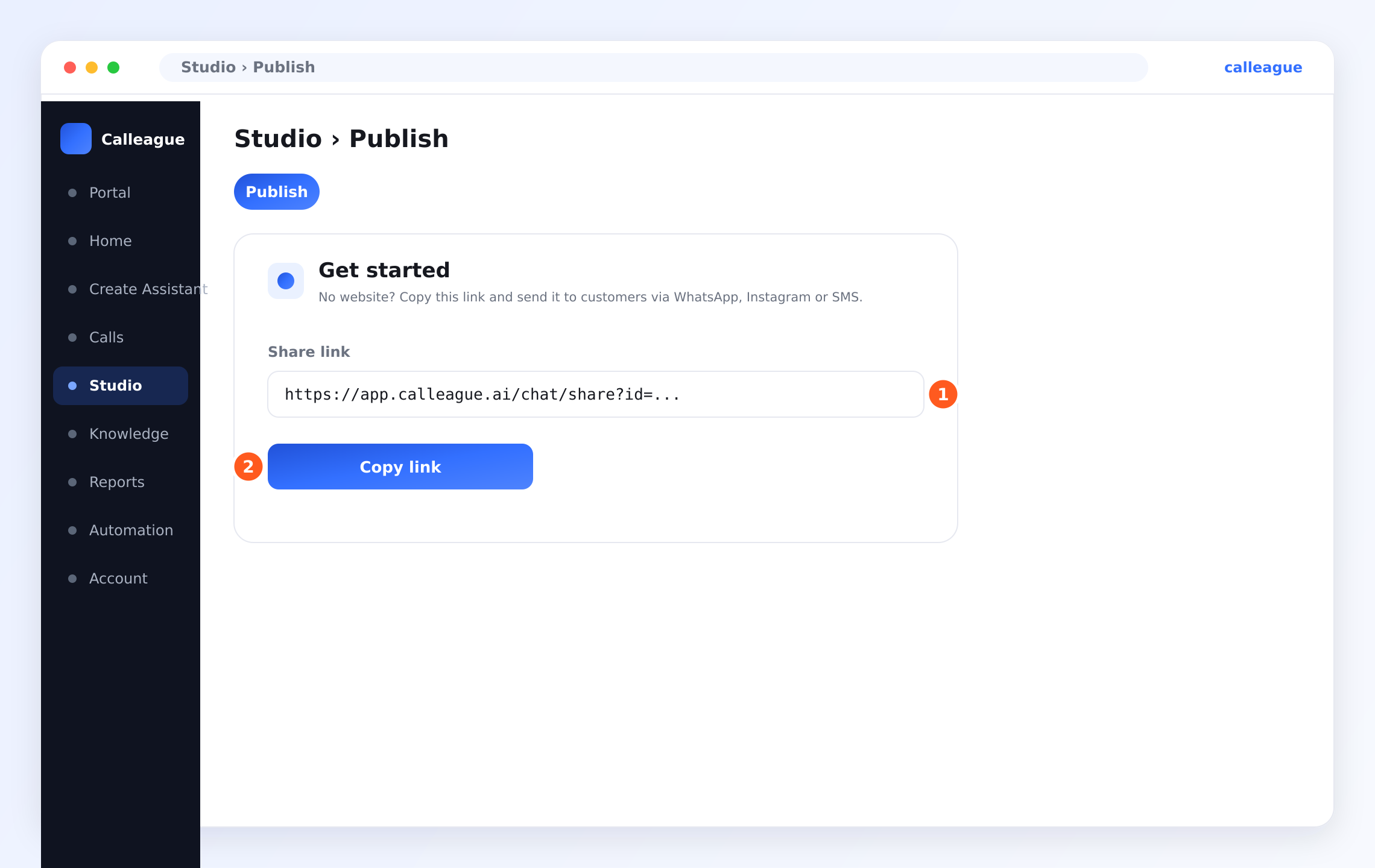
No website? No problem. You can try your assistant without a site. The easiest way is a Share Link (a ready-made chat link you can send to your customers) — it's created automatically the moment you build your assistant. To get it: from the left menu (on a phone, tap the three horizontal lines ☰ at the top-left) open Studio and press Open on your assistant's row → in the assistant that opens, switch to the Publish tab → in the Get started box you'll see the Share Link (①) → press Copy link (②). Then send the copied link to your customer; for example open WhatsApp → open a chat → press and hold the message field and tap Paste → Send. On Instagram you can put the link in your profile ("bio") link or send it in a DM/message. When your customer taps the link they start chatting with your assistant directly. It also works over the phone.
What you'll do
- Chat with your assistant (from the Home card, the preview, or your website's chat bubble if you have one).
- Optionally call the number you connected (skip this if you haven't connected a number).
- Open Calls; click a call to see the transcript, recording, summary, and outcome.
See it in action
Chat with it
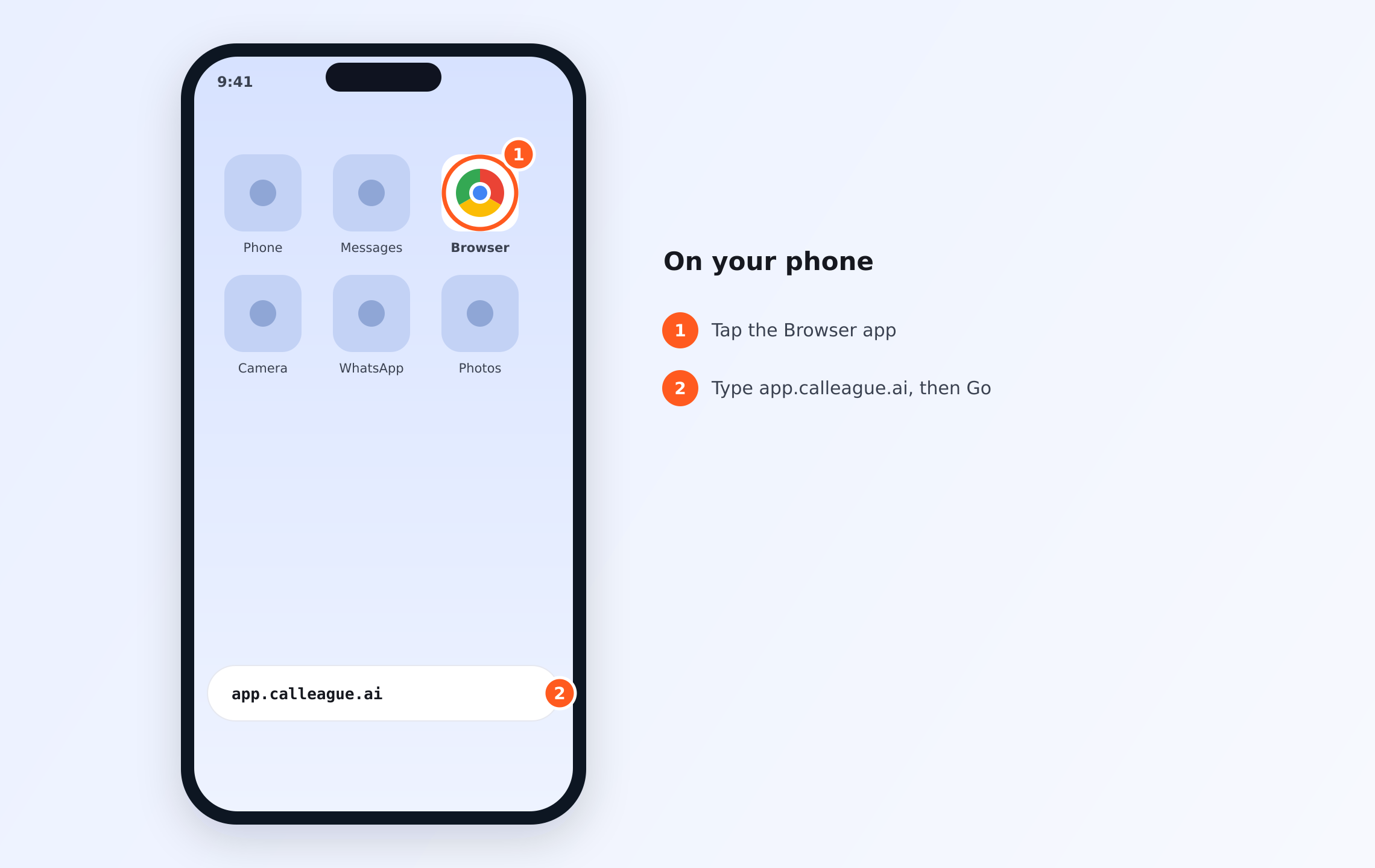
If you're not already in the app, open it first: on your phone or computer, open a web browser (like Chrome or Safari — that icon on your phone's home screen). Type app.calleague.ai in the address bar at the top and press "Go" / "Search" (Enter on a computer). (calleague.ai is our marketing site; the app itself — where you actually do the work — is app.calleague.ai.)
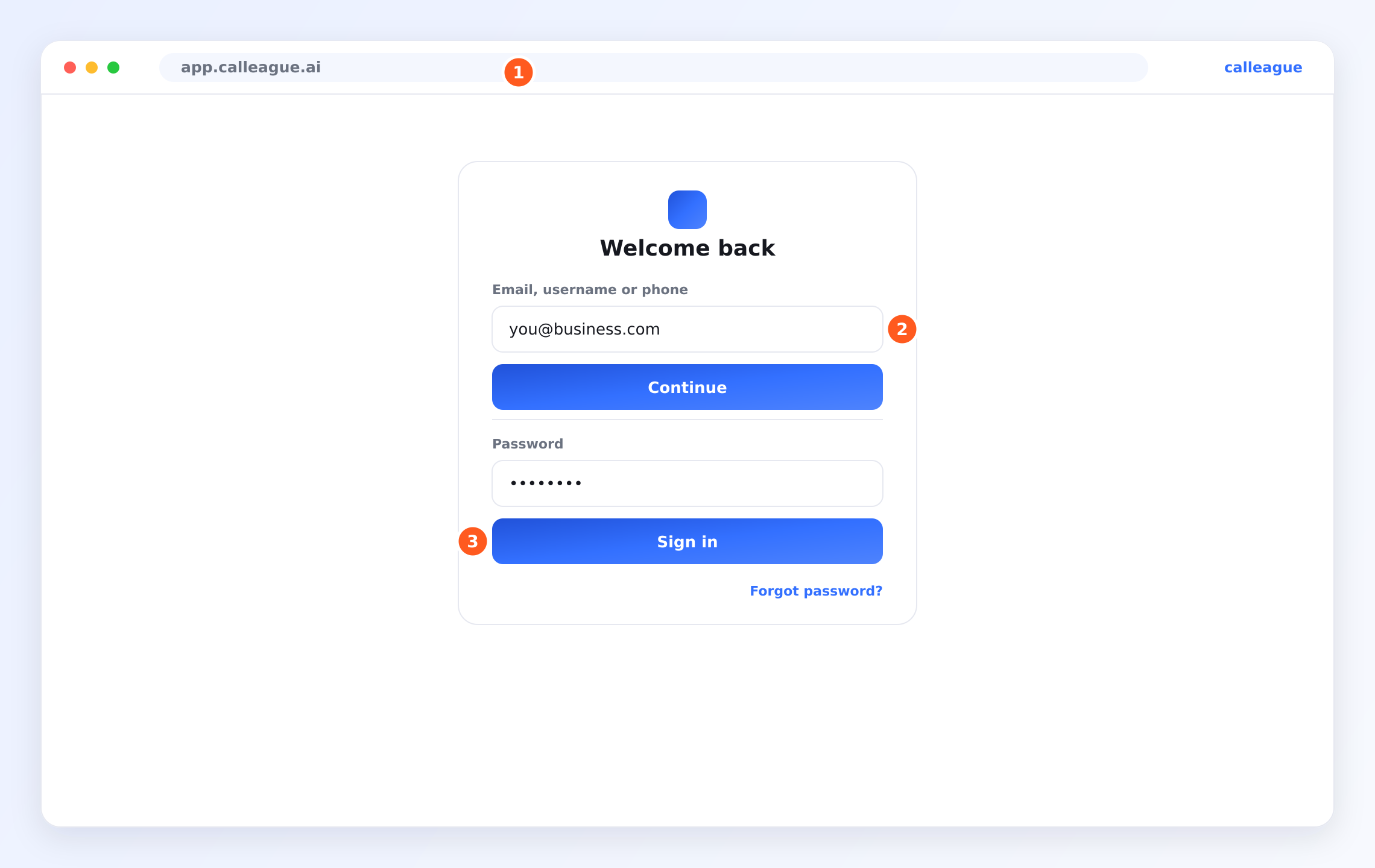
The login screen appears (the login screen looks like this image): make sure the address bar at the top reads app.calleague.ai (①), type your details into the Email, username, or phone field (②) and press Continue; then type your password into the Password field and press Sign in (③). If you don't remember your password, use the Forgot your password? link at the bottom.
The quickest test is to chat. There are a few ways — pick whichever is easiest for you:
- On Home (the main screen you land on after signing in), press the Start chatting button on the Talk to your assistant card.
- Or open Portal (the assistant chat screen) from the left menu (on a phone, tap the three horizontal lines ☰ at the top-left — that's the menu button).
- If you just created your assistant, you can also use the chat box in the Preview step of the wizard (the screen that guides you step by step).
- If you added the chat bubble (widget — the small chat window that appears in the corner of your site) to your website, you can chat there too.
Type a real question, like "What time do you close today?"
You'll see your assistant reply instantly, using the information you taught it.
Optionally call the number
If you connected a number, pick up your phone and dial it. Speak just like a customer would — ask to book something, or ask a question.
If you haven't connected a number, you can skip this step and continue with the chat only.
You'll hear your assistant greet you and respond naturally. Stay on for a few seconds, then hang up.
Open Calls
In the left menu (on a phone, the ☰ menu at the top-left), click Calls. Your list of conversations opens.
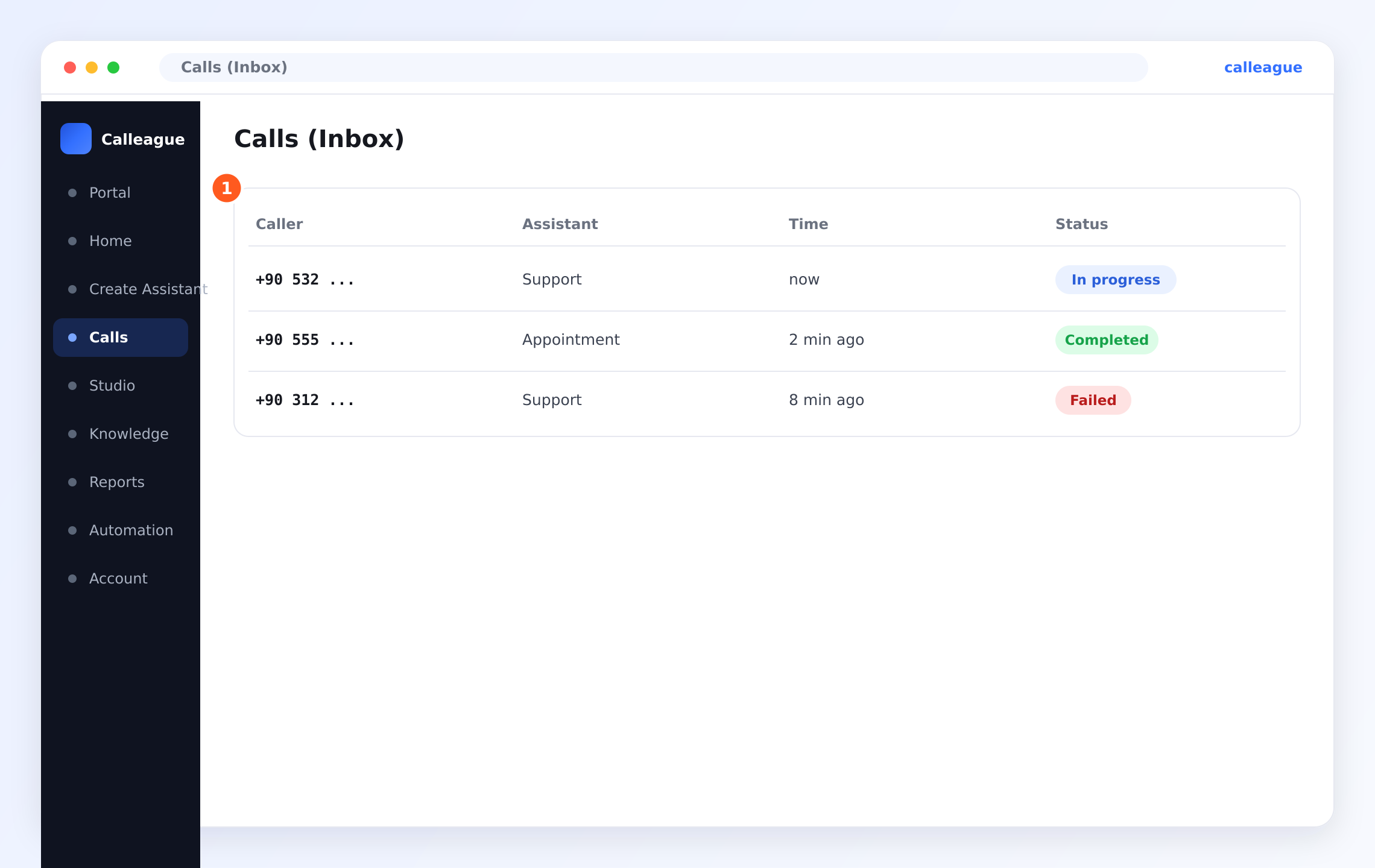
You'll see a table with four columns (marker ①): Caller (the number that called you), Assistant, Time, and Status. The Status column tells you, at a glance, where a call is:
- In progress — the call is happening right now.
- Completed — the call finished.
- Failed — the call could not be completed.
Your test should appear near the top. If you want to narrow the list down, you can use the filters above it.
If the list shows no calls, don't worry: on a brand-new account this is empty, and that's normal — it starts filling up after your first chat or call.
Open the call to see everything
Click your call in the list. The Call detail screen opens.
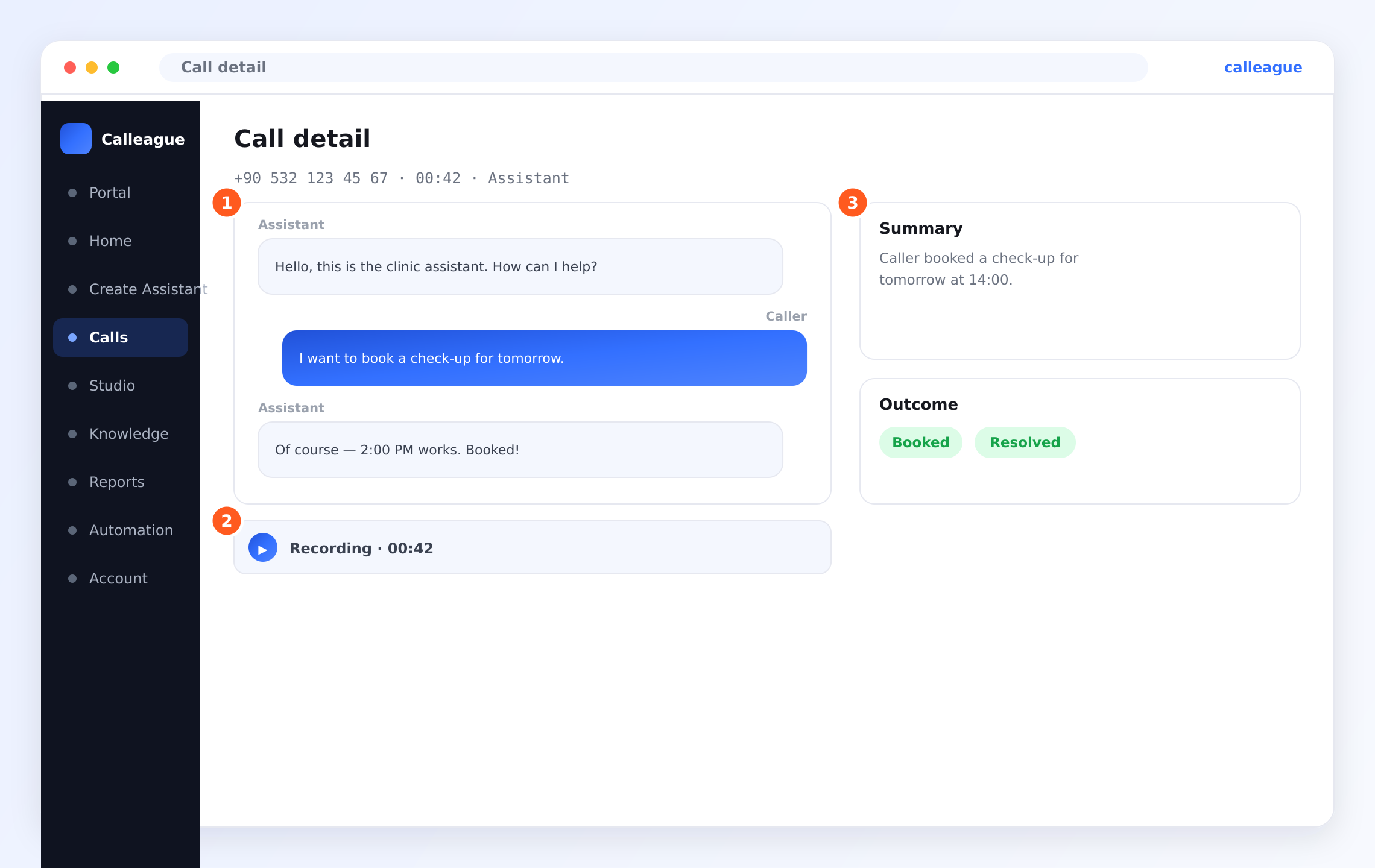
You'll see three main parts:
- ① The transcript (the conversation written out) — the whole conversation is written line by line, labelled Assistant and Caller, so you can easily follow who said what.
- ② The recording — a small player (for example "Recording · 00:42"). Just press play to listen; you don't need to download anything, it plays right in the app.
- ③ The Summary and Outcome — a short plain-language summary of the call, and an Outcome label that tells you what happened (Booked, Resolved, or Unresolved).
When you open the call you can also, if you like, add small tags to it, leave a follow-up note, or hand the call over to someone else on your team.
You did it! That's a complete, working AI (artificial intelligence) assistant — chatting on your site or share link, answering your phone, and logging every conversation for you.
Reading the outcome at a glance
At the end of every conversation your assistant automatically adds an Outcome label. It's a quick way to see how calls are going without reading every word:
| Label | What it means |
|---|---|
| Booked | The caller booked an appointment or order |
| Resolved | Their question was answered and the call wrapped up |
| Unresolved | Not finished yet; it may need a follow-up |
Over time these labels show you, at a glance, how much your assistant is handling on its own.
If something looks different
| What you see | Why it happens | What to do |
|---|---|---|
| Your call isn't in the list | It can take a few seconds to appear | Refresh the page after a second or two |
| The list is completely empty | A new account with no conversations yet | This is normal — start a chat first, or call your number |
| Status shows Failed | The number isn't fully connected or assigned to an assistant | Open Connect a phone number and make sure your number is assigned to an assistant |
| The reply was off | The assistant lacks that fact | Add it — see Teach it about your business |
| No recording on the call | Recording may be off for that call | That's a setting; you can still read the transcript |
Frequently asked questions
Next steps
Congratulations — you've finished the Getting started journey! Here's where to go next.
Teach it about your business
Keep adding websites and documents to make it sharper.
Connect a phone number
Add another line, like a separate bookings number.
Back to Getting started
Revisit the overview and your Home checklist.
Proud of your first conversation? So are we. Reach us any time at info@arpanet.com.tr or via calleague.ai — from the team at Arpanet Bilişim Teknolojileri A.Ş. in Ankara.
Last Updated
Connect a phone number
Let your assistant answer real phone calls — open Voice Calls from your Account, add your number with Add your own number on the My Numbers tab, and connect it to your assistant with Assign to app.
Using your assistant
Your day-to-day home base — where everything lives, what your assistant can do, and how to find your way around. No technical knowledge needed.