
Read a call
Open one call to see who said what, play the recording, read the AI summary, and check how it turned out.
Not signed in yet? Sign in at app.calleague.ai — see Getting started.
Before you begin. This page is useful once your assistant has handled at least one call. First you need to: be signed in, have created an assistant, and have connected a phone number and taken at least one call. If you haven't done these yet, work through the Getting started guide step by step (it covers signing in and everything else). On a brand-new account this page and your inbox will look empty — that's completely normal until the first call comes in.
When you open a call from your inbox, you get the whole story on one page: the conversation written out word for word (this is called the transcript), the audio to play back, a short summary, and how the call ended. This is the best place to check a detail, settle a question, or learn how to make your assistant even better.
A clinic can open a booking call to confirm the date and time the caller asked for. A shop can open an order call to double-check what was ordered. Nothing is lost — it's all written down.
What you'll do here
Open a call from the inbox, read the transcript (who said what), play the recording, then read the short summary and outcome to see how the call went.
Open and read a call
Open a call from your inbox
From the left menu (on a phone, tap the three-line ☰ menu button at the top left), tap Calls (your inbox), then click any row in the list. The Call detail page opens, with the caller's number, how long the call lasted, and which assistant handled it shown at the top.
On a computer the page splits in two: the conversation on the left and a short summary on the right. On a phone the screen is narrow, so the conversation and summary appear stacked — scroll down to see both.
Read the transcript
The ① transcript (the conversation written out) shows who said what, line by line. Assistant lines are on the left, Caller (the person on the phone) lines on the right, in the order they were spoken.
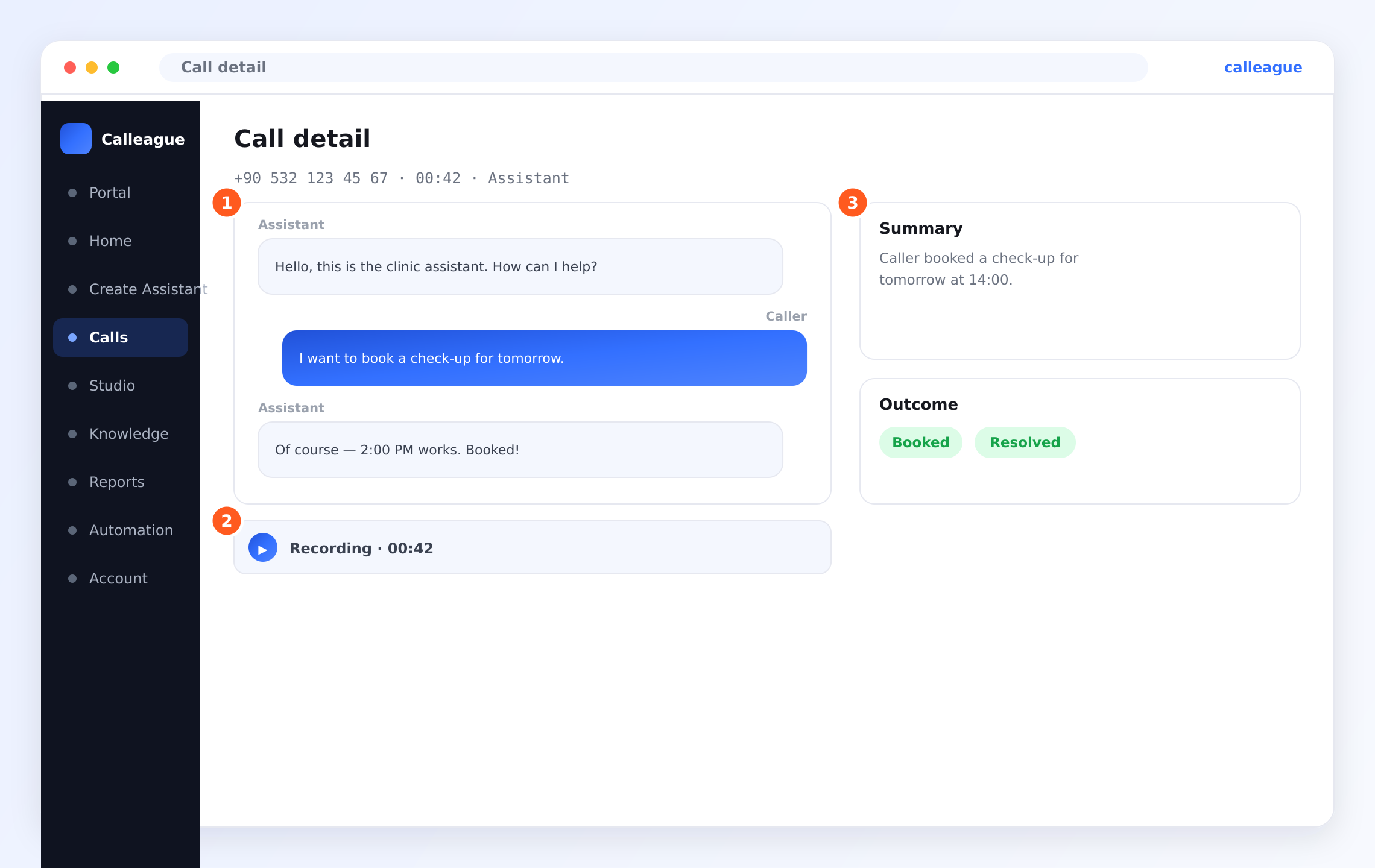
You'll see the back-and-forth. In the example the Assistant says "Hello, this is the clinic assistant. How can I help?", the Caller replies "I want to book a check-up for tomorrow.", and the assistant confirms "Of course — 2:00 PM works. Booked!".
Play the recording
Below the transcript is the ② Recording bar with a play button and the call length (e.g. Recording · 00:42). Click play to listen.
The call plays back exactly as it happened — right inside the app, with nothing to download. (If you don't see a recording bar at all, recording was turned off for that call; see Recordings & privacy on calls.)
Read the summary and outcome
On the right (a little further down on a phone), the ③ Summary gives you the call in a sentence or two. Just below it, the Outcome box — which has no number of its own — shows colour-coded tags for how the call ended.
In the example you'll see a summary such as "Caller booked a check-up for tomorrow at 14:00." and outcome tags like Booked and Resolved — so you know what happened without reading every line.
The summary and outcome are written for you automatically after each call. You can skim a busy day's calls in seconds, then open only the ones that need a closer look.
What each part tells you
| Part | What it shows | Why it's useful |
|---|---|---|
| Transcript | The full conversation, line by line, labelled Caller and Assistant | Check exactly what was said and promised |
| Recording | The call audio with a play button | Hear tone of voice, or confirm a detail you can't read |
| Summary | A short, plain-language recap | Understand a call at a glance |
| Outcome | Tags like Booked, Resolved or Unresolved | See how the call ended without reading it all |
What do the outcome tags mean? Booked = an appointment or order was made. Resolved = the caller's matter is done, nothing left to handle. Unresolved = not finished yet, you may need to follow up. Your assistant sets the tag automatically.
Use this to improve your assistant
Reading real calls is the fastest way to make your assistant better. As you skim transcripts, look for patterns:
- A question it fumbled — add the right answer to your assistant's instructions (the short directions you give it) or knowledge base (the information it reads and learns from) so it nails it next time.
- A detail callers keep asking for — like parking or prices — and make sure it's in the knowledge base.
- A call it should have passed to a person — tighten your transfer rule (the assistant handing the call to a real person) so it hands those over.
- A great answer — reuse that wording elsewhere.
Here's how to update your assistant: from the left menu (on a phone, tap the three-line ☰ menu button at the top left) open Create Assistant, open your assistant, and add new knowledge or edit your instructions in the Train step. You'll find the step-by-step walkthrough on the Create your first assistant page.
A small habit goes a long way: skim a handful of calls each week, jot down one thing to improve, and update your assistant. A few tweaks turn a good assistant into a great one.
Follow-ups and notes
Because every call is written down and summarised, the Call detail page is your record for following up. Spotted a call that needs a return call? Open it, read what the caller wanted from the transcript or summary, and call them back knowing exactly what they need. When you open a call, you may also see options to leave yourself a short follow-up note or assign the call to a teammate. Want a follow-up to happen automatically — like a text after every booking? See Automation (ready-made rules that run on their own — not required when you're just starting out).
If something looks different
| What you see | Why it might happen | What to do |
|---|---|---|
| No calls, the list is empty | A brand-new account; no calls yet | Connect a number and make a test call — see Connect a phone number |
| No recording bar | Recording was switched off for that call | Turn recording on for future calls — see Recordings & privacy on calls |
| The recording won't play | A brief connection hiccup | Refresh the page and press play again |
| The transcript looks short | It was a very brief call, or the caller hung up early | Check the Outcome and the length to understand the call |
| No summary yet | The call only just finished | Give it a moment and refresh; summaries appear right after a call |
| A word in the transcript looks off | Background noise or an unusual name | Play the recording to hear what was actually said |
Frequently asked questions
Next steps
Recordings & privacy on calls
Turn recording on or off and keep callers informed.
See your calls
Back to the inbox of incoming and recent calls.
Create your first assistant
Use what you learn to improve your assistant's instructions and knowledge.
Automation
Send a follow-up automatically after each call.
Need a hand? We're happy to help at info@arpanet.com.tr.
Last Updated