
Automations
Make the routine things around your calls happen on their own — like texting back a missed caller or adding a new booking to your calendar. You set a simple "when this happens, do that" rule once, and Calleague handles the rest.
After a call, the same little jobs come up again and again. Someone phones and nobody could pick up, so you want to text them back. The assistant books an appointment, so you want it on your calendar. Automations do these small, repeating tasks for you — quietly, in the background, every single time. You set the rule once, and the rest takes care of itself.
The idea is simple: "when this happens, do that." No technical skills needed — if you can send a text message, you can build an automation.
What you'll do
You'll find the Automation / Otomasyon area in the app, learn the real call moments you can react to, and set up your first rule — for example, when a call is missed, send the caller a friendly text.
At a glance
| What it is | A simple rule: "when this happens, do that" |
|---|---|
| Who it's for | Anyone — no technical skills needed |
| Where you set it up | The Automation / Otomasyon area, from the menu on the left |
| When it runs | Automatically, the moment your chosen event happens |
| What it can do | Send a message, save a call, notify your team, add a booking |
| Who's in control | You — nothing runs until you switch it on, and you can pause it any time |
| Where you see results | A clear log of everything that ran, and whether it worked |
The simple idea: "when this happens, do that"
An automation is just a rule you write in plain words. It has two parts:
- When this happens — for example, when a call is missed.
- Do that — for example, send the caller a text message.
That's the whole idea. You pick the moment, then you pick what should happen. Calleague does it for you, the same way, every time — so you never have to remember.
Think of an automation like a sticky note that never gets lost: "Whenever someone calls about an appointment, send them a confirmation." Except you don't have to do it — it just happens.
The real moments you can react to
The "when" of an automation is almost always something that happens on a call — and you can already see these moments in your app. Here are two of the most common.
A missed call
Open Calls / Aramalar from the menu and you'll see every call with a Status. A call marked Missed / Kaçırıldı is a moment you can react to — for example, by texting the caller back.
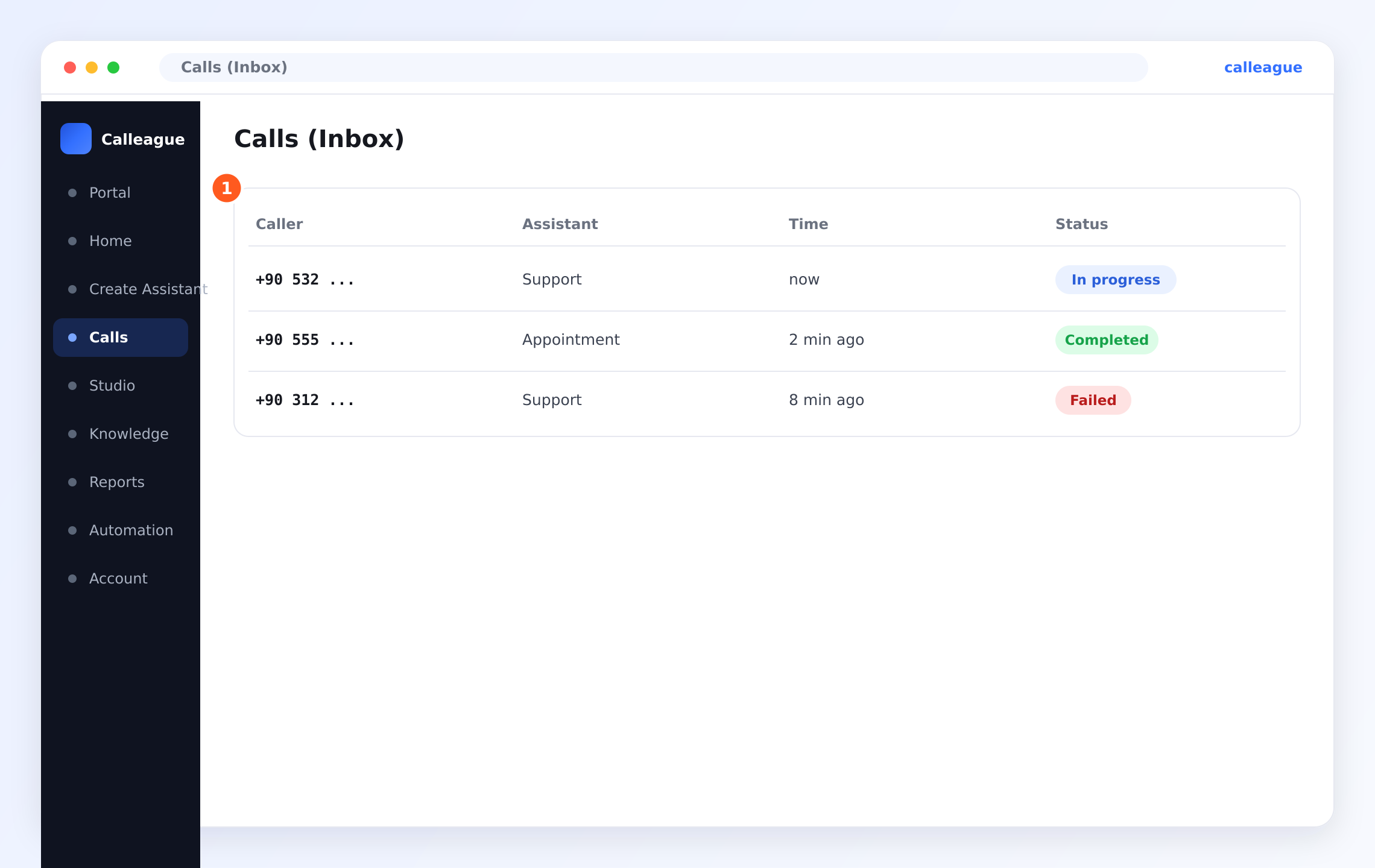
You'll see the ① call list with each caller, which assistant answered, the time, and a coloured status: Live / Canlı (happening now), Done / Bitti (finished), or Missed / Kaçırıldı (nobody was reached). The red Missed / Kaçırıldı badge is the moment a "missed-call" automation watches for.
An appointment was booked
When a call ends, Calleague reads what happened and records the Outcome / Sonuç. Click any call to open its detail.
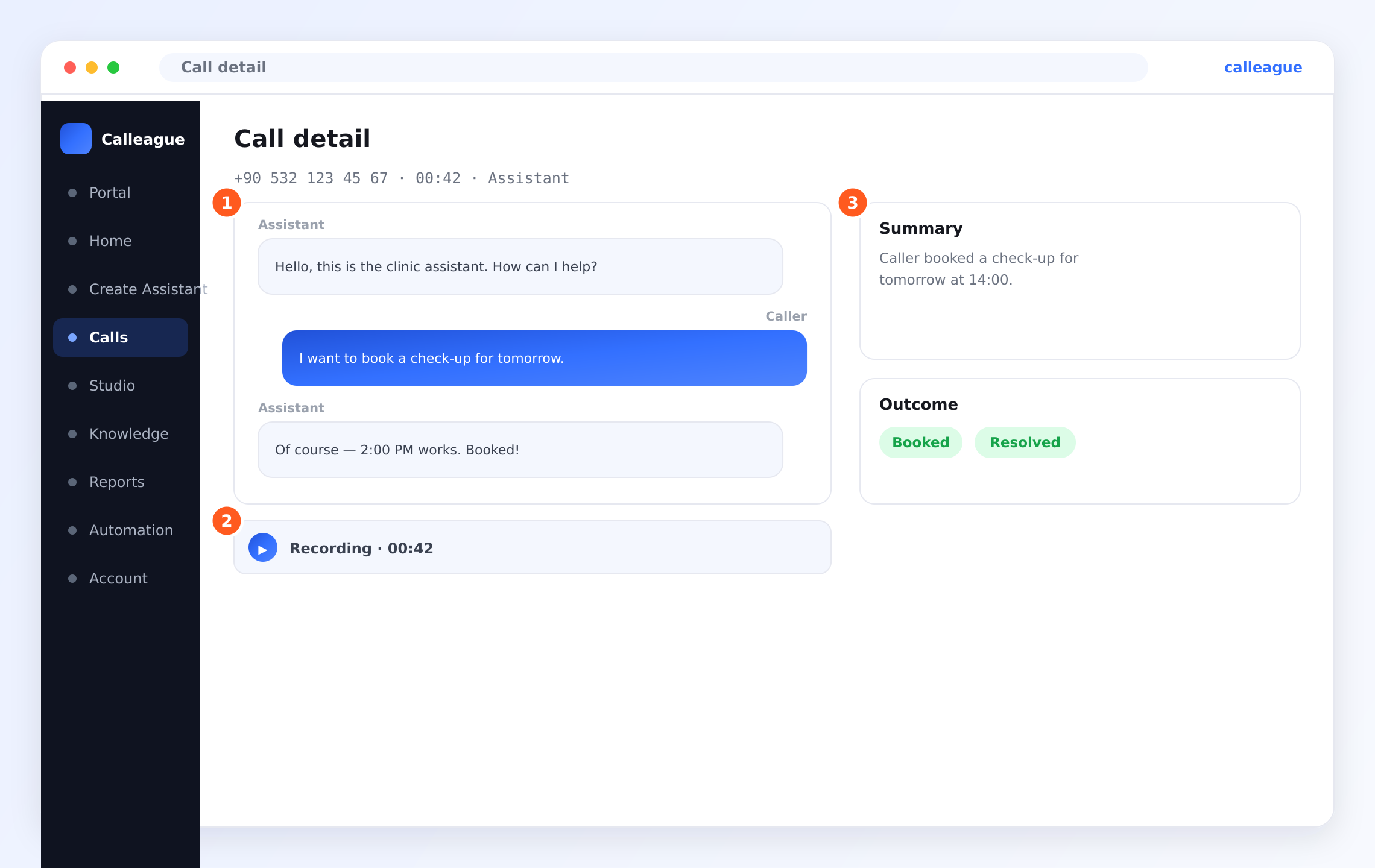
You'll see the ① transcript (who said what, Caller / Arayan and Assistant / Asistan), the ② recording you can play back, and on the right a ③ Summary / Özet plus the Outcome / Sonuç with tags like Booked / Randevu or Resolved / Çözüldü. A green Booked / Randevu tag is the moment a "new booking" automation watches for — so it can add that appointment to your calendar.
Triggers: the "when"
A trigger is the moment that sets your automation off. Just pick the situation that matches what you want.
| Trigger (the "when") | In plain words |
|---|---|
| A call ends | The conversation has finished and the line has hung up |
| A missed call | Nobody picked up, or the caller hung up before being helped |
| An appointment is booked | The assistant booked a time during the call (Outcome: Booked / Randevu) |
| A callback is requested | The caller asked to be rung back later |
| A call comes in after hours | Someone called outside your working hours |
| On a schedule | At a time you choose — every morning, every Monday, and so on |
| Manually | You press a button yourself when you want it to run |
Actions: the "do that"
An action is what happens once the trigger fires. You can pick one, or line up several.
| Action (the "do that") | In plain words |
|---|---|
| Send a message | A text, an email, or an in-app note to the caller or your team |
| Save the details | Keep the call and its summary in your customer records |
| Notify a teammate | Give the right person a heads-up that something needs attention |
| Add to your calendar | Drop a booking or reminder into your calendar |
| Update another tool | Pass the information to a tool you already use, like your customer list |
| Wait, then continue | Pause for a while (say an hour) before the next step runs |
You stay in control. Nothing happens unless you've turned the automation on. You can switch any of them off at any time, and changing one never affects the others.
Common recipes
Here are the rules people set up most often. Use them as they are, or tweak the wording to fit your business.
After a missed call, send a text
Nobody likes a missed call going nowhere. The moment a call is marked Missed / Kaçırıldı, the caller gets a friendly message: "Sorry we missed you! Reply here or call back any time and we'll be glad to help." It keeps the door open instead of losing the customer.
After a booking, add it to your calendar
When a call ends with the Booked / Randevu outcome, this rule adds the appointment straight to your calendar with the customer's name and time — so your day stays organised without anyone typing it in.
After a call, save it and tell the team
When a call ends, this rule saves the conversation and its summary to your customer records, then pings the right teammate: "New call from Ayşe about a delivery — have a look when you can." Nothing gets forgotten, and the right person always knows.
After hours, reply politely and log it
If someone calls when you're closed, this rule sends a warm note — "Thanks for calling! We're closed right now but we'll get back to you first thing tomorrow." — and logs the call so it's waiting for you in the morning.
A gentle morning summary
On a schedule, send yourself or your team a short recap of yesterday's calls every morning, so everyone starts the day knowing what came in.
Set up your first automation
You build automations right in the app — no special skills needed. Let's set up the most popular one, "when a call is missed, send a text", together.
Open the Automation area
Sign in at app.calleague.ai. In the dark menu running down the left side, click Automation / Otomasyon.
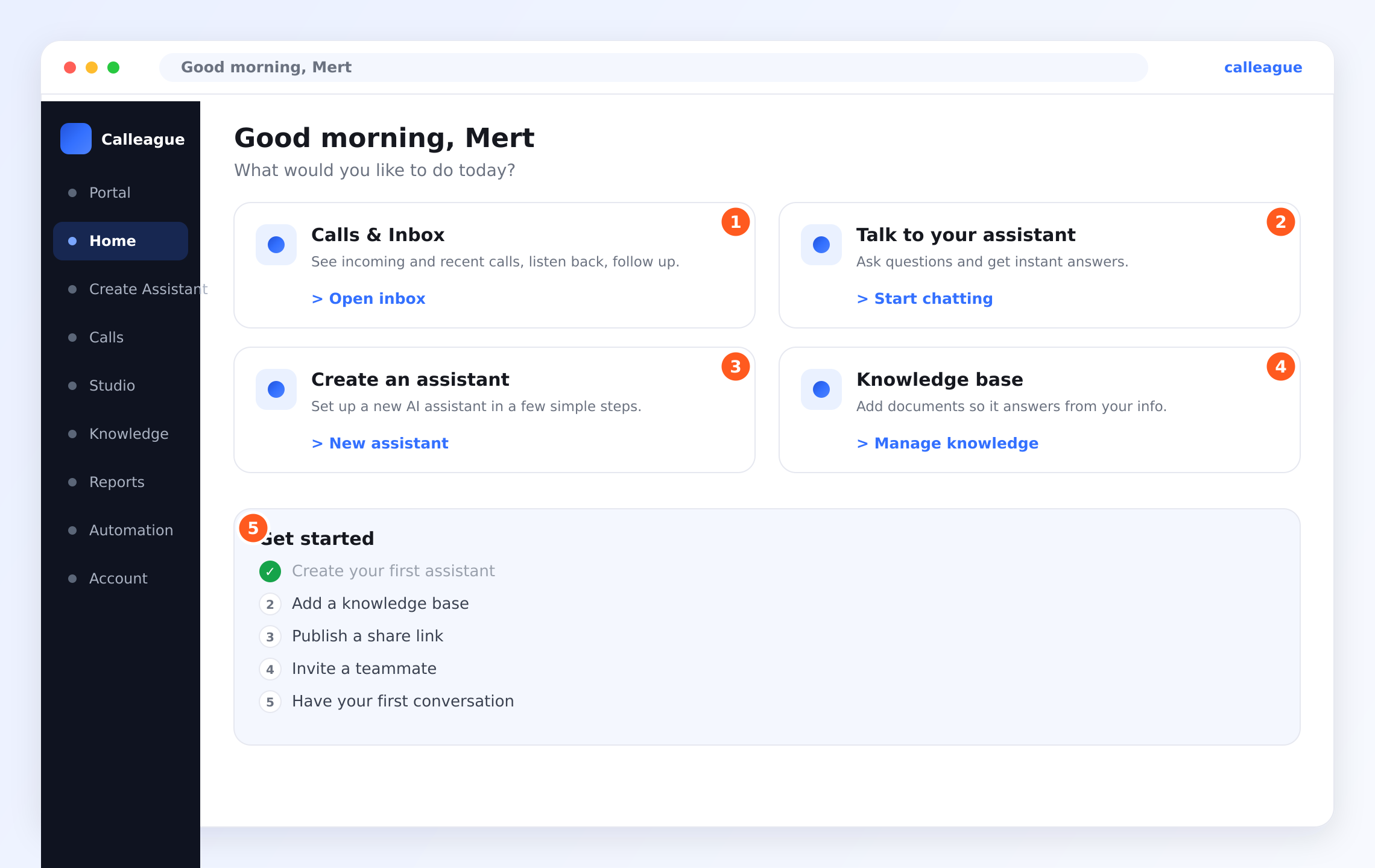
You'll see your home screen with its welcome and four big cards. The menu on the left lists Home / Anasayfa, Create Assistant / Asistan Oluştur, Calls / Aramalar, Knowledge / Bilgi, Reports / Raporlar, Automation / Otomasyon, and Account / Hesap. Click Automation / Otomasyon to land on the area where all your rules live, switched on or off.
Start a new automation
Add a new automation and give it a short, clear name like "Missed-call text" so you'll recognise it later.
You'll see two simple parts waiting to be filled in: a When (the moment) and a Do this (the action).
Choose the moment — the "When"
Pick your trigger from the list — for this recipe, choose a missed call. This is the same moment you saw marked Missed / Kaçırıldı in your Calls list earlier.
You'll see the moment set as the rule's trigger — everything below it is what happens because of that moment.
Choose what happens — the "Do this"
Pick your action. For this recipe, choose Send a message so the caller gets a text. You can add more than one action if you like — for example, also Notify a teammate.
You'll see the action added, with space to fill in the details.
Fill in the details
Write your message in plain, warm words, the way you'd actually speak to a customer — for example, "Sorry we missed you! Reply here any time and we'll be glad to help." Choose who it goes to (here, the caller).
You'll see your message and recipient saved as part of the rule.
Save and switch it on
Save the rule, then flip its switch to on. From now on, every missed call gets that friendly text — automatically, every single time.
You'll see the rule listed with its switch showing on, ready and working.
Not sure where to start? Calleague offers ready-made starting points for the most common jobs. Pick one, change the wording to sound like you, and save it. You can always fine-tune it later.
Settings you can adjust
When you build a rule, a few friendly options let you shape exactly how it behaves.
| Option | What it does | Notes |
|---|---|---|
| On / off switch | Turns the whole rule on or pauses it | Pausing keeps your settings; nothing is lost |
| Trigger | Chooses the moment that sets the rule off | Pick the situation that matches your goal |
| Conditions | Only runs when something is true (e.g. only for calls over 2 minutes) | Optional — leave blank to run every time |
| Actions | What happens, in order | Add one or several |
| Recipients | Who a message or alert goes to | The caller, a teammate, or a whole group |
| Quiet hours | Holds messages until a sensible time | Handy so customers aren't texted at midnight |
| Wait step | Pauses before the next action | Useful for "wait an hour, then follow up" |
Watching your automations
Everything an automation does is written down for you, so you're never in the dark.
- See a list of everything that ran and exactly when.
- Check that each one finished successfully.
- Open any run to see the details — what triggered it and what it did.
- Spot anything that didn't go to plan and fix the rule in a few clicks.
When you send messages automatically, make sure people are happy to hear from you. It's kind — and the right thing — to let callers know they may get a follow-up, and to honour anyone who asks not to.
Real-world scenarios
A dental clinic
The clinic sets up two rules. First, when an appointment is booked (Booked / Randevu), add it to the calendar and text the patient a confirmation with the date and time. Second, when a call is missed (Missed / Kaçırıldı), send a kind message inviting the patient to call back. The front desk no longer copies appointments by hand, and patients rarely fall through the gaps.
A small shop
The shop owner wants to stay close to customers without extra work. She sets a rule so that when a call ends, the call and a short summary are saved to her customer list, and a note pings her phone if the caller asked about an order. Every evening, a scheduled rule sends her a one-line recap of the day's calls.
A busy service business
A plumbing company sets when a callback is requested, alert the on-call team straight away so someone can ring back fast. They add a second action: save the request with the caller's number, so even if everyone's hands are full, nothing is lost.
A few friendly tips
- Start small. Set up one simple rule first, watch it work for a day, then add more.
- Keep messages warm. Write follow-ups the way you'd actually speak to a customer.
- Use conditions to stay tidy. A rule that only runs for missed calls, or only after hours, keeps things relevant.
- Review now and then. As your business changes, your automations can change with it.
If something looks different
| What you see | Why it happens | What to do |
|---|---|---|
| You can't find Automation / Otomasyon | The menu may be collapsed on a small screen | Widen the window, or open the menu, and look down the left side |
| My automation didn't run | It may be switched off, or its conditions weren't met | Open the rule, check the on switch and the conditions |
| The message went to the wrong person | The recipient was set to a teammate instead of the caller (or vice versa) | Edit the rule and pick the right recipient |
| A customer got a text at a bad time | No quiet hours were set | Turn on quiet hours so messages wait for a sensible time |
| It ran twice | Two similar rules may overlap | Review your list and remove or merge duplicates |
| Nothing saved to my customer list | The other tool may not be connected yet | Check your connected tools, then try again |
| A run shows as "didn't finish" | Something it relied on wasn't available at that moment | Open the run for details, fix the cause, and it'll run next time |
FAQ
Next steps
Calls & inbox
See incoming and recent calls — the moments your automations react to.
Connect your tools
So automations can update your calendar and customer list.
Your data and privacy
How your calls and information are kept safe.
Common questions
Quick answers to the things people ask most.
Need a hand? Email us any time at info@arpanet.com.tr — we're happy to help.
Last Updated
Example: CRM & calendar
A friendly, complete walk-through — give your assistant your information and connect your customer list and calendar so it can recognise callers and book appointments.
Team & billing
Invite your teammates, give each person the right role, watch your usage, and manage your plan and payment — all on simple screens, following along step by step, with no technical know-how needed.