
Team & billing
Invite your teammates, give each person the right role, watch your usage, and manage your plan and payment — all on simple screens, following along step by step, with no technical know-how needed.
This is where you look after the two sides of Calleague that aren't about phone calls: the people who work with you, and the money side — your plan, your usage and your payment. Everything happens on friendly screens that you reach from the Account menu, and you can change your mind at any time.
What you'll do on this page
You'll invite a teammate step by step, learn what each role can do, see where to watch your usage, compare the Starter / Growth / Enterprise plans, and learn how paying and upgrading work. Follow along in your own account as you read.
You don't need to learn anything technical here. If you can send an email and tap a button, you can run your whole team and billing yourself.
Roles — who can do what
A role simply decides how much a person can see and change. It's like handing out keys: some people get a key to every room, and some get a key to just one. You decide who gets which key, and you can change it whenever you like.
| Role | What they can do |
|---|---|
| Owner | The original account holder. Full control over everything, including the plan and closing the account. There is usually just one. |
| Admin | Full day-to-day control — assistants, phone numbers, the team, the plan and payment. Best for a business partner or office manager. |
| Member | Does the everyday work — creates and edits assistants, watches calls, reads transcripts — but can't touch billing or remove people. |
| Viewer | Can look at calls, recordings and reports, but can't change anything. Perfect for someone who's still learning, or an accountant who only needs to see the numbers. |
Tip: start a brand-new employee as a Viewer while they find their feet, then move them up to Member once they're confident. Nothing they do as a Viewer can break anything.
Invite a teammate — step by step
Bringing someone in takes under a minute. Follow these steps in your own account.
Open the Account menu
In the dark menu down the left-hand side, click Account (the last item in the list). This is also where the Get started checklist below your cards reminds you to Invite a teammate — step 4 in the ⑤ checklist.
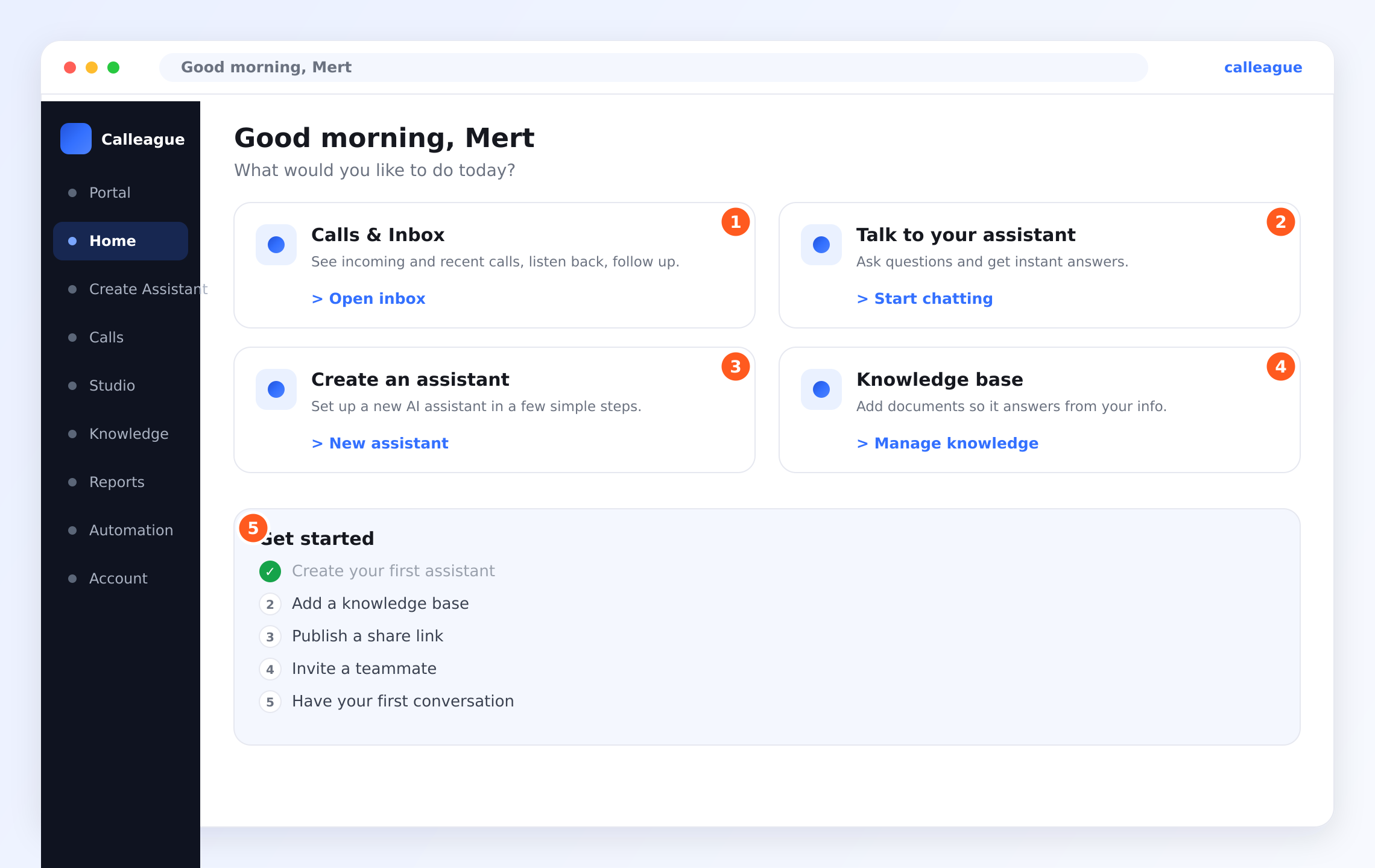
You'll see your account settings open, with a list of sections including Team.
Open the Team section
Click Team.
You'll see everyone who already has access listed here, each with their name, email and role.
Click Invite teammate
Click the Invite teammate button (usually at the top right of the list).
You'll see a small box appear, asking for a couple of details.
Type their email address
Type the email address of the person you want to add — use the one they actually check, because that's where their invitation lands.
You'll see the email you typed appear in the box, ready to send.
Choose their role
Pick Admin, Member or Viewer depending on how much you want them to be able to do. (See the roles table above if you're unsure.)
You'll see the role you picked highlighted. Don't worry — you can change it later.
Send the invite
Click Send invite.
You'll see the new person appear in your team list, marked as invited. They get an email with a link, tap it, set their own password, and they're in.
You can invite as many people as your plan allows, and you can remove someone the moment they leave the business.
Changing or removing someone
Next to each person's name on the Team screen you'll find simple options:
- Change role — move someone up or down (for example, promote a Viewer to a Member).
- Remove — take away their access instantly. They can no longer sign in, but your calls, recordings and settings all stay exactly as they are.
When someone leaves your business, remove them straight away. It keeps your account tidy and makes sure only the right people can see your calls.
Watching your usage
From the Account menu you can also open your usage screen. It shows you, in plain numbers, how hard your assistants have been working — things like how many calls were answered and how many minutes were spent. There's nothing technical to read; it's just counts you can understand at a glance.
| What you'll see | What it tells you |
|---|---|
| Calls handled | How many phone calls your assistants answered or made. |
| Minutes used | The total talking time across all your assistants. |
| Usage so far this month | How much of your plan you've used, and how much is left. |
| Busiest times | When your phones ring most — handy for planning. |
A dental clinic can glance at this page on Monday morning and instantly see how many appointment calls the assistant handled over the weekend — without anyone having to write it down.
Choosing your plan
Calleague comes in three sizes so you only pay for what you actually need. You can start small and grow whenever you're ready — moving up takes just a couple of clicks.
| Feature | Starter | Growth | Enterprise |
|---|---|---|---|
| Best for | Trying things out, or a small shop with a handful of calls | A busy business that wants more calls and more assistants | Larger companies needing the most capacity and extra support |
| Assistants | A small number, enough to get going | More, so you can cover different jobs | As many as you need |
| Call minutes | A starter bundle | A larger monthly bundle | The highest capacity |
| Team members | A few | More | Unlimited |
| Languages | All 32 languages, including Turkish | All 32 languages | All 32 languages |
| Connect your tools | Yes | Yes, plus more options | Yes, with priority help setting up |
| Support | Friendly email help | Faster help | A dedicated contact and onboarding |
Not sure which plan is right? Start with the free trial. You'll quickly get a feel for how much you use, and you can always change plans afterwards — nothing is locked in.
The free trial
Every account begins with a free trial, so you can set up an assistant, take a few calls and see Calleague working for your business before you pay anything. When the trial ends you simply pick a plan to keep going. Your assistants and settings are all waiting for you — you don't start over.
Paying — step by step
Paying is quick and familiar — just like any online shop. Turkish payment methods are fully supported, so you can pay the way you're used to.
Open the Account menu and go to billing
Click Account in the left menu, then open the billing section.
You'll see your current plan and a button to choose or change it.
Pick the plan you want
Choose Starter, Growth or Enterprise, and whether you'd like to pay monthly or yearly.
You'll see a clear summary of what's included and what it costs.
Enter your payment details
Type your card details on the secure payment screen. Turkish payment methods are fully supported.
You'll see a confirmation that your details were accepted.
Confirm
Confirm the plan.
You'll see your new plan become active right away, and your first invoice appear in the billing area.
Your invoices are all kept in the billing area, so you can look them up whenever you need them — for your accountant, for your own records, or at tax time.
Your payment details are handled on a secure screen and kept private. Calleague never shows your full card number back to you, and you can remove or change your card at any time.
Upgrading or downgrading
Your business changes through the year, and your plan can change with it.
- Upgrading (moving to a bigger plan) takes effect right away, so you get the extra calls, assistants or seats immediately.
- Downgrading (moving to a smaller plan) usually takes effect at your next billing date, so you keep what you've paid for until then.
You'll always see a clear summary of what changes and what it costs before you confirm — there's no guesswork.
Heading into a busy season — a holiday rush, a big campaign? Upgrade for those months, then drop back down afterwards. You're never tied to one plan.
Real examples
A small dental clinic. The owner invites the receptionist as a Member so she can listen to calls and tidy up appointments, and the accountant as a Viewer so he can see usage at the end of the month — but can't change anything. They start on Starter during the trial, then move to Growth once the assistant is comfortably booking weekend appointments.
A neighbourhood shop. Just the owner uses Calleague, on Starter. Each Monday she checks the usage page to see how many "are you open?" and "do you have this in stock?" calls the assistant handled, and pays her monthly bill with her usual Turkish card.
If something looks different
| What you see | Why | What to do |
|---|---|---|
| You can't find Team | You may be on the wrong screen | Click Account in the left menu first, then look for Team. |
| A teammate didn't get their invite | The email went to spam, or the address had a typo | Ask them to check their spam folder, or re-send the invite to the correct address. |
| A teammate can't change something | They have a Viewer or Member role | Open Team, find their name, and change their role to Admin if they need more access. |
| "Your trial has ended" message | The free trial period is over | Open the billing section and pick a plan to keep your assistants working. |
| A payment didn't go through | The card was declined, expired, or hit a limit | Update your payment method, then try again — or check with your bank. |
| You can't invite any more people | You've used all the seats on your plan | Upgrade to a larger plan to add more team members. |
If something with payment looks wrong — a charge you don't recognise, or a plan that didn't change — don't worry and don't try it twice. Email info@arpanet.com.tr and a real person will sort it out with you.
FAQ
A quick recap
- Invite your teammates from Account → Team, and give each one the right role — Admin, Member or Viewer.
- Watch your usage so there are no billing surprises.
- Choose a plan — start with the free trial, then pick Starter, Growth or Enterprise.
- Pay easily with Turkish payment methods, and keep every invoice in one place.
- Upgrade or downgrade whenever your business changes.
Need a hand with any of this? Reach out any time at info@arpanet.com.tr and a real person will help you. Calleague is made by Arpanet Bilişim Teknolojileri A.Ş. in Ankara, and your data is kept private under both KVKK and GDPR.
Next steps
Last Updated
Automations
Make the routine things around your calls happen on their own — like texting back a missed caller or adding a new booking to your calendar. You set a simple "when this happens, do that" rule once, and Calleague handles the rest.
Your data is safe
Your calls, transcripts and recordings are private, encrypted and yours — and you stay in control of every one of them.