
See your calls
Read your inbox at a glance — who called, which assistant answered, when, and whether the call is in progress, completed, or failed.
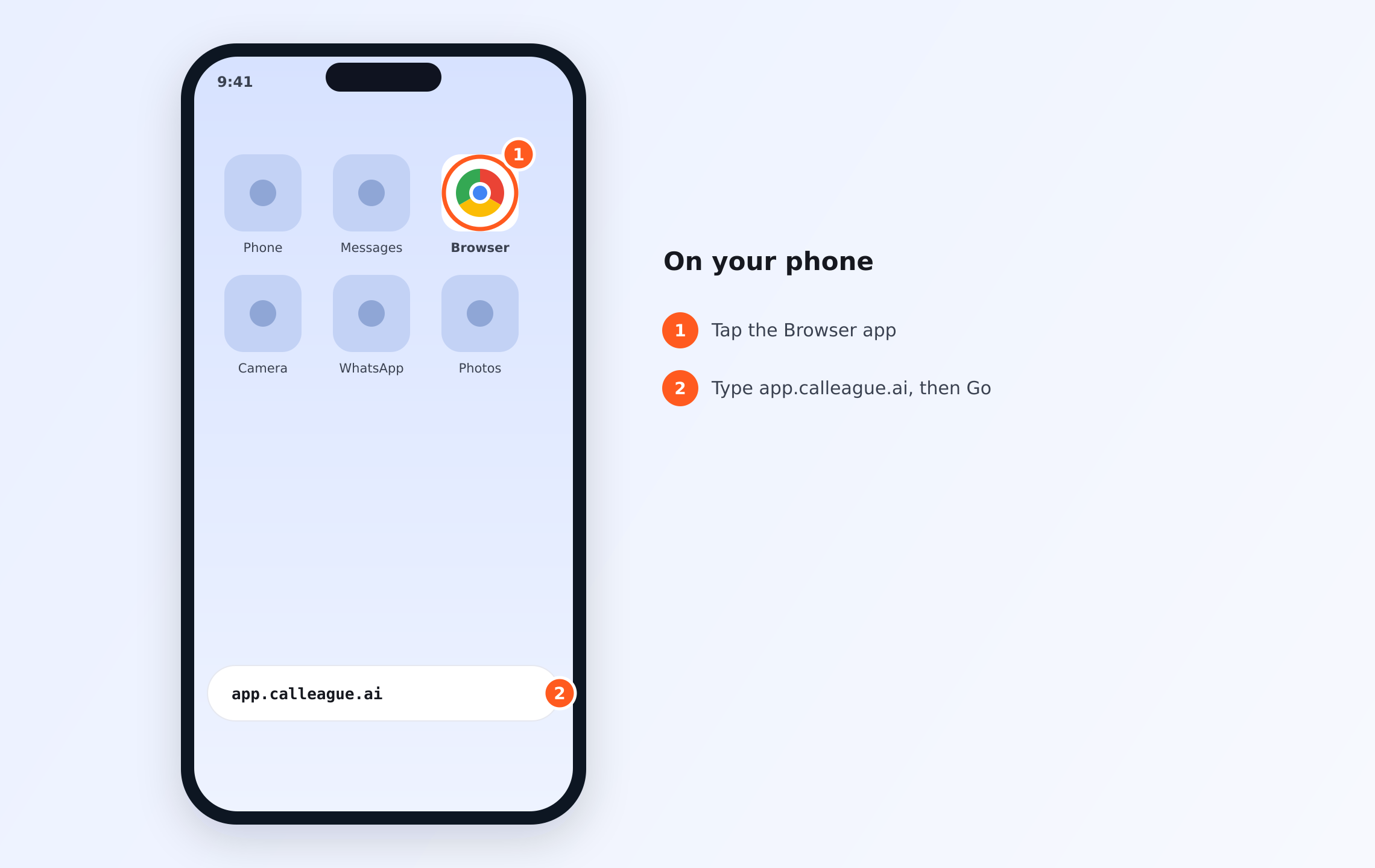
Not signed in yet? On your phone, tap the Browser app (①), then type app.calleague.ai in the address bar and tap Go (②).
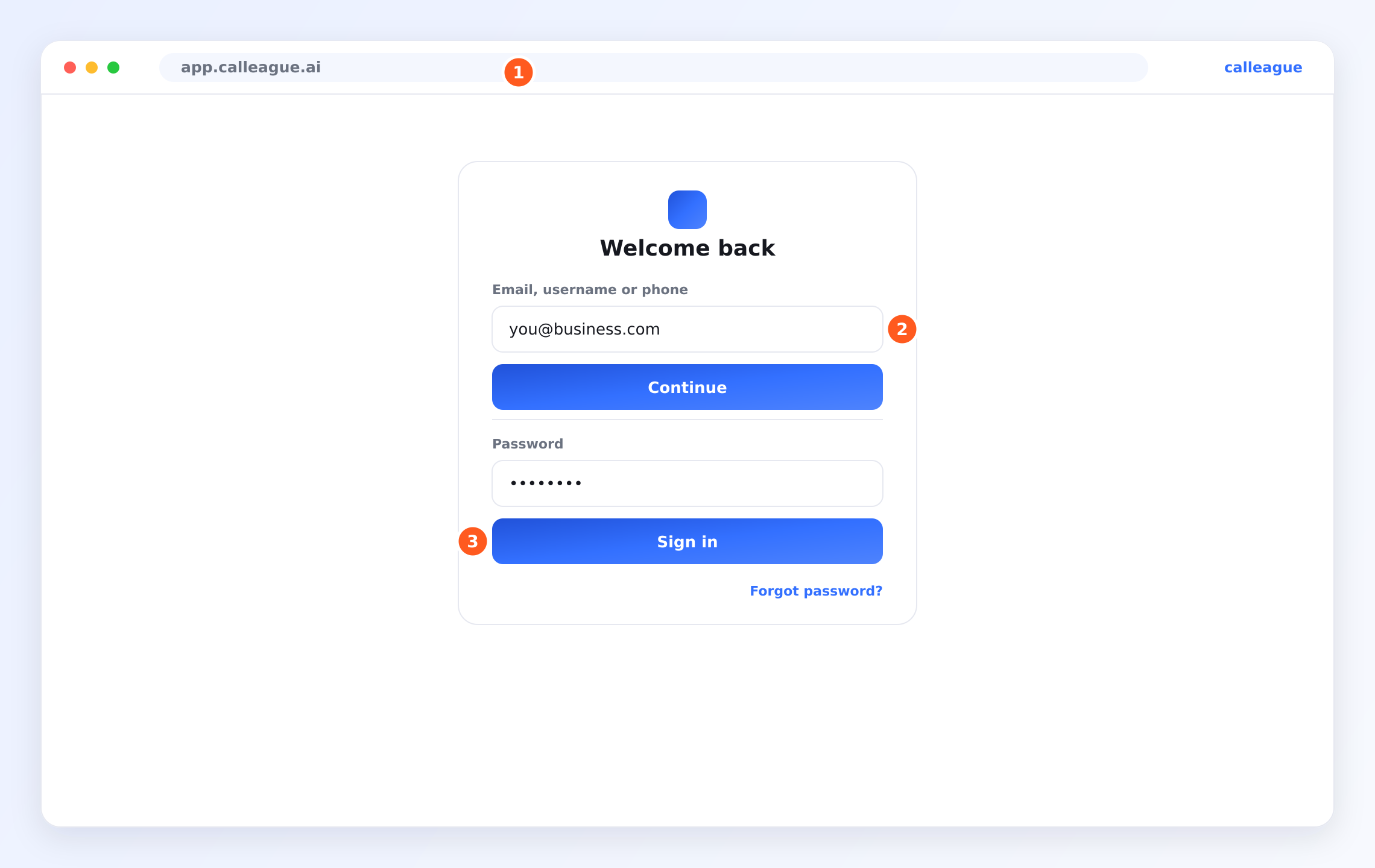
On the sign-in screen that opens, type your email and tap Continue; then type your password in the Password field and tap Sign in (the sign-in screen looks like this image). For a step-by-step walkthrough, see Getting started.
Every phone call your assistant (your AI — artificial intelligence — helper that talks to customers and answers the phone for you) handles lands in one tidy list: the Calls (Inbox) screen. This is where you keep an eye on what's happening on the phone — with no refreshing and no chasing — calls happening right now, calls that finished, and calls nobody reached, all on one page.
You'll need these first. To see calls in this list you need (1) an assistant, (2) a phone number connected to it (open Account from the left menu — on a phone this menu is behind the three horizontal lines ☰ button at the top left — then open the Voice Calls section and connect a number), and (3) at least one person to have called that number. Until you've done that, the list looks empty — which is completely normal. For step-by-step setup, see the Getting started guide, especially Create your first assistant and Connect a phone number.
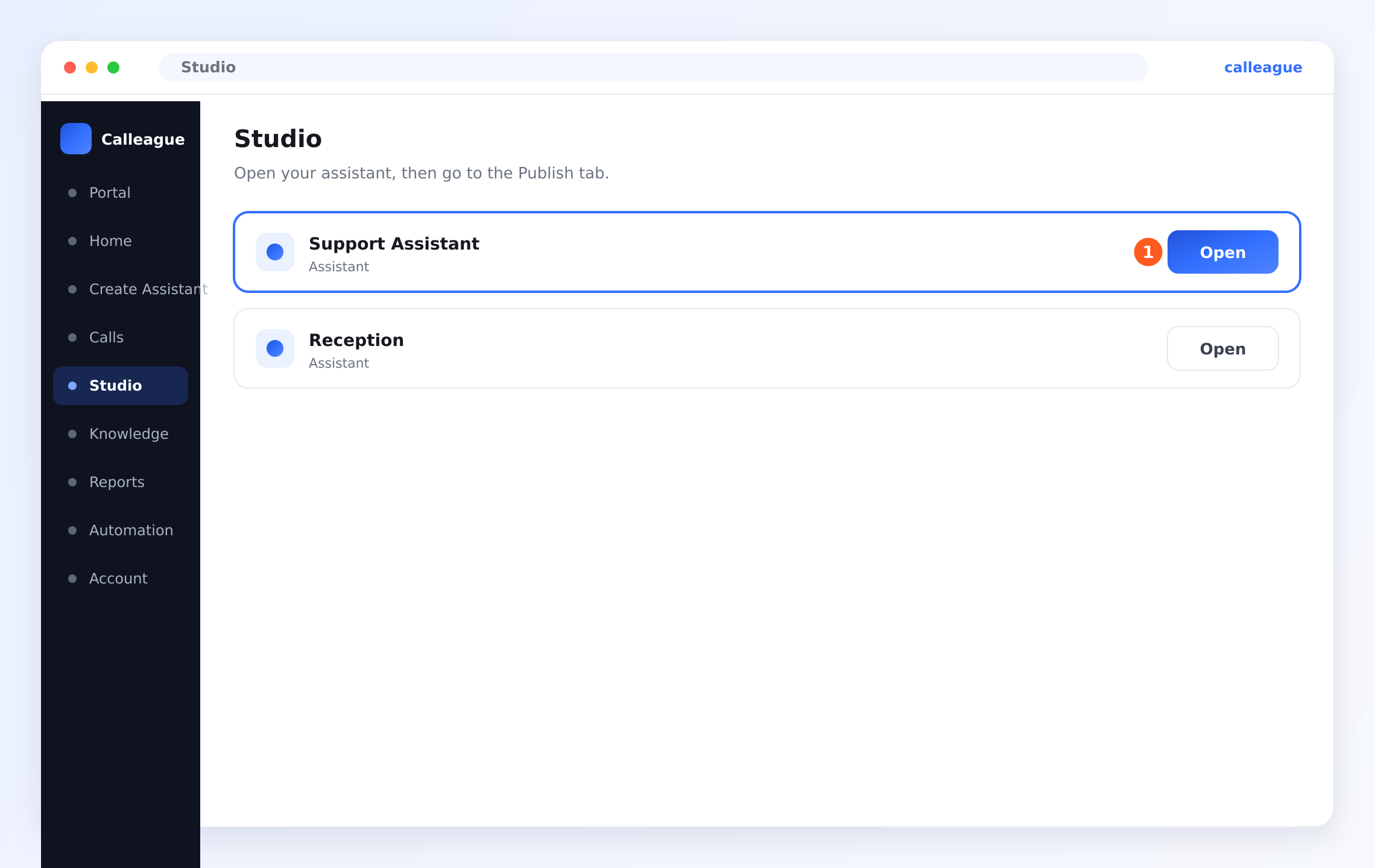
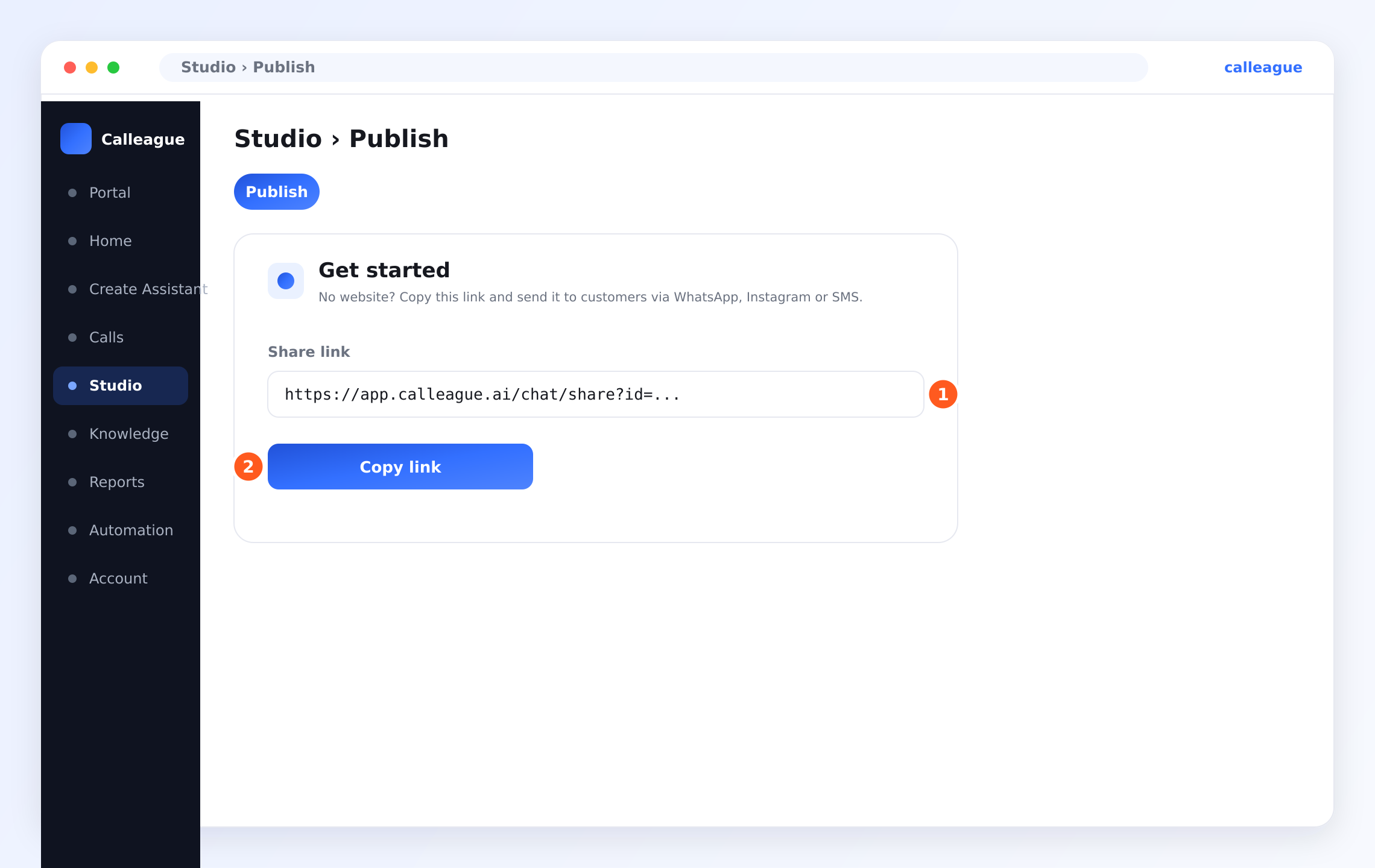
No website? No problem. Your customers don't need a website to talk to your assistant — a Share Link is enough. Open Studio from the left menu (on a phone, tap the three horizontal lines ☰ menu at the top left), press Open on your assistant's row, switch to the Publish tab, and in the Get started box find the Share Link (①) and tap Copy link (②) just below it. Then open WhatsApp → go to a chat → long-press the message field and tap Paste → Send. (You can also put the link in your Instagram bio or send it in a DM/message.) When your customer taps the link, they start talking to your assistant.
Picture the inbox like the call log on a phone, but smarter: it also tells you which assistant answered and how each call turned out.
What you'll do here
Open Calls from the left menu, read the list (Caller, Assistant, Time, Status), spot a call in progress, and click any call to see its details.
Open and read your inbox
Open the Calls screen
In the left menu, click Calls. (If you're on a phone, this menu is behind the ☰ button at the top left — three horizontal lines, i.e. the menu; tap that first.) You can also reach it from the Calls & Inbox card on Overview (the main screen you land on after signing in) by clicking Open inbox.
You'll see your inbox (titled Calls (Inbox)), with Calls highlighted in the menu so you know where you are.
Read the list
The call list fills the middle of the page — that's exactly where the orange ① marker points. Each row is one call, and the four columns tell you everything at a glance.
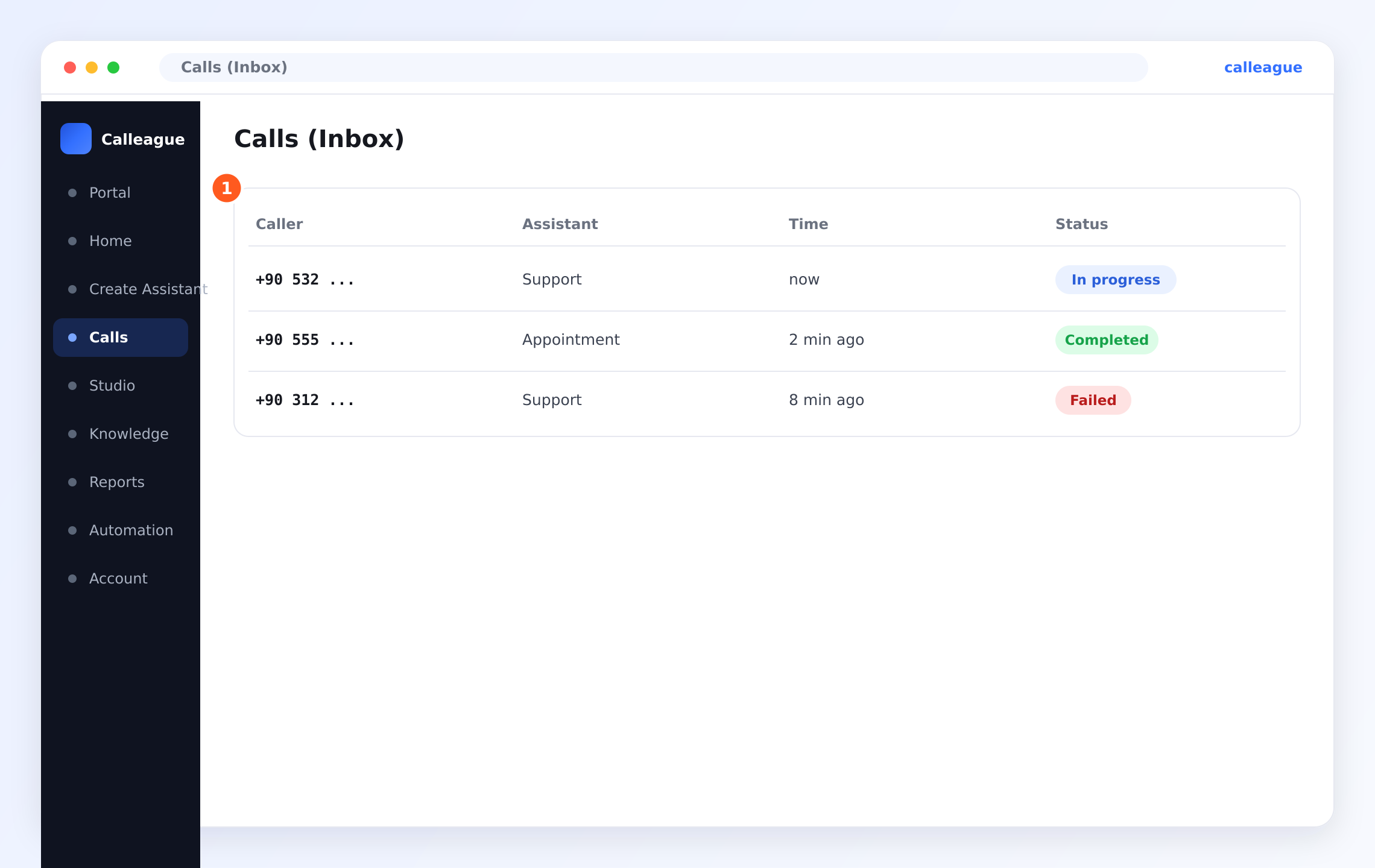
You'll see four columns: Caller (the phone number that called), Assistant (which assistant answered, e.g. Support or Appointment), Time (how long ago the call happened, e.g. now or 2 min ago), and Status (what stage the call is at).
For example, the list above shows a still-running call from +90 532… that Support answered now (blue), a call from +90 555… that Appointment finished 2 min ago (green), and a call from +90 312… that couldn't be answered 8 min ago (red).
Check the status of each call
The Status badge on the right (a small coloured status label) tells you what stage the call is at. There are three:
- In progress (blue) — the call is happening right now, the caller is on the line.
- Completed (green) — the call finished normally.
- Failed (red) — the call couldn't be completed; usually because the caller hung up before connecting.
Look at the call's outcome
When each call ends, the assistant automatically gives it an outcome label (a short note summarising how the call turned out). There are three:
- Booked — an appointment or reservation was made.
- Resolved — the caller's question was answered and the matter is done.
- Unresolved — a call that isn't finished yet and is waiting for you to look at it.
This label lets you see which calls are waiting for you without listening to dozens of them one by one.
Click a call to see its details
Click any row to open that call in full. You can follow an in-progress call as it happens, or read what was said on a finished one.
You'll go to the Call detail page, where you'll find the conversation transcript (the conversation written out word for word), the audio recording, and a short summary. That page is covered in Read a call.
The list updates on its own. When a new call comes in, it appears at the top with an In progress badge — no need to refresh the page.
On a new account this list is empty — that's normal. The first real call will make a row appear by itself. To try it right now: call the number you connected from your own mobile phone; within a few seconds the call shows up in the list.
Reading the columns
| Column | What it shows | Example |
|---|---|---|
| Caller | The phone number that called (or that you called) | +90 532 … |
| Assistant | Which assistant handled the call | Support, Appointment |
| Time | How long ago the call happened | now, 2 min ago, 8 min ago |
| Status | The stage of the call | In progress, Completed, Failed |
Filtering calls
As your list grows, you can narrow it with filters (options that limit the list to certain calls). If you work as a team, you'll usually want to separate:
- Mine — only calls assigned to you.
- Unassigned — calls not yet given to anyone.
- Everyone — calls from all your teammates.
- Follow-up due — calls that need a callback and whose follow-up time has come.
The newest calls are always at the top of the list.
Watching a call in progress
An In progress badge means a caller is on the line with your assistant right this second. Click that row to open it and follow the conversation as it unfolds. This is handy for a clinic keeping half an eye on booking calls during a busy morning — your assistant does the talking while you simply watch.
A Failed call usually means the caller hung up before connecting, or rang outside the hours your assistant answers. It's worth a quick look so you can call the person back if needed.
If something looks different
| What you see | Why it might happen | What to do |
|---|---|---|
| The list is empty | No calls have come in yet, or your assistant has no phone number | Connect a number under Account → Voice Calls, then call that number from your own phone |
| No In progress calls ever appear | No number is connected, or the assistant isn't set to answer incoming calls | Check the number is connected and assigned to the assistant — see Connect a phone number |
| A call shows as Failed | The caller hung up early or rang when the assistant wasn't answering | Open the row and call the person back if you can |
| Clicking a row does nothing | The page is still loading | Wait a moment and click again, or refresh the page |
| The time looks wrong | This column shows how long ago a call happened, not a clock time | Open the call to see its full date and time |
Frequently asked questions
Next steps
Read a call
Open one call to see the transcript, recording, summary, and outcome.
Recordings & privacy on calls
Turn call recording on or off and stay on the right side of the rules.
Connect a phone number
Let your assistant answer real phone calls.
Languages & voices
32 languages including Turkish, and how to choose a voice.
Need a hand? Reach us at info@arpanet.com.tr or via calleague.ai — we're happy to help.
Last Updated