
Recordings & privacy on calls
Find your recordings inside each call, turn recording on or off, and keep callers informed the way KVKK and GDPR expect.
Sometimes it helps to keep a recording of a call — to check a detail later, train your team, or simply have a record. Calleague keeps each recording right inside the call it belongs to, lets you turn recording on or off, and keeps your audio private and protected.
An accountancy firm might record calls to double-check figures clients mention by phone. A clinic might prefer not to record at all. You decide — and you can change your mind any time.
What you'll do here
Open a call to find and play its recording, turn recording on or off for your assistant, and learn how to keep callers informed as the rules require.
Where your recordings live
Every recording sits inside the call it belongs to, on the Call detail page — so the audio and the written conversation are always together.
Open a call from your inbox
On the Calls (Inbox) screen, click the call you want. The Call detail page opens.
You'll see the conversation transcript and, below it, the recording.
Find the recording
Look just below the transcript for the ② Recording bar — it shows a play button and the call length, for example Recording · 00:42.
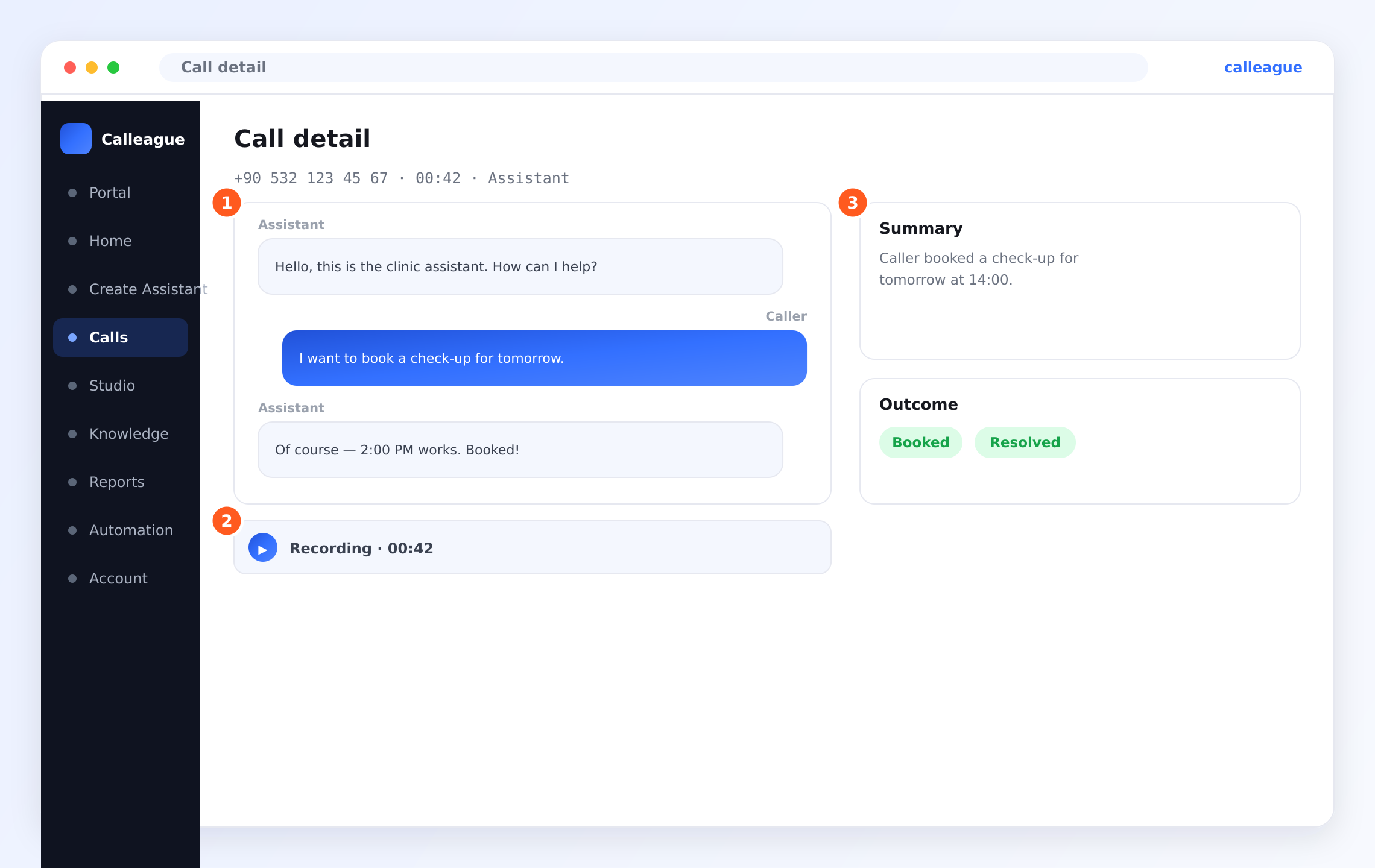
You'll see the recording ready to play. If there's no recording bar, recording was turned off for that call.
Press play
Click the play button to listen to the call right there in your browser — no download needed.
You'll hear the call play back. Alongside it, the written transcript lets you skim or jump to the part you need.
Because the recording and the transcript live together, you can either listen to the audio or read the conversation — whichever is quicker for you that day.
Turning recording on or off
Recording is a simple on/off choice on your assistant. When it's on, calls are recorded and the audio appears on each Call detail page. When it's off, you still get the written transcript and summary — just no audio.
Open your assistant
From the left menu, click Create Assistant to open the assistant you want to change (or open it from your list).
You'll see your assistant's settings.
Find the call recording setting
Look for the clearly labelled recording on/off switch in the assistant's settings.
You'll see whether recording is currently on or off.
Choose on or off, then save
Switch it on to keep recordings, or off if you'd rather not store audio, then save.
You'll see your choice applied to calls from then on. You stay in control — switch it back any time.
| Setting | What it does | Notes |
|---|---|---|
| Call recording | Turns audio recording on or off for the assistant | Off means no audio is stored; you still get a transcript and summary |
| Greeting mention | A line in your greeting that tells callers about recording | Strongly recommended, and often required |
| Who can listen | Which teammates can play recordings | Set through team roles — see Account & team |
Please tell callers they're being recorded
This matters. In many places — including Türkiye — you must let people know when a call is being recorded, and recording should respect their consent.
- Mention recording in your assistant's greeting, so the caller knows before the conversation begins. For example: "This call may be recorded to help us serve you better."
- Respect the caller's wishes — only record when it's fair and lawful to do so.
- Keep recordings only as long as you genuinely need them, then let them go.
Letting callers know isn't just polite — it's the law. Calleague follows KVKK (Türkiye) and GDPR. Before you record live calls, make sure your greeting tells callers about recording, especially when you're the one making the call.
Example: a small accountancy firm
The firm records calls so it can double-check figures clients mention by phone. Their greeting says: "Welcome to Demir Accountancy. This call may be recorded for accuracy." Only the two partners can listen back, and they keep recordings only as long as they need. Simple, fair, and on the right side of the rules.
Your recordings are kept safe
Your recordings are private and protected. They're locked away securely, so they can't be played by anyone who shouldn't reach them. Only you and the teammates you allow can listen — you control that through team roles.
| Who | What they can do | Set where |
|---|---|---|
| Owner / admin | Listen and manage recordings | Team settings |
| Team members you allow | Listen to calls they're permitted to see | Roles in team settings |
| Everyone else | No access at all | — |
If something looks different
| What you see | Why it happens | What to do |
|---|---|---|
| A call has no recording bar | Recording was switched off when the call happened | Turn recording on; it applies to calls from then on |
| The recording won't play | A brief connection hiccup in your browser | Refresh the page and press play again |
| A teammate can't hear recordings | Their role doesn't include recording access | Update their role in team settings — see Account & team |
| You want a recording removed | You no longer need it, or a caller asked | Remove it, or write to us to have it removed |
Frequently asked questions
Next steps
Read a call
The transcript, summary, and outcome that sit beside the recording.
See your calls
Back to the inbox of incoming and recent calls.
Privacy & security
How your data is kept safe and private.
Account & team
Set who on your team can listen to recordings.
Need a hand? We're happy to help at info@arpanet.com.tr.
Last Updated
Languages & voices
Your assistant speaks and understands 32 languages, including Turkish and English, and can even switch language mid-call.
Knowledge base
Teach your assistant about your business — connect a website or upload a document or a photo of your menu, so it answers from your own information, in your own words. No website needed.