
Bir çağrıyı incele
Bir çağrıyı aç; kimin ne söylediğini gör, kaydı dinle, yapay zekânın (AI) hazırladığı özeti oku ve çağrının nasıl sonuçlandığını gör.
Başlamadan önce. Bu sayfa, asistanınız en az bir çağrı aldıktan sonra işinize yarar. Önce şunlar gerekir: hesabınıza giriş yapmış olmak, bir asistan oluşturmuş olmak ve bir telefon numarası bağlayıp en az bir çağrı almış olmak. Bunları henüz yapmadıysanız Başlangıç rehberinden adım adım ilerleyin (giriş yapma dâhil her şey orada anlatılıyor). Yeni bir hesapta bu sayfa ve gelen kutunuz boş görünür — ilk çağrı gelene kadar bu son derece normaldir.
Gelen kutunuzdan bir çağrıyı açtığınızda tüm hikâyeyi tek sayfada görürsünüz: konuşmanın kelimesi kelimesine yazıya dökülmüş hâli (buna döküm denir), geri dinleyebileceğiniz ses kaydı, kısa bir özet ve çağrının nasıl sonuçlandığı. Bir ayrıntıyı kontrol etmek, bir soruyu çözmek ya da asistanınızı nasıl daha iyi yapacağınızı öğrenmek için en iyi yer burası.
Bir klinik, arayanın istediği tarih ve saati doğrulamak için bir randevu çağrısını açabilir. Bir mağaza, ne sipariş edildiğini bir kez daha kontrol etmek için sipariş çağrısını açabilir. Hiçbir şey kaybolmaz — hepsi yazılı.
Burada neler yapacaksınız
Gelen kutunuzdan bir çağrı açın, dökümü okuyun (kim ne söyledi), kaydı dinleyin, sonra çağrının nasıl geçtiğini görmek için kısa özeti ve sonucu okuyun.
Bir çağrıyı açın ve okuyun
Gelen kutunuzdan bir çağrı açın
Soldaki menüden (telefonda sol üstte üç yatay çizgi ☰ menü düğmesine dokunun) Aramalar'a (gelen kutunuz) tıklayın, sonra listede herhangi bir satıra tıklayın. Çağrı detayı sayfası açılır; arayanın numarası, çağrının ne kadar sürdüğü ve çağrıyı hangi asistanın yürüttüğü en üstte yazar.
Bilgisayarda sayfa ikiye bölünür: solda konuşma, sağda kısa bir özet. Telefonda ekran dar olduğu için konuşma ve özet alt alta görünür — aşağı kaydırarak ikisini de görürsünüz.
Dökümü okuyun
① döküm (konuşmanın yazıya dökülmüş hâli), kimin ne söylediğini satır satır gösterir. Asistan satırları solda, Arayan (telefondaki kişi) satırları sağda, söylenme sırasına göre dizilir.
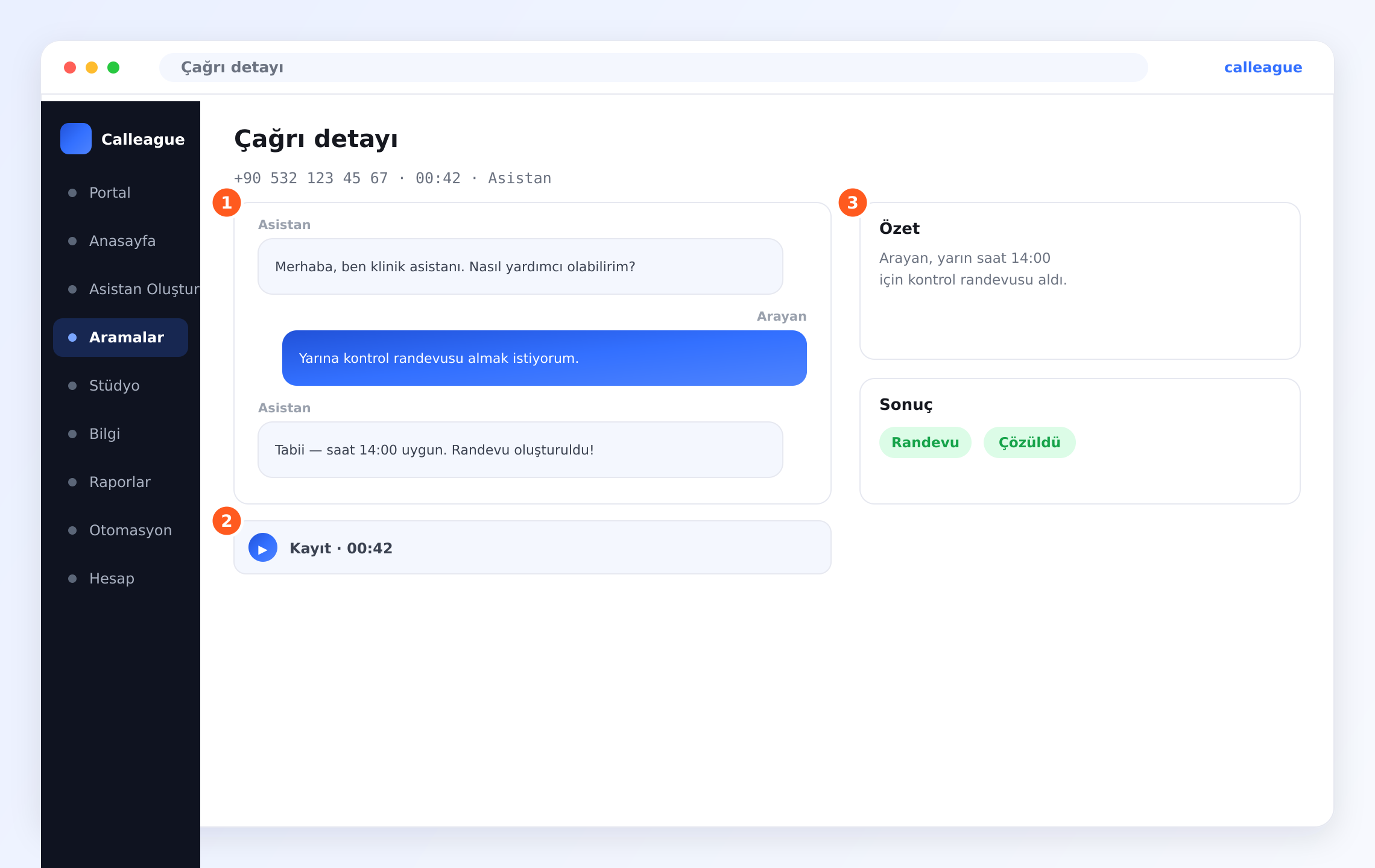
Konuşmanın gidiş gelişini görürsünüz. Örnekte Asistan "Merhaba, ben klinik asistanı. Nasıl yardımcı olabilirim?" der; Arayan "Yarına kontrol randevusu almak istiyorum." diye yanıtlar; asistan da "Tabii — saat 14:00 uygun. Randevu oluşturuldu!" diyerek onaylar.
Kaydı dinleyin
Dökümün altında bir oynat düğmesi ve çağrı süresiyle birlikte (ör. Kayıt · 00:42) ② Kayıt çubuğu vardır. Çağrıyı dinlemek için oynat düğmesine basın.
Çağrının sesi olduğu gibi çalınır — uygulamanın içinden, hiçbir şey indirmeden dinlersiniz. (Kayıt çubuğunu hiç görmüyorsanız, o çağrı için kayıt kapalıydı; bkz. Kayıtlar ve çağrı gizliliği.)
Özeti ve sonucu okuyun
Sağda (telefonda biraz aşağıda) ③ Özet, çağrıyı bir iki cümleyle anlatır. Hemen altında, ayrı bir numarası olmayan Sonuç kutusu, çağrının nasıl bittiğini renkli etiketlerle gösterir.
Örnekte "Arayan, yarın saat 14:00 için kontrol randevusu aldı." gibi bir özet ve Randevu ile Çözüldü gibi sonuç etiketleri görürsünüz — böylece her satırı okumadan ne olduğunu anlarsınız.
Özet ve sonuç, her çağrıdan sonra sizin için otomatik yazılır. Yoğun bir günün çağrılarını saniyeler içinde göz gezdirip yalnızca daha yakından bakmanız gerekenleri açabilirsiniz.
Her parça size ne anlatır
| Parça | Ne gösterir | Neden işine yarar |
|---|---|---|
| Döküm | Arayan ve Asistan olarak etiketli, satır satır tüm konuşma | Tam olarak ne söylendiğini ve ne sözü verildiğini kontrol edin |
| Kayıt | Oynat düğmesiyle çağrı sesi | Ses tonunu duyun ya da okuyamadığınız bir ayrıntıyı doğrulayın |
| Özet | Kısa, sade dille bir özet | Çağrıyı bir bakışta anlayın |
| Sonuç | Randevu, Çözüldü ya da Açık gibi etiketler | Hepsini okumadan çağrının nasıl bittiğini görün |
Sonuç etiketleri ne demek? Randevu = bir randevu ya da kayıt oluştu. Çözüldü = arayanın işi tamam, ilgilenilmesi gereken bir şey kalmadı. Açık = henüz tamamlanmadı, sonradan dönmen gerekebilir. Etiketi asistanınız otomatik koyar.
Bunu asistanınızı geliştirmek için kullanın
Gerçek çağrıları okumak, asistanınızı daha iyi yapmanın en hızlı yoludur. Dökümlere göz gezdirirken kalıplar arayın:
- Takıldığı bir soru — doğru yanıtı asistanınızın yönergesine (asistanınıza verdiğiniz kısa talimatlar) ya da bilgi tabanına (asistanınızın okuyup öğrendiği bilgiler) ekleyin ki bir dahaki sefere doğru yapsın.
- Arayanların sürekli sorduğu bir ayrıntı — otopark ya da fiyat gibi — bunun bilgi tabanında yer aldığından emin olun.
- Bir insana aktarılması gereken bir çağrı — aktarma (asistanınızın çağrıyı gerçek bir kişiye devretmesi) kuralını sıkılaştırın.
- Çok iyi bir yanıt — o ifadeyi başka yerlerde de kullanın.
Asistanınızı güncellemek için yol şu: soldaki menüden (telefonda sol üstte üç yatay çizgi ☰ menü düğmesine dokunun) Asistan Oluştur'a girin, asistanınızı açın ve Eğit adımında yeni bilgi ekleyin ya da yönergenizi düzenleyin. Adım adım anlatımı İlk asistanını oluştur sayfasında bulursunuz.
Küçük bir alışkanlık çok şey kazandırır: her hafta birkaç çağrıya göz gezdirin, geliştirilecek bir şey not edin ve asistanınızı güncelleyin. Birkaç küçük dokunuş, iyi bir asistanı harika bir asistana dönüştürür.
Takipler ve notlar
Her çağrı yazıya döküldüğü ve özetlendiği için Çağrı detayı sayfası, takibiniz için bir kayıttır. Geri arama gerektiren bir çağrı mı gördünüz? Açın, arayanın ne istediğini dökümden ya da özetten okuyun ve tam olarak neye ihtiyacı olduğunu bilerek geri arayın. Çağrıyı açtığınızda, kendinize kısa bir takip notu bırakma ya da çağrıyı bir takım arkadaşınıza aktarma seçeneklerini de görebilirsiniz. Takibinizin otomatik olmasını mı istiyorsunuz — örneğin her randevudan sonra bir mesaj? Bkz. Otomasyon (kendiliğinden çalışan hazır kurallar — yeni başlayan için şart değil).
Bir şey farklı görünüyorsa
| Ne görüyorsunuz | Neden olabilir | Ne yapmalısınız |
|---|---|---|
| Hiç çağrı yok, liste boş | Yepyeni bir hesap; henüz çağrı gelmedi | Bir numara bağlayıp test çağrısı yapın — bkz. Telefon numarası bağla |
| Kayıt çubuğu yok | O çağrı için kayıt kapalıydı | Gelecek çağrılar için kaydı açın — bkz. Kayıtlar ve çağrı gizliliği |
| Kayıt oynatılmıyor | Kısa bir bağlantı aksaması olabilir | Sayfayı yenileyin ve tekrar oynat'a basın |
| Döküm kısa görünüyor | Çok kısa bir çağrıydı ya da arayan erken kapattı | Çağrıyı anlamak için Sonuç ve süreye bakın |
| Henüz özet yok | Çağrı yeni bitti | Bir an bekleyip yenileyin; özetler çağrıdan hemen sonra belirir |
| Dökümdeki bir kelime hatalı görünüyor | Arka plan gürültüsü ya da alışılmadık bir isim | Gerçekte ne söylendiğini duymak için kaydı dinleyin |
Sık sorulan sorular
Sonraki adımlar
Kayıtlar ve çağrı gizliliği
Kaydı aç/kapat ve arayanları bilgilendir.
Çağrılarını gör
Gelen ve son çağrıların gelen kutusuna dön.
İlk asistanını oluştur
Öğrendiklerini asistanının yönergesini ve bilgisini geliştirmek için kullan.
Otomasyon
Her çağrıdan sonra otomatik bir takip gönder.
Yardıma mı ihtiyacınız var? info@arpanet.com.tr adresinden memnuniyetle yardımcı oluruz.
Son güncelleme