
Çağrılarınızı görün
Gelen kutunuzu tek bakışta okuyun — kim aradı, hangi asistan yanıtladı, ne zaman oldu ve çağrı devam mı ediyor, tamamlandı mı, başarısız mı oldu.
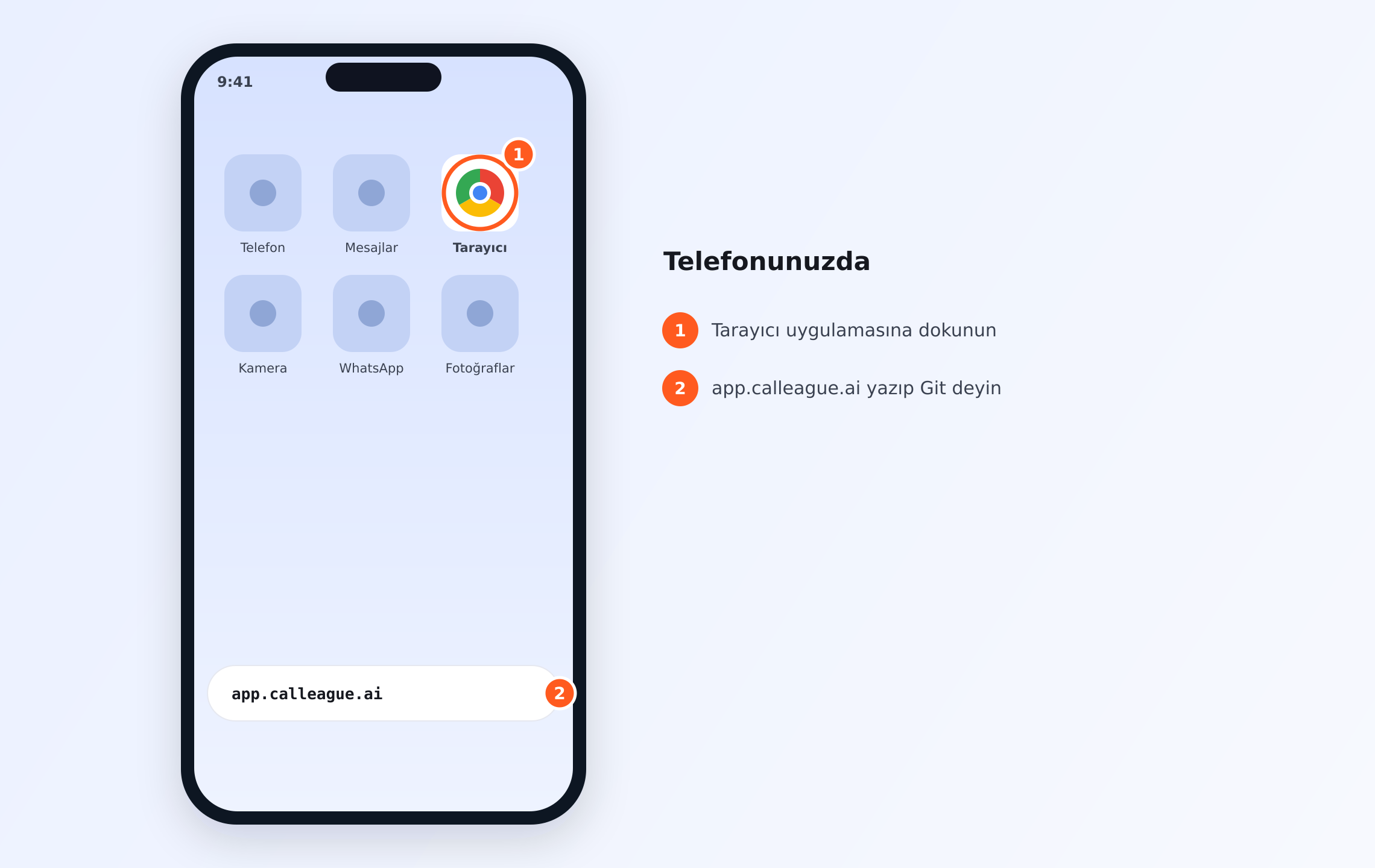
Henüz giriş yapmadınız mı? Telefonunuzda Tarayıcı uygulamasına dokunun (①), adres çubuğuna app.calleague.ai yazıp Git deyin (②).
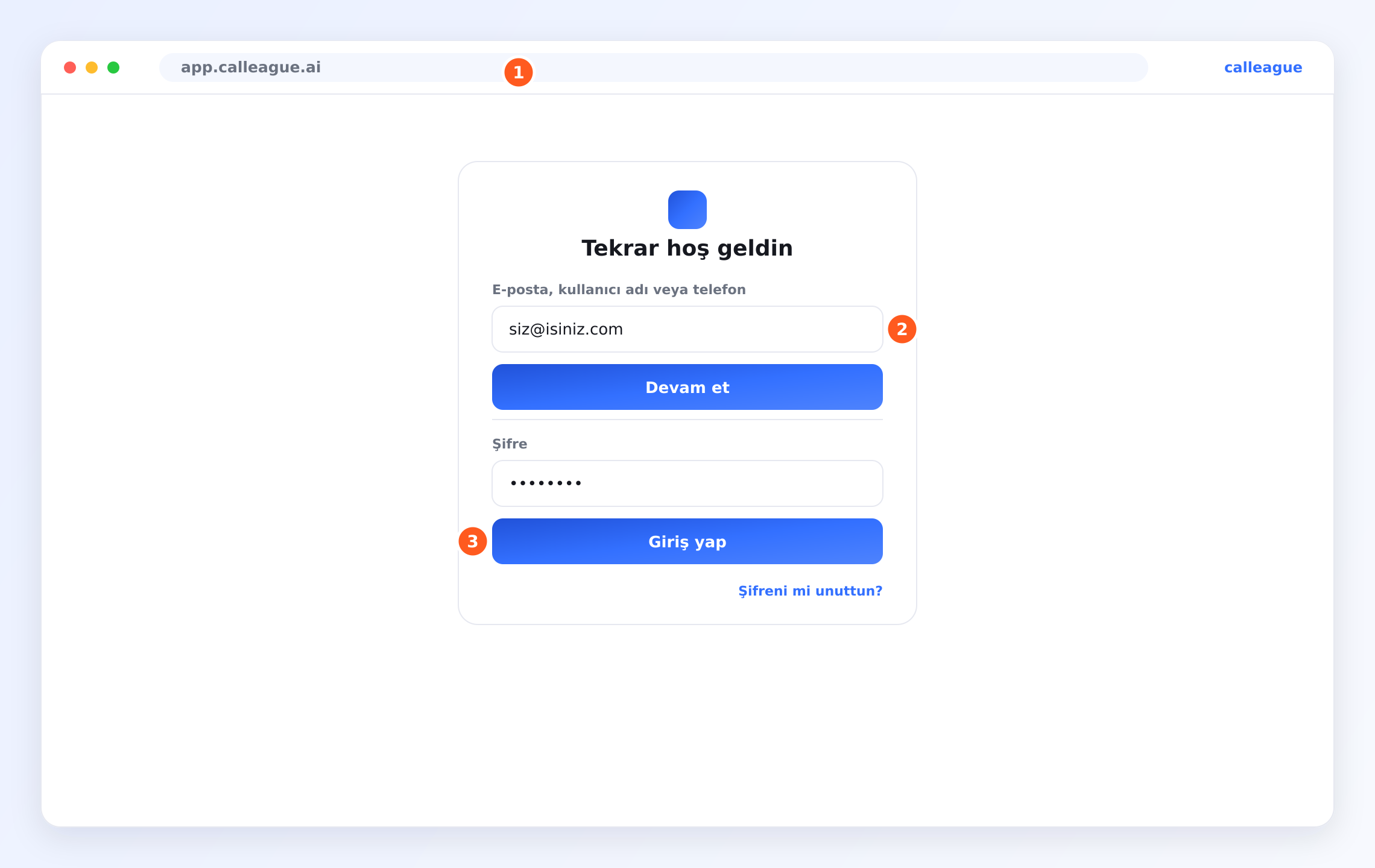
Açılan giriş ekranında E-postanı yaz, Devam et'e bas; sonra Şifre alanına şifreni yaz, Giriş yap'a bas (giriş ekranı bu görseldeki gibidir). Adım adım anlatım için Başlangıç'a bakın.
Asistanınızın (sizin yerinize müşterilerle konuşan ve telefona çıkan yapay zekâ — AI — yardımcınız) yürüttüğü her telefon çağrısı tek bir düzenli listede toplanır: Aramalar (Gelen Kutusu) ekranı. Telefonda neler olduğunu buradan, hiçbir şey yenilemeden ya da arayıp sormadan takip edersiniz — şu an süren çağrılar, biten çağrılar ve yanıtlanamayanlar, hepsi tek sayfada.
Önce şunlar gerekir. Bu listede çağrı görebilmeniz için (1) bir asistanınız olmalı, (2) ona bir telefon numarası bağlanmış olmalı (sol menüden Hesap'a girin — telefonda bu menü sol üstteki üç yatay çizgi ☰ düğmesinin arkasındadır — açılan sayfada Sesli Aramalar bölümünü açıp numara bağlayın) ve (3) o numarayı en az bir kişi aramış olmalı. Henüz bunları yapmadıysanız liste boş görünür — bu tamamen normaldir. Adım adım kurulum için Başlangıç rehberine, özellikle İlk asistanınızı oluşturun ve Telefon numarası bağlayın sayfalarına bakın.
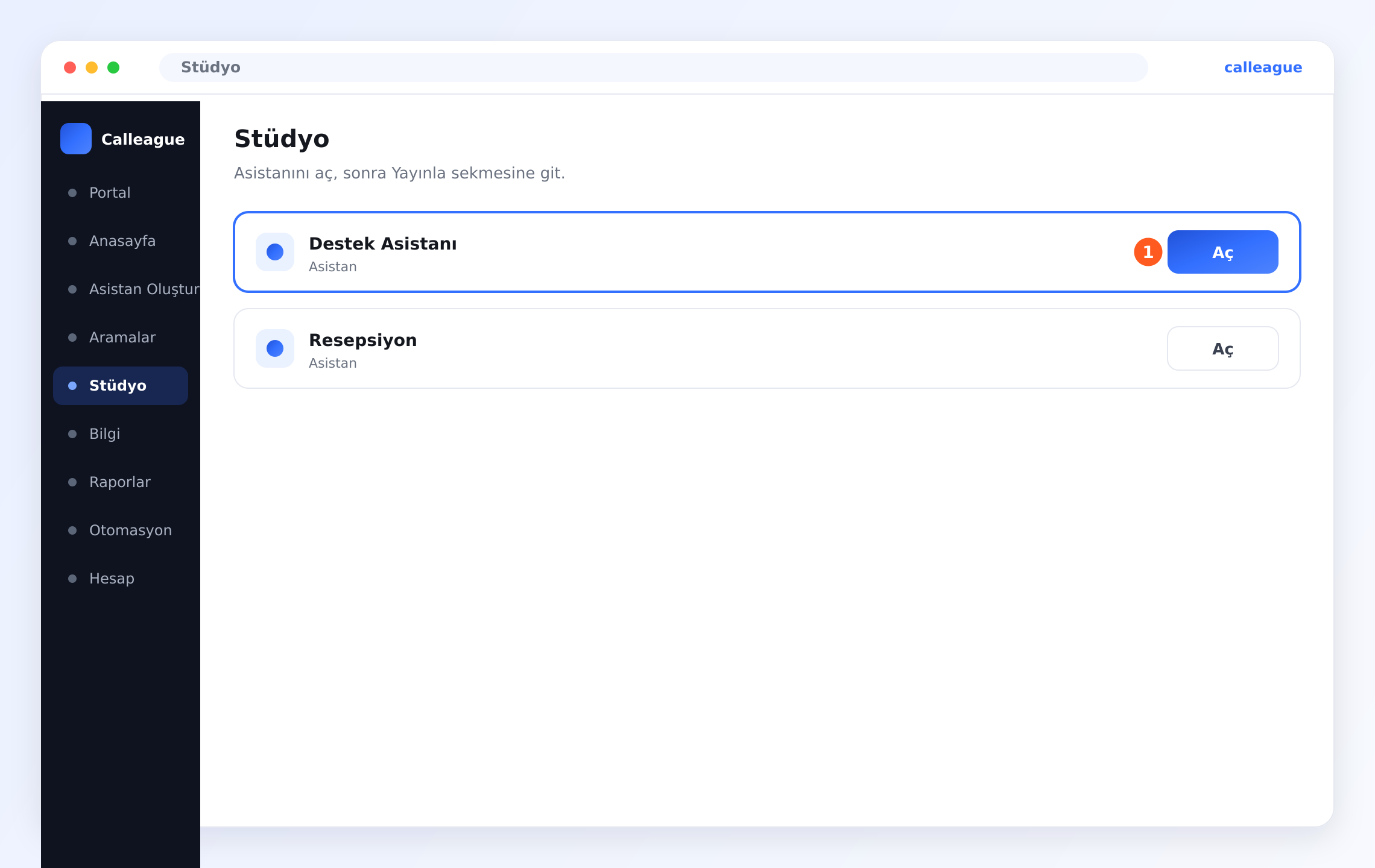
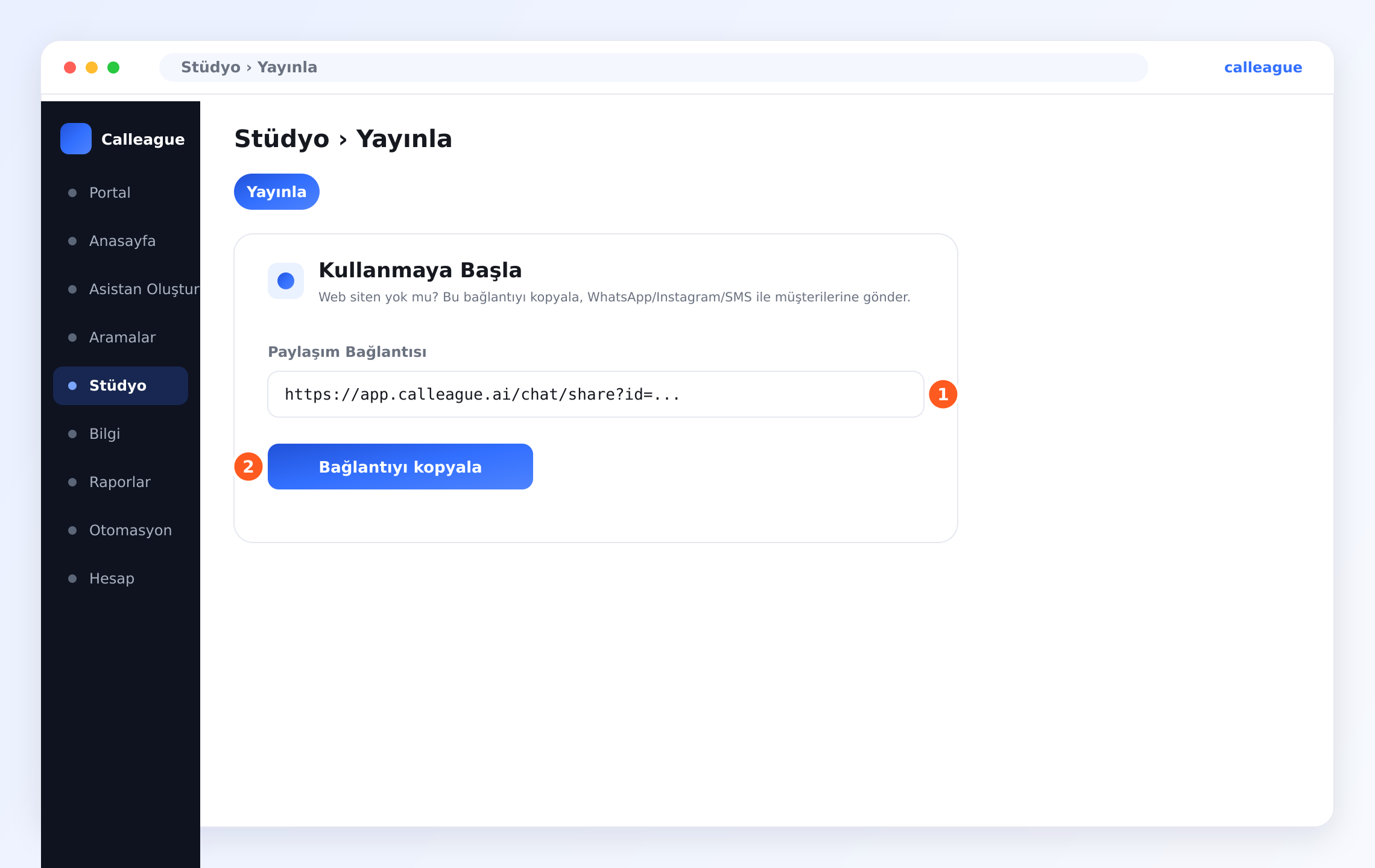
Web siteniz yok mu? Sorun değil. Müşterilerinizin asistanınızla konuşması için web sitesine gerek yoktur — bir Paylaşım Bağlantısı yeterlidir. Sol menüden Stüdyo'ya girin (telefonda sol üstte üç yatay çizgi ☰ menüsüne dokunun), asistanınızın satırındaki Aç düğmesine basın, Yayınla sekmesine geçin ve Kullanmaya Başla kutusunda Paylaşım Bağlantısı'nı (①) bulup hemen altındaki Bağlantıyı kopyala (②) düğmesine dokunun. Ardından WhatsApp'ı açın → bir sohbete girin → mesaj alanına uzun basıp Yapıştır deyin → Gönder. (İsterseniz Instagram'da bağlantıyı profil biyografi linkine koyabilir ya da bir DM/mesajda gönderebilirsiniz.) Müşteriniz bağlantıya dokununca asistanınızla konuşmaya başlar.
Gelen kutusunu bir telefonun arama kaydı gibi düşünün, ama daha akıllısı: hangi asistanın yanıtladığını ve her çağrının nasıl sonuçlandığını da söyler.
Burada neler yapacaksınız
Sol menüden Aramalar'ı açın, listeyi okuyun (Arayan, Asistan, Zaman, Durum), devam eden bir çağrıyı fark edin ve ayrıntılarını görmek için herhangi bir çağrıya tıklayın.
Gelen kutunuzu açın ve okuyun
Aramalar ekranını açın
Sol taraftaki menüden Aramalar'a tıklayın. (Telefondan kullanıyorsanız bu menü sol üstteki ☰ düğmesinin — üç yatay çizgi, yani menü — arkasındadır; önce ona dokunun.) İsterseniz Anasayfa (giriş yaptığınızda açılan ana ekran) üzerindeki Çağrılar & Gelen Kutusu kartından Gelen kutusunu aç'a da tıklayabilirsiniz.
Karşınıza Aramalar (Gelen Kutusu) ekranı gelir; menüde Aramalar vurgulanır, böylece nerede olduğunuzu bilirsiniz.
Listeyi okuyun
Sayfanın ortasını çağrı listesi doldurur — turuncu ① işaretinin gösterdiği yer tam burasıdır. Her satır bir çağrıdır ve dört sütun her şeyi bir bakışta anlatır.
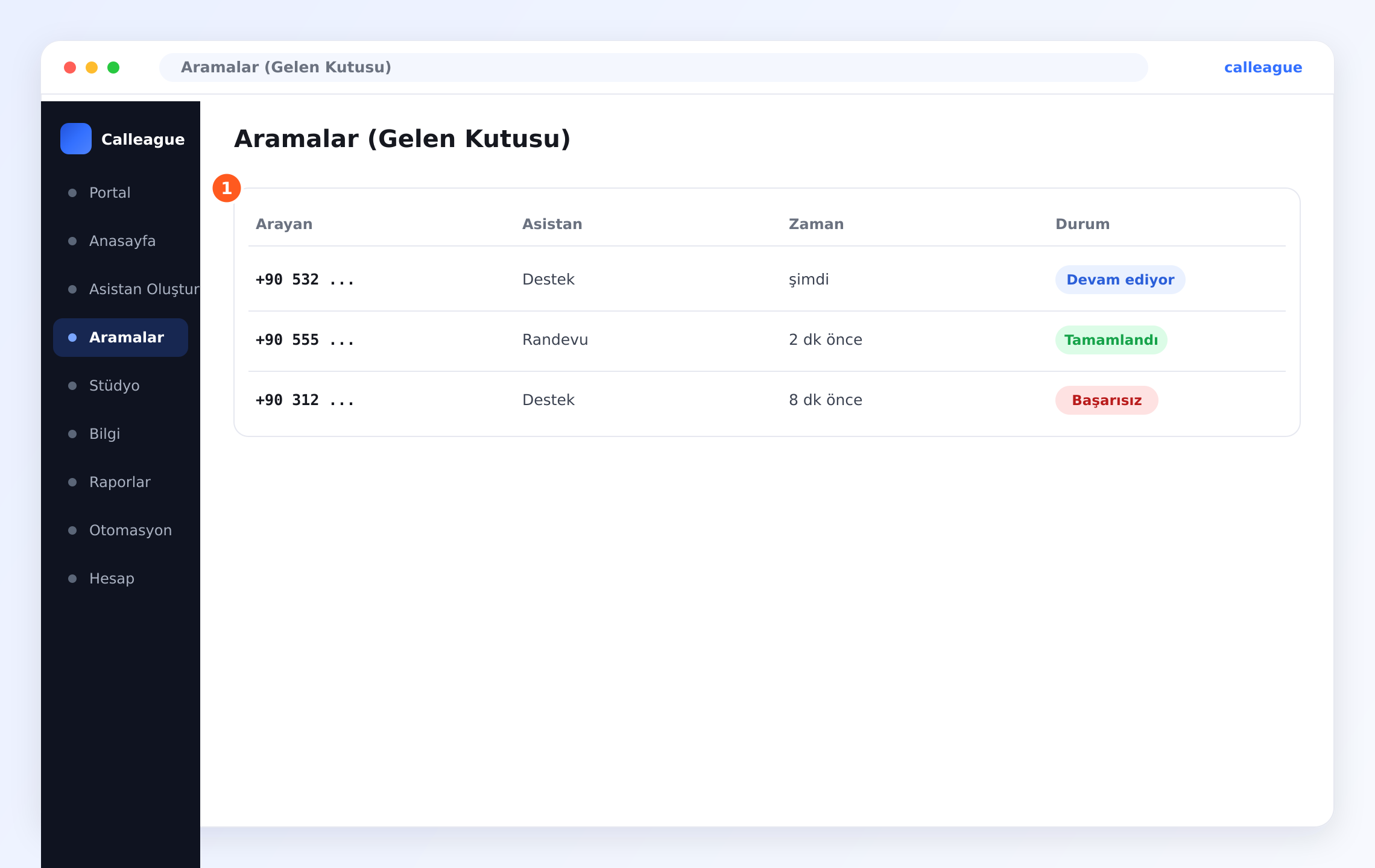
Dört sütun görürsünüz: Arayan (arayan telefon numarası), Asistan (çağrıyı hangi asistanın yanıtladığı, ör. Destek veya Randevu), Zaman (çağrının ne kadar önce olduğu, ör. şimdi veya 2 dk önce) ve Durum (çağrının hangi aşamada olduğu).
Örneğin yukarıdaki listede +90 532… numarasından Destek'in şimdi yanıtladığı, hâlâ süren bir çağrı (mavi), +90 555… numarasından Randevu'nun 2 dk önce bitirdiği bir çağrı (yeşil) ve +90 312… numarasından 8 dk önce yanıtlanamamış bir çağrı (kırmızı) yer alır.
Her çağrının durumunu kontrol edin
Sağdaki Durum rozeti (renkli küçük durum etiketi) çağrının hangi aşamada olduğunu söyler. Üç durum vardır:
- Devam ediyor (mavi) — çağrı şu an sürüyor, arayan hatta.
- Tamamlandı (yeşil) — çağrı normal şekilde bitti.
- Başarısız (kırmızı) — çağrı tamamlanamadı; çoğunlukla arayan bağlanmadan kapattığı için.
Çağrının sonucuna bakın
Asistan, her çağrı bittiğinde ona otomatik olarak bir sonuç etiketi (çağrının ne ile sonuçlandığını özetleyen kısa bir not) koyar. Üç sonuç vardır:
- Randevu — bir randevu ya da rezervasyon alındı.
- Çözüldü — arayanın sorusu yanıtlandı, işi bitti.
- Açık — henüz tamamlanmamış, sizin bakmanızı bekleyen bir çağrı.
Bu etiket, onlarca çağrıyı tek tek dinlemeden hangilerinin sizi beklediğini görmenizi sağlar.
Ayrıntıları görmek için bir çağrıya tıklayın
Herhangi bir satıra tıklayarak o çağrıyı tam haliyle açın. Devam eden bir çağrıyı gerçekleşirken izleyebilir, biten bir çağrıda ise neler konuşulduğunu okuyabilirsiniz.
Çağrı detayı sayfasına geçersiniz; orada konuşmanın dökümünü (konuşmanın kelime kelime yazıya geçmiş hâli), ses kaydını ve kısa bir özeti bulursunuz. Bu sayfa Bir çağrıyı inceleyin bölümünde anlatılır.
Liste kendi kendine güncellenir. Yeni bir çağrı geldiğinde Devam ediyor rozetiyle en üstte belirir — sayfayı yenilemenize gerek yoktur.
Yeni bir hesapta bu liste boştur — bu normaldir. İlk gerçek çağrı geldiğinde satır kendiliğinden belirir. Hemen denemek için: bağladığınız numarayı kendi cep telefonunuzdan arayın; birkaç saniye içinde çağrı listede görünür.
Sütunları okuma
| Sütun | Ne gösterir | Örnek |
|---|---|---|
| Arayan | Arayan (ya da aradığınız) telefon numarası | +90 532 … |
| Asistan | Çağrıyı hangi asistanın yürüttüğü | Destek, Randevu |
| Zaman | Çağrının ne kadar önce olduğu | şimdi, 2 dk önce, 8 dk önce |
| Durum | Çağrının aşaması | Devam ediyor, Tamamlandı, Başarısız |
Çağrıları süzme
Liste büyüdüğünde çağrıları süzgeçlerle (listeyi belirli çağrılara daraltan seçenekler) daraltabilirsiniz. Takımca çalışıyorsanız genellikle şunları ayırmak istersiniz:
- Bende — yalnızca size atanmış çağrılar.
- Atanmamış — henüz kimseye verilmemiş çağrılar.
- Herkes — tüm takım arkadaşlarınızın çağrıları.
- Takip vakti gelen — geri dönülmesi gereken, takip zamanı gelmiş çağrılar.
En yeni çağrılar her zaman listenin en üstündedir.
Devam eden bir çağrıyı izleme
Devam ediyor rozeti, tam şu anda bir arayanın asistanınızla hatta olduğu anlamına gelir. O satıra tıklayıp çağrıyı açabilir ve konuşma ilerledikçe izleyebilirsiniz. Yoğun bir sabahta gelen randevu çağrılarına göz kulak olmak isteyen bir klinik için bu çok işe yarar — asıl konuşmayı asistan yaparken siz yalnızca izlersiniz.
Başarısız bir çağrı genellikle arayanın bağlanmadan kapattığı ya da asistanın yanıt verdiği saatlerin dışında aradığı anlamına gelir. Gerekirse kişiyi geri arayabilmeniz için hızlıca göz atmaya değer.
Bir şey farklı görünüyorsa
| Ne görüyorsunuz | Neden olabilir | Ne yapmalısınız |
|---|---|---|
| Liste boş | Henüz çağrı gelmedi ya da asistanınızın telefon numarası yok | Hesap → Sesli Aramalar altından numara bağlayın, sonra bağladığınız numarayı kendi cebinizden arayın |
| Hiç Devam ediyor çağrı görünmüyor | Numara bağlı değil ya da asistan gelen çağrıları yanıtlamaya ayarlı değil | Numaranın bağlı ve asistana atanmış olduğunu kontrol edin — bkz. Telefon numarası bağlayın |
| Bir çağrı Başarısız görünüyor | Arayan erken kapattı ya da asistanın yanıt vermediği bir anda aradı | Satırı açın ve mümkünse kişiyi geri arayın |
| Bir satıra tıklamak işe yaramıyor | Sayfa hâlâ yükleniyor | Bir an bekleyip tekrar tıklayın ya da sayfayı yenileyin |
| Zaman yanlış görünüyor | Bu sütun saati değil, çağrının ne kadar önce olduğunu gösterir | Tam tarih ve saat için çağrıyı açın |
Sık sorulan sorular
Sonraki adımlar
Bir çağrıyı inceleyin
Bir çağrıyı açıp dökümü, kaydı, özeti ve sonucu görün.
Kayıtlar ve çağrı gizliliği
Çağrı kaydını açıp kapatın ve yasalara uygun kalın.
Telefon numarası bağlayın
Asistanınızın gerçek çağrılara cevap vermesini sağlayın.
Diller ve sesler
Türkçe dâhil 32 dil ve bir ses nasıl seçilir.
Yardıma mı ihtiyacınız var? info@arpanet.com.tr adresinden ya da calleague.ai üzerinden bize ulaşın; memnuniyetle yardımcı oluruz.
Son güncelleme